Investigate an alert with Elevate
This article explains how to open an alert and read the Elevate investigation, including the verdict, confidence score, findings and reasoning questions.
Prerequisites
- Elevate is activated on your workspace or community. See Activate Elevate on a workspace.
- The alert has been analyzed by the Elevate agent. Check the Verdict column in the alert list to confirm the analysis is complete. If the state is In progress or shows an error, see Elevate analysis states.
Open the alert
- Navigate to Investigate > Alerts.
- Select the alert you want to review.
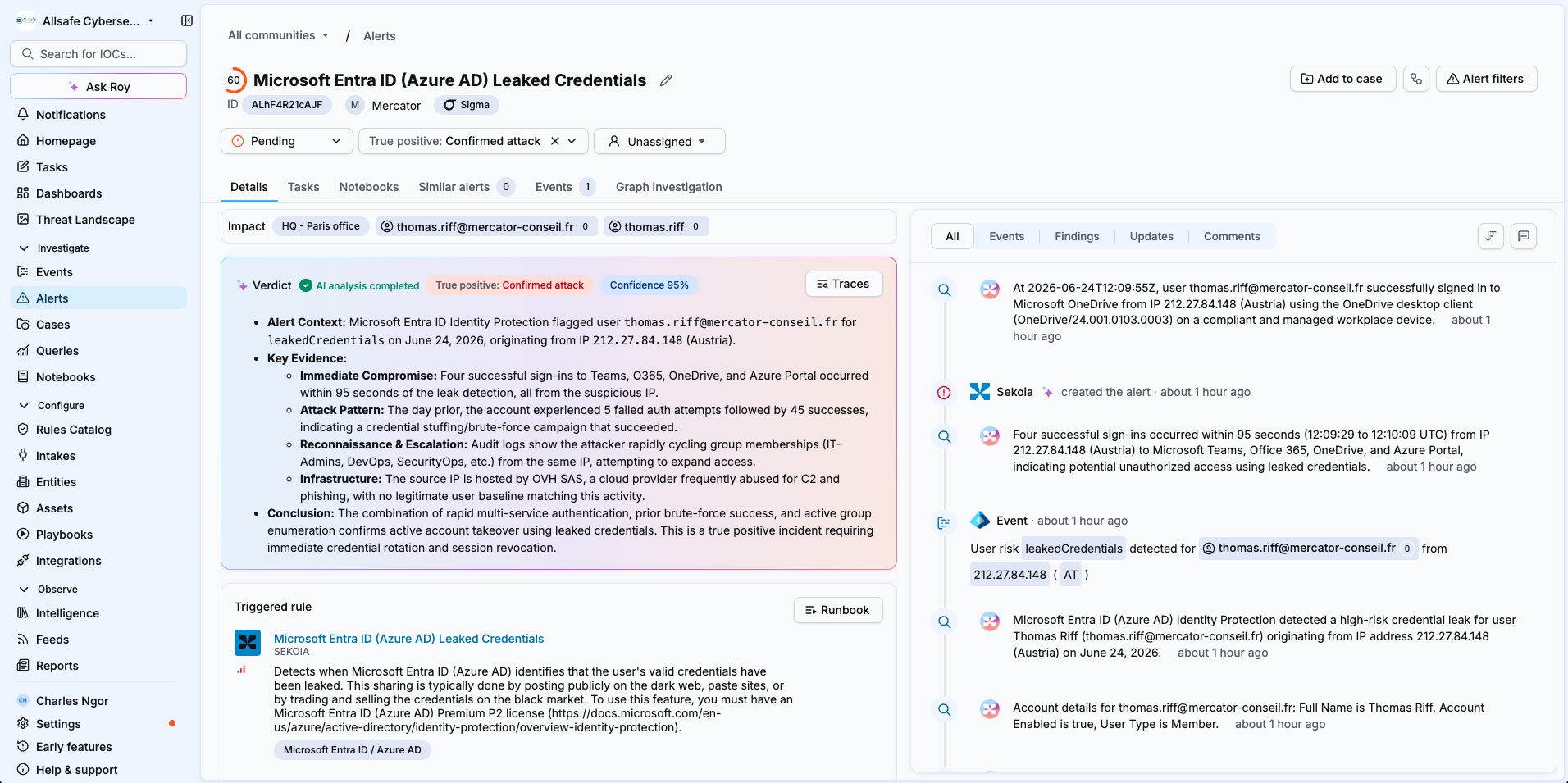
The alert details open with the Elevate investigation: a summary of the outcome and confidence at the top, followed by the findings and the reasoning questions.
Read the verdict
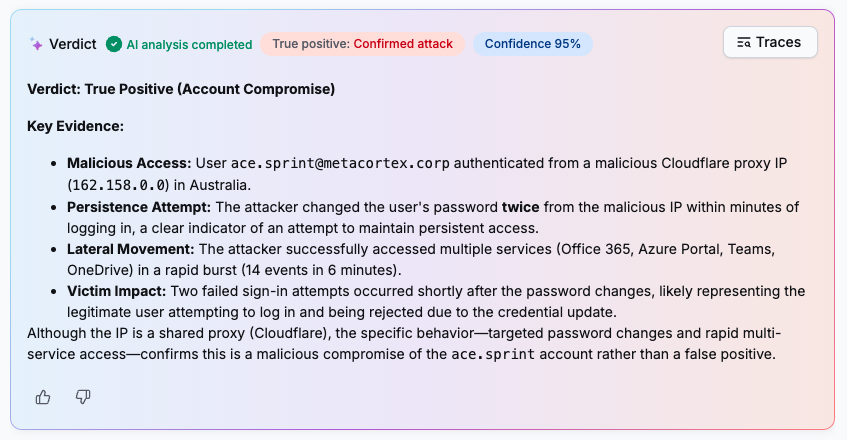
The Verdict section at the top of the alert details contains:
- The classification: True Positive or False Positive
- The confidence score: a percentage expressing the agent's certainty in its conclusion
- A plain-language explanation summarizing the key evidence and reasoning behind the classification
Read the findings
Findings are the individual evidence items the agent collected and evaluated. Each finding is a discrete, verifiable observation drawn from your telemetry.
To review the findings in the alert details:
- Checkout the All section in the right panel.
- Click on entries represented by a "Magnifying glass" icon in the timeline to view the exact query or action the agent executed to reach it.
Consulting the query behind a finding lets you immediately understand and confirm the information. It is also a learning tool: analysts can draw on the way the agents carry out their triage.
Switch to the Findings view
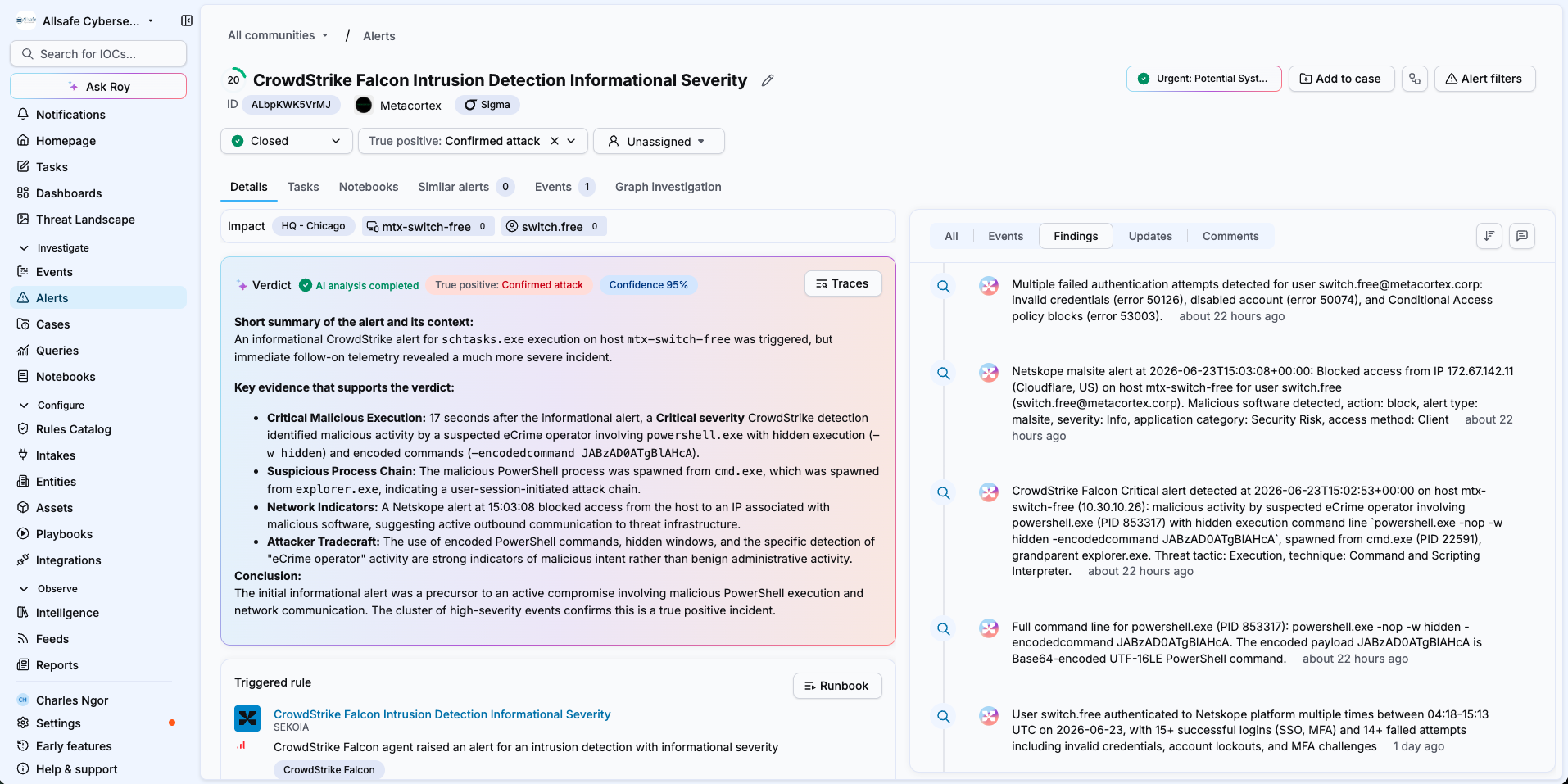
For a quick summary of everything the agent found, switch to the Findings view in the alert details. It lists all the evidence items the agent collected in one place, which helps you quickly understand what is going on.
Discover the reasoning questions
To understand the logic behind the verdict and findings, scroll down to the Reasoning questions section. It shows every line of investigation the agent explored for this alert.
The agent analyzes each question and answers it using the data and tools available in the platform, and each answer contributes to the verdict. Most reasoning questions come from the rule's runbook, and the agent adds its own questions when an alert calls for it. To learn how this method works and how to tune it, see The Elevate investigation method.
Related articles
- The Elevate investigation method: How runbooks, reasoning questions, findings and verdicts work together.
- Override an Elevate verdict: How to override the AI verdict once you have reviewed the investigation.
- Audit an Elevate investigation with Traces: How to review the full timeline of actions the agent performed.
- Elevate analysis states: Reference table of all possible AI analysis states and their meaning.
- Trigger a manual Elevate analysis: How to analyze an alert that was not processed automatically.