Subscriptions
The Subscriptions page gives you a centralized view of the subscriptions attached to your communities. From this page, you can review subscription status, compare plans, assign an existing subscription, or create a new subscription when Self-Service is enabled for your partner.
Access requirements
You need access to the workspace and the permissions required to manage community subscriptions.
| Role | View subscriptions | Assign subscriptions | Create subscriptions |
|---|---|---|---|
| Admin | ✅ | ✅ | Depends on partner enablement and permissions |
| Analyst | ✅ | ❌ | ❌ |
| Guest | ✅ | ❌ | ❌ |
The exact actions available to you depend on your role, permissions, workspace configuration, and the community state.
You also need the following permissions to manage community subscriptions:
- Read community licenses to view subscriptions.
- Manage community licenses to assign subscriptions.
Creating a subscription also requires Self-Service to be enabled for your workspace.
Review subscriptions
The page displays active and inactive subscriptions for the selected community. Depending on the subscription, you can review the following information:
- Module and plan.
- Subscription period.
- Region.
- Number of assets or subscribed volume.
- Hot storage or other retention options.
- Remaining time on the subscription.
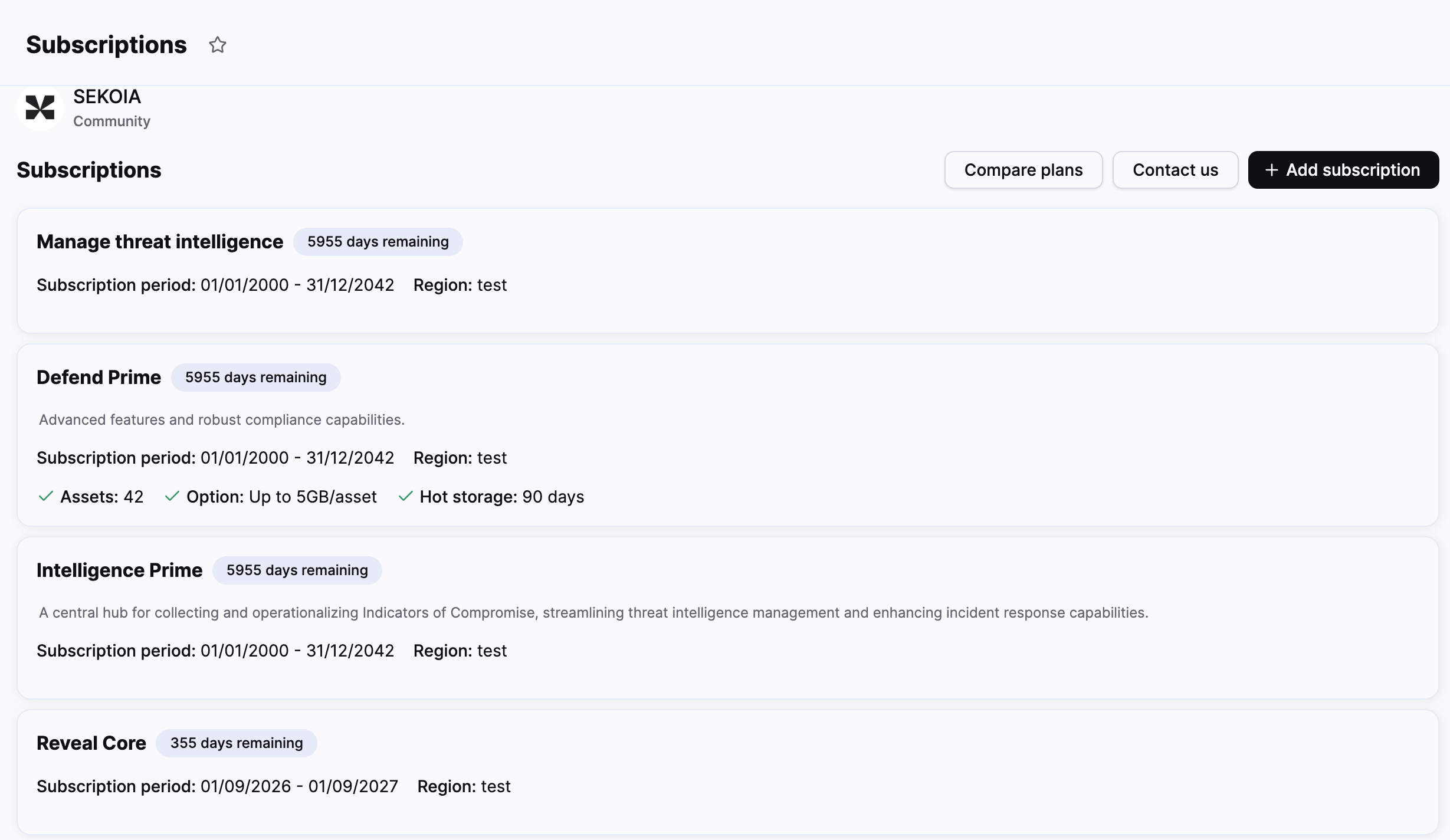
Use Compare plans to review the available plans. Use Contact us when you need a subscription or plan that is not available in the interface.
Add a subscription
Click Add subscription to open the subscription management options.
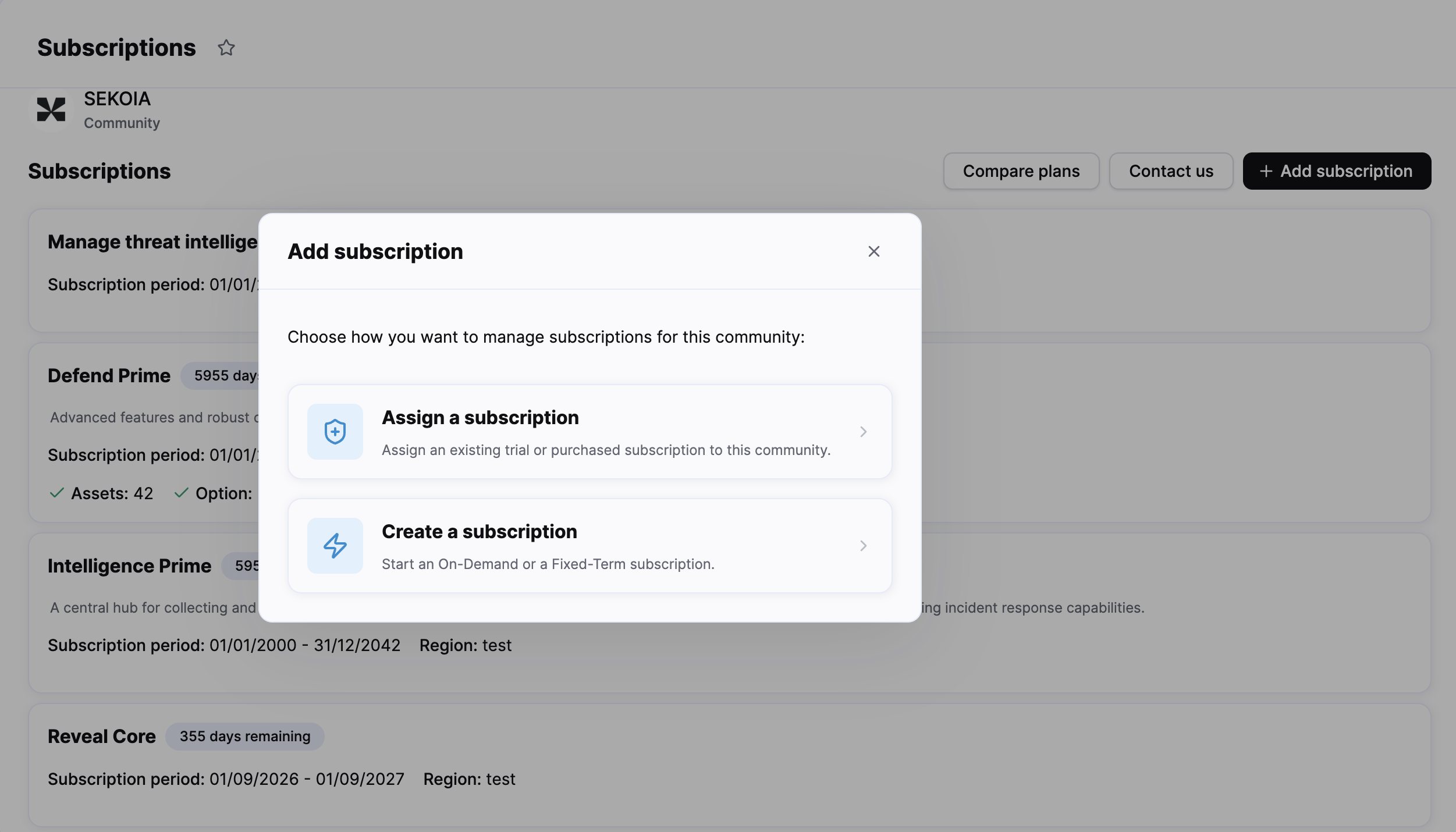
The modal provides two separate workflows.
| Workflow | Use it when |
|---|---|
| Assign a subscription | A trial or purchased subscription is already available and must be attached to the community. |
| Create a subscription | You need to configure a new subscription through the Self-Service wizard. |
The previous Allocate terminology may still appear in older documentation. In the current workflow, use Assign for an existing subscription and Create for a new subscription.
Self-Service availability
Sekoia enables subscription creation manually for eligible workspaces after the applicable commercial and legal checks are complete. The Add subscription entry point remains available to users who can manage subscriptions, but its options depend on the partner configuration.
If Create a subscription is not displayed, you can still assign an existing subscription when you have the required permissions. Contact Sekoia if you need Self-Service enabled or if a subscription is missing from the assignment list.
Self-Service is additive. It does not remove existing trials, subscriptions purchased in advance, or legacy subscription workflows.
Subscription lifecycle
The subscription experience includes three stages.
- A subscription is made available through a trial, a purchase, or the Self-Service catalog.
- You assign an existing subscription or create a new one for the target community.
- The subscription appears on the Subscriptions page, where you can monitor its period, plan, capacity, and remaining time.
For details about each action, see the task articles below.
Related articles
- Create a subscription: How to configure and confirm a new subscription with the Self-Service wizard.
- Assign a subscription: How to attach an existing trial or purchased subscription to a community.