Add custom instructions for an Elevate agent
Custom instructions give the Elevate agent environment-specific context it cannot infer from telemetry alone. This article explains how to provide contextual instructions at the workspace or community level so the agent produces more relevant verdicts.
Prerequisites
- Elevate is activated on your workspace or community. See Activate Elevate on a workspace.
Add contextual instructions
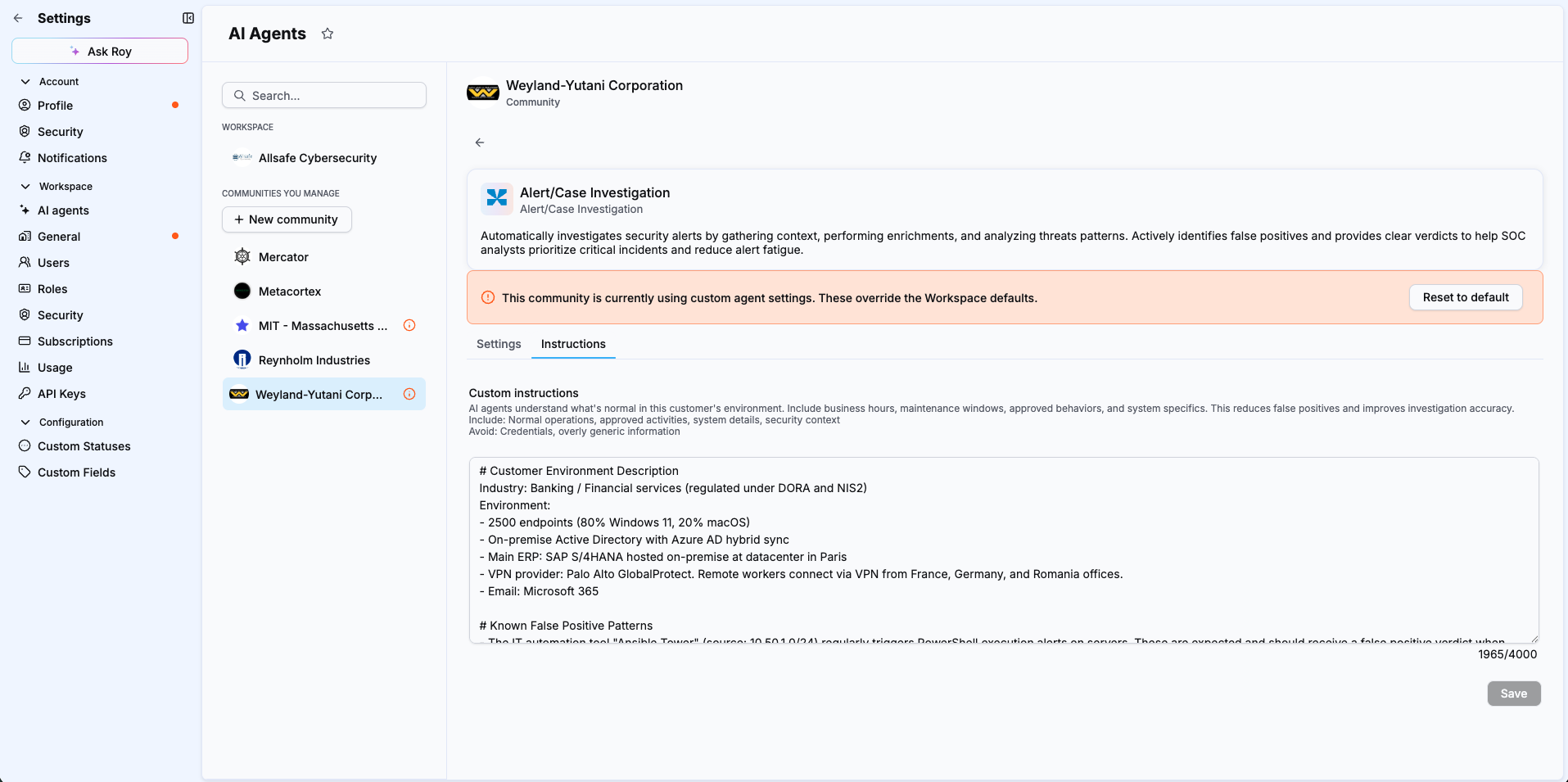
Contextual instructions tell the agent what is normal or expected in your environment. The agent takes them into account when analyzing alerts and producing its verdict.
To add instructions for a specific community:
- Navigate to Settings > AI agents.
- Select the community where you want the instructions to apply.
- Select Alert/Case Investigation agent.
- Select the Instructions tab.
- Enter your custom instructions.
- Select Save.
Applying instructions to all communities
To apply instructions across all communities, select your workspace instead of a specific community in step 2.
To customize how the agent reasons for a specific detection rule rather than for your environment as a whole, edit the rule's runbook instead. See Customize a detection rule's runbook.
Related articles
- Write effective instructions for Elevate: Guidance and examples for writing instructions that improve investigation quality.
- Customize a detection rule's runbook: How to edit the Detection Rational, legitimate scenarios and investigation questions of a runbook.
- Activate Elevate on a workspace: How to enable the Elevate agent and configure auto-analysis.
- Elevate: Concept overview of how Elevate works and its key concepts.