Override an Elevate verdict
This article explains how to override an Elevate verdict when it is incorrect or inaccurate, and what happens to the alert when you do.
Prerequisites
- The alert has an AI-generated verdict. AI verdicts are marked with a sparkle icon in the Verdict column of the alert list.
- You have reviewed the investigation. See Investigate an alert with Elevate.
When to override
There is no separate step to validate an Elevate verdict. If the verdict is correct, leave it as is: the alert keeps the AI verdict and its sparkle icon. If the verdict is incorrect or inaccurate, override it with your own judgment.
Override a verdict
To override the verdict, select a different verdict from the Select a verdict dropdown in the alert header.
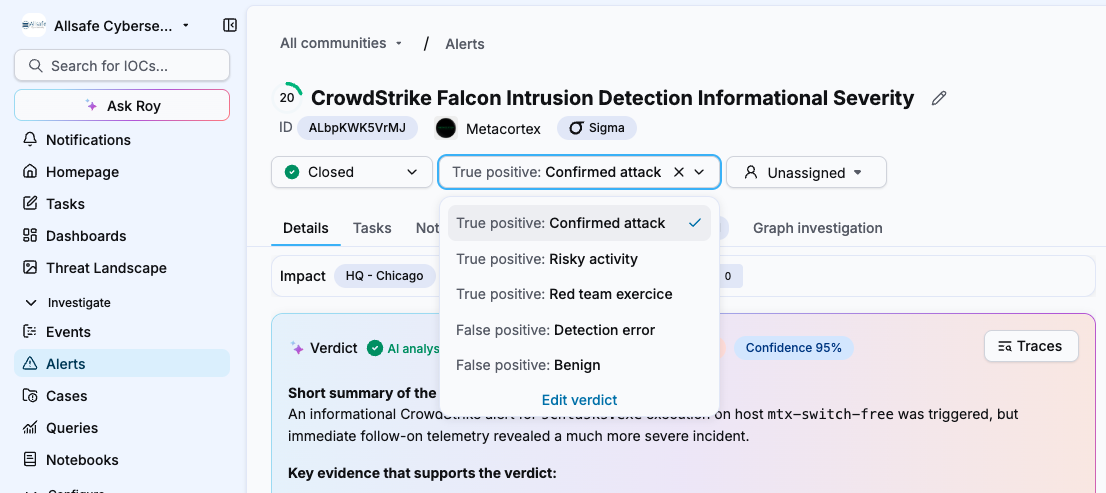
Your verdict always takes precedence
Once you select a verdict, the sparkle icon disappears from the alert list. The alert reflects your analyst verdict, not the AI attribution. The AI verdict is not retained after you override it.
Result
The alert verdict is updated immediately. The Verdict column in the alert list displays your selection without the sparkle icon, indicating an analyst-set verdict.
Related articles
- Investigate an alert with Elevate: How to read the AI investigation report before setting a verdict.
- Elevate analysis states: Reference table of all possible AI analysis states and their meaning.