Intelligence
Use the Intelligence page to search Sekoia’s database for objects and observables. Filter the results, review matching records, and open a result to continue your investigation.
Open Intelligence
-
From the application menu, select Intelligence.
-
Enter a value in the search bar.
You can search for an object name, report title, domain, IP address, hash, observable value, or other indexed content.
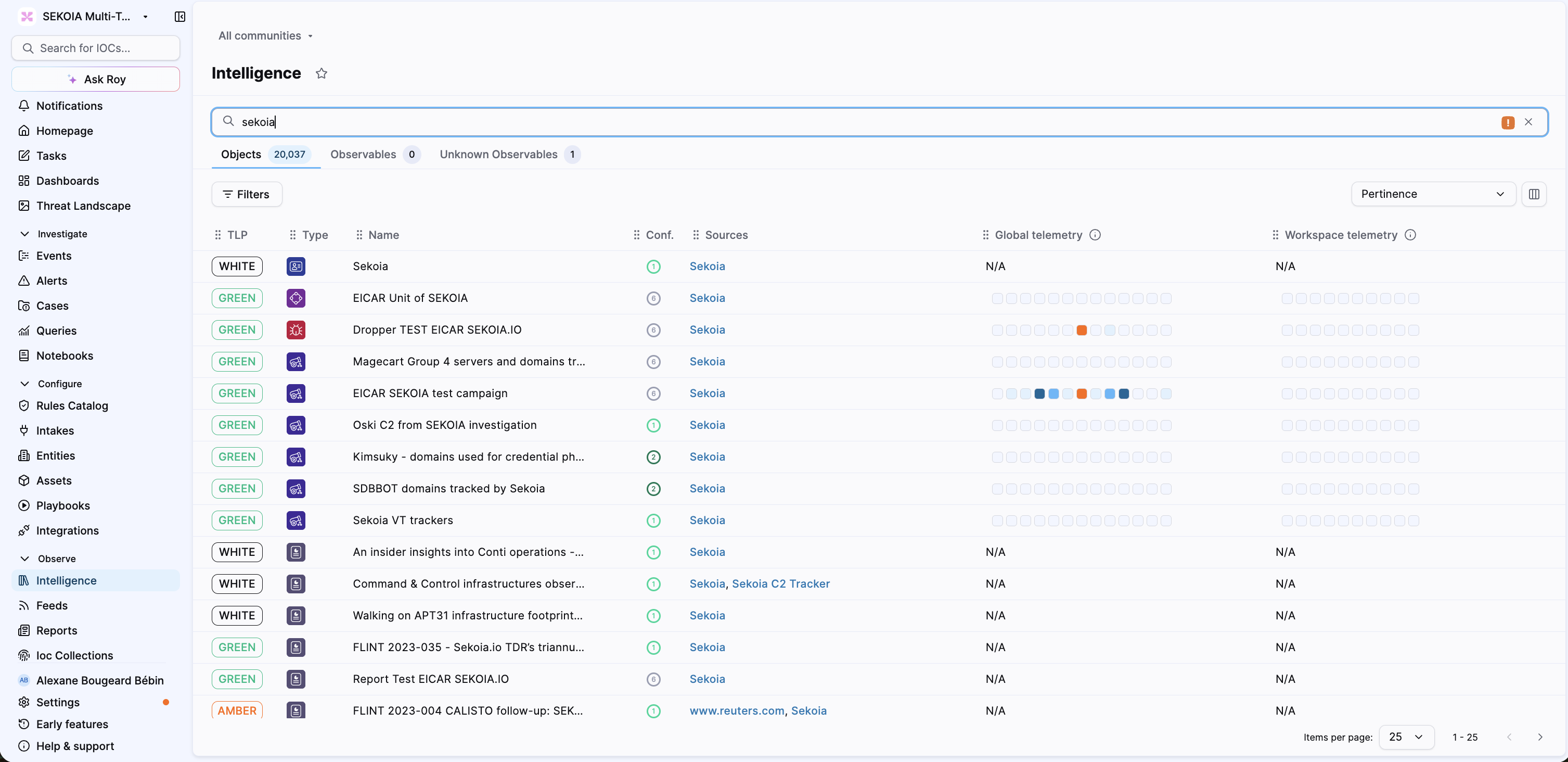
Run a search
-
Enter one or more values in the search bar.
-
Press Enter to run the search.
-
To search for multiple values at once, press Shift+Enter to add a new line, then paste the values.
The search can match names, descriptions, aliases, report content, external references, and Location country codes.
To search for a Location, enter its name. Results can include countries, regions, or larger geographic areas. For example, europe can return Europe, Southern Europe, and other matching Locations.
For a country, you can also use its two-letter country code, following the ISO 3166-1 reference. For example, use FR for France or CN for China.
Tip
To open several results in new tabs, right-click an object or use Option+click on macOS or Shift+click on Windows.
Select a result type
Depending on your query, the results can include:
- Objects;
- Observables;
- Unknown Observables.
Each tab displays the number of matching results. Select a tab to review its results.
Use the Known and Unknown views to distinguish observables that are already in the database from values that Sekoia does not recognize.
Filter results
The same filter workflow applies to the results available in the selected tab.
-
Select Filters.
-
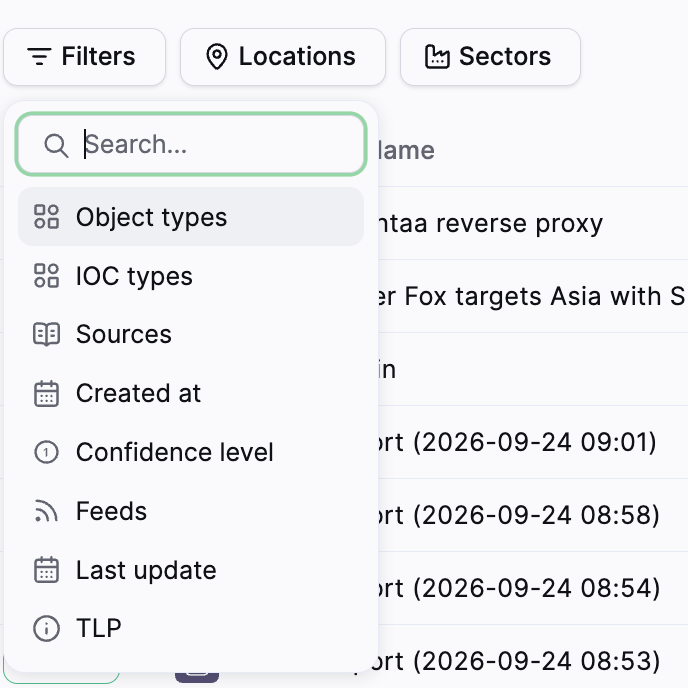
Select a filter category.
Available categories can include:
- Object types;
- IOC types;
- Sources;
- Created at;
- Confidence level;
- Feeds;
- Last update;
- TLP.
-
Select one or more values.
Sekoia adds the active filter above the table as a filter chip.
-
Refine or remove the filter.
Reopen the filter menu to change the selected values. Select Clear filters to remove all active filters, or remove one filter from its chip.
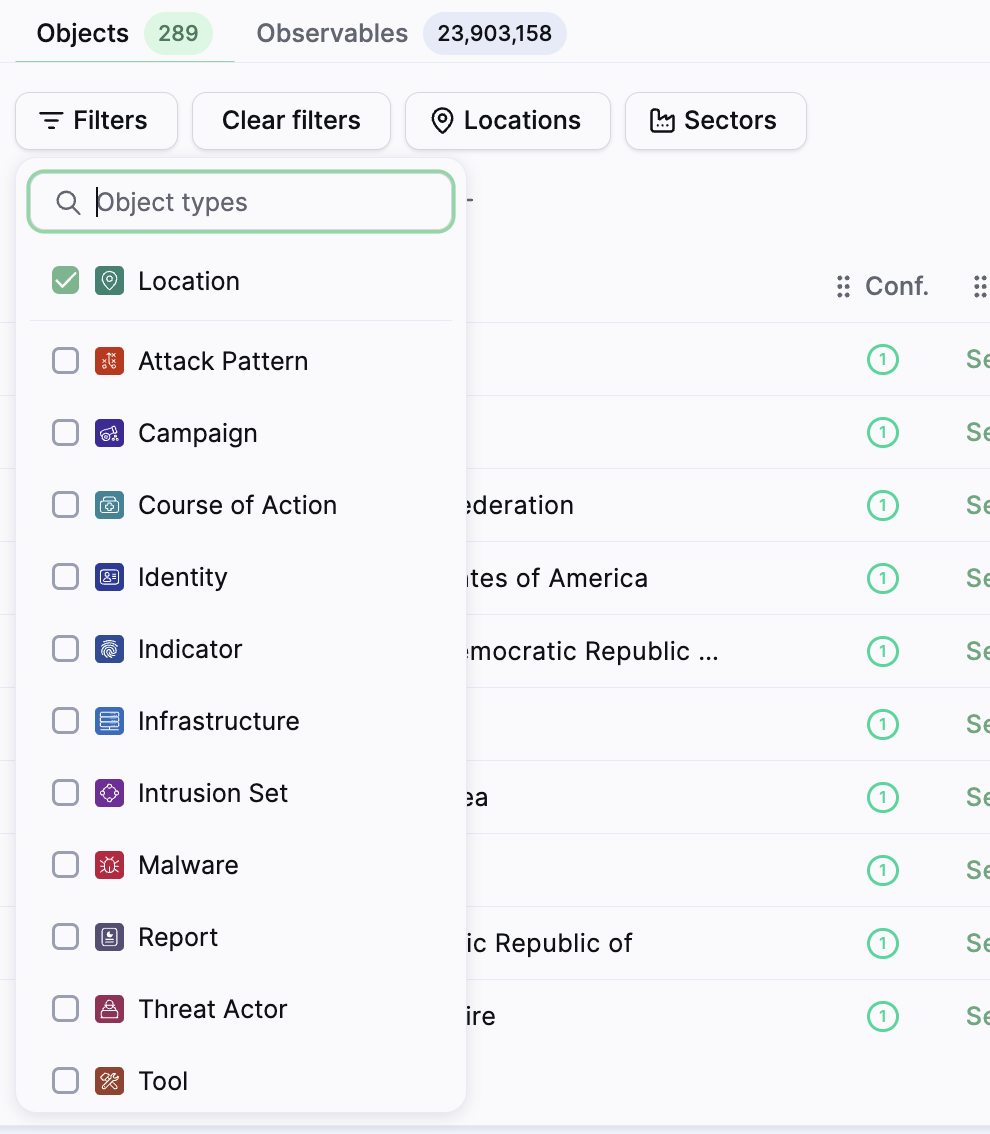
The Object types filter lets you restrict results to a specific type, such as Location, Sector, Source, Campaign, or Malware.
Use shortcut filters
On the Objects tab, select Locations or Sectors to apply the corresponding object-type filter directly. The buttons appear next to Filters and use the same filtering behavior as Filters > Object types.
After you select a shortcut, the active filter appears above the table as a chip, for example:
Object types is Location;Object types is Sector.
When you reopen the filter menu, the selected object type is already checked. Select Clear filters to remove the shortcut filter.
The Filters menu lists the available filter categories:
The Object types filter with Location selected:
Review search results
Search results appear in a table. The visible columns depend on the result type and workspace configuration. They can include:
- TLP;
- Type;
- Name;
- Subtypes;
- Conf.;
- Sources;
- Last Edited;
- Created;
- global or workspace telemetry.
For Location objects:
- a country Location displays its country flag in the Type column;
- a region or other Location without a country displays the Location icon.
Use the sort selector to change the order. Pertinence is the default sort option in the delivered interface.
Use the column selector to show or hide columns. Use Items per page and the pagination controls to browse the results.
Copy observables
-
Open the Observables tab.
-
Select the checkbox next to each observable you want to copy.
-
Select Copy.
Sekoia can identify some pasted values and leave others as unknown. Review both result views when you need to check the complete list.
Open a result
Select an object or observable name to open its details page. Continue with Investigate an object to review an object’s context, relationships, graph, and reports.
Result
You can search objects and observables from one page, apply filters without repeating the workflow for each result type, and open a result for further investigation.
Related articles
Observables: Overview of observable types, tags, validity, sources, and relationships.
Investigate an object: How to review an object’s context, relationships, graph, and reports.
Data model: Reference for objects, observables, relationships, sources, and confidence.