Asset context panel — Reveal capabilities
The Reveal add-on module extends the asset context panel with vulnerability data, endpoint hygiene, security controls, points of interest, and attack path visualization. These capabilities give analysts a complete picture of an asset's exposure and protection directly in the investigation workflow.
This article covers the Reveal-specific sections of the asset context panel. For core capabilities available to all clients, see Asset context panel.
Requirements
The capabilities described on this page require the Reveal add-on module. To set up the required data sources, see Getting started with Reveal.
Health check card
The Health check card appears in the Overview tab for host assets. It provides a summary of open vulnerabilities, misconfigurations, and active security controls in one place.
| Section | Description |
|---|---|
| Security controls | Lists the active asset connectors and intakes contributing telemetry or protection for the asset |
| Open vulnerabilities | Total count of open CVE exposures. Individual items can be marked as accepted risk, false positive, or remediated |
| Misconfigurations | Count of configuration or posture issues identified, such as a disabled firewall or missing disk encryption |
This card gives analysts an at-a-glance posture summary before they open the dedicated tabs. It also shows which connectors are active, which clarifies available response actions such as host isolation or patch scan.
Timeline enrichment
With Reveal enabled, the asset timeline includes additional entry types beyond alerts and cases.
| Entry type | Description |
|---|---|
| Points of Interest | Behavioral anomalies detected on the asset, such as unusual login times or rare locations |
| Hygiene changes (coming soon) | Changes to the asset's hygiene posture, such as firewall being disabled |
| Vulnerability changes (coming soon) | New CVE exposures identified on the asset |
Points of Interest fill the gaps between rule-based detections. They capture behavioral deviations that may precede or follow an alert, helping analysts build a coherent narrative from subtle signals.
Points of Interest in context
A user account triggers a credential dumping alert. The timeline also shows a PoI for an anomalous login time two hours earlier and a second PoI for a rare login location the previous day. Together, these signals suggest the account was compromised before the alert fired.
Hygiene tab
The Hygiene tab shows the security posture and configuration health of a host asset, based on data from the Sekoia Endpoint Agent and connected integrations.
| Control | Description |
|---|---|
| Firewall | Current state: enabled or disabled |
| Disk encryption | Global state and per-volume details |
Use this tab to validate that protections are in place during triage, identify weaknesses that may have enabled a compromise, and confirm that controls were restored after remediation.
Data source
Hygiene data requires the Sekoia Endpoint Agent or a connector that provides endpoint posture data. See Getting started with Reveal.
Asset risk scoring
The Overview tab displays an Asset Risk Score that represents the current security priority of the host asset. The score combines persistent exposure, recent activity, and configured asset criticality.
For the scoring model and calculation rules, see Asset risk scoring. For interface guidance, see Interpret asset risk scores.
Vulnerabilities tab
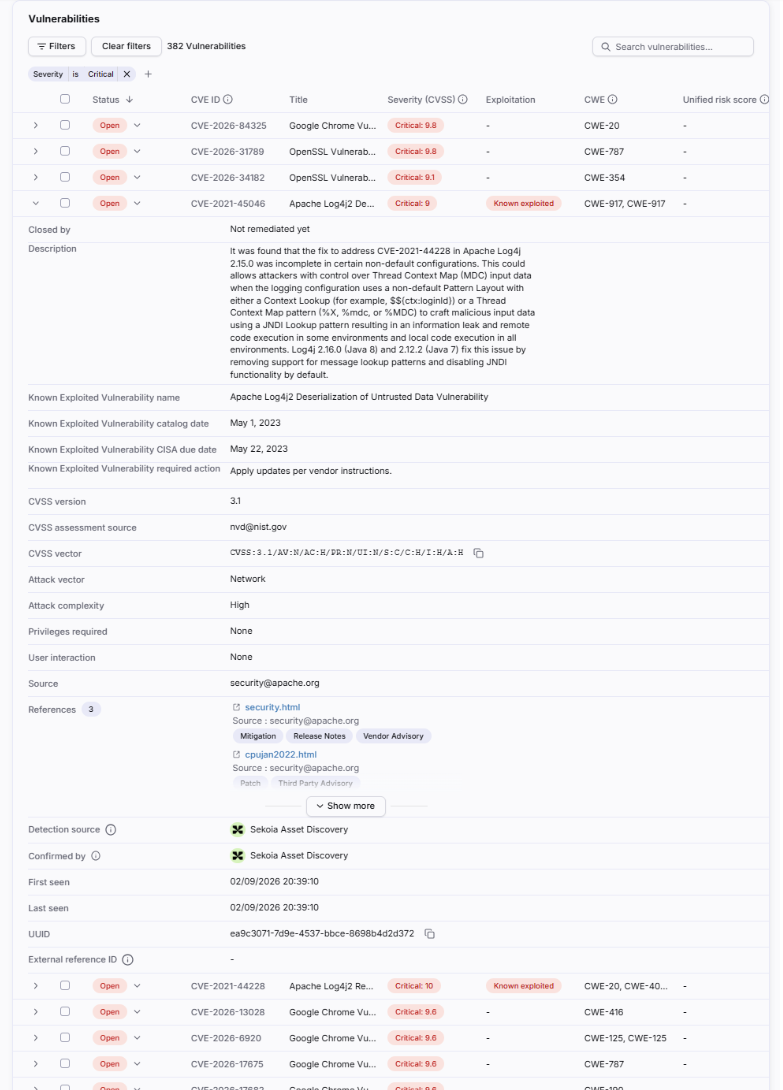
The Vulnerabilities tab lists known CVE exposures affecting the asset, aggregated from connected vulnerability scanners and cloud or IaaS APIs. Each CVE is enriched with reference data from the NIST National Vulnerability Database (NVD).
Vulnerability list
| Column | Description |
|---|---|
| Status | Open, Closed: Accepted risk, Closed: False positive, or Closed: Remediated |
| CVE ID | Unique identifier of the publicly known vulnerability, linked to Sekoia CTI |
| Title | Short title of the vulnerability |
| Severity (CVSS) | CVSS score rating the technical severity (CVSS v3.1) |
| Exploitation | Whether the CVE is listed in the CISA Known Exploited Vulnerabilities (KEV) catalog (shown as Known exploited), when available. Filterable via the Known exploited filter |
| CWE | Weakness category (Common Weakness Enumeration) |
| Unified risk score | Normalized score from 1 to 100 (see below) |
Select a row to expand it and view the full description, the CVSS vector and exploitability characteristics (attack vector, attack complexity, privileges required, user interaction), external references, the detection and confirmation source, first and last seen dates, and the record UUID.
Note
Exploitability is determined by the presence of cisaExploitAdd. This field may be missing or delayed due to synchronization or enrichment gaps.
Unified risk score
Asset score and vulnerability score
The Unified risk score applies to an individual vulnerability. The Asset Risk Score applies to the host asset and combines exposure, recent activity, and criticality.
Asset score and vulnerability score
The Unified risk score applies to an individual vulnerability. The Asset Risk Score applies to the host asset and combines exposure, recent activity, and criticality.
Different vulnerability scanners use different scoring scales. The unified risk score translates each source into a single comparable value from 1 to 100, where 100 always represents the highest risk. Missing or invalid scores display as N/A. It reflects contextual risk and is not the same as CVSS.
For the full field reference, score bands, and status workflow, see Vulnerability enrichment.
Applications tab
Beta
The Applications tab is currently in Beta. Fields and behavior may change as the feature evolves.
The Applications tab lists the software discovered on a host asset and maps each application to the known CVE exposures that affect it. Two counters summarize the footprint: Vulnerable Applications (installed applications with at least one matching CVE) and Installed Applications (total discovered).
Use the All / vulnerable toggle, the Filters (Publisher, Application, Architecture, Signed), or the search box to narrow the list.
| Column | Description |
|---|---|
| Publisher | Vendor or author of the application |
| Application | Application name |
| CVE Count | Number of known CVEs affecting the installed version. Select the badge to jump to the matching vulnerabilities |
| Architecture | Target architecture of the installed binary, when reported |
| Version | Installed version of the application |
| Signed | Whether the binary is digitally signed (True / False) |
| Signed by | Signing authority, when the binary is signed |
| Filename | File name of the application binary, when reported |
Select an application row to expand it and view the install path, installation date, first and last seen dates, last username, source, SHA-256 and MD5 hashes, CPE, and PURL.
The CVE Count badge is a shortcut into the Vulnerabilities tab: select it (the Click to see vulnerabilities tooltip appears on hover) to open the CVEs affecting that application.
For the full reference, see Application discovery.
Security controls tab
The Security controls tab shows which detection and protection technologies are actively covering the asset.
Asset connectors
Lists the connectors that discovered or enriched the asset, such as an EDR tool (CrowdStrike, HarfangLab) or a vulnerability scanner (Tenable). Use this section to identify which technologies provide visibility or protection, and where gaps exist.
Seen by
Lists the intakes and technologies that have observed the asset recently, such as a proxy, the Sekoia Endpoint Agent, or an identity provider. Presence in this list confirms that data from that source is reaching Sekoia.
Detecting a visibility gap on a domain controller
A high-value domain controller appears in network telemetry and vulnerability management scans but not in endpoint or identity logs. This explains why credential-access activity was not detected. The recommended action is to deploy endpoint monitoring on the asset.
Attack Path Visualization tab
The Attack Path Visualization tab displays a graph of hosts and users connected to the current asset through observed authentication relationships. Use it to assess whether a compromised or exposed asset provides a path to a more sensitive target.
What the graph shows
- Hosts, users, and accounts connected through observed authentication activity.
- Node color reflecting configured asset criticality.
- Satellite indicators per node summarizing active alerts, cases, vulnerabilities, and hygiene issues.
A single exposure is not always critical on its own. Its impact depends on what it connects to. This tab lets analysts assess blast radius and identify where remediation would have the greatest effect before escalating or containing.
For full guidance on navigating the graph, interpreting node types, and prioritizing remediation, see Attack Path Visualization.
Related links
- Asset context panel: Core capabilities available to all clients, including the overview, timeline, and related events tabs.
- Attack Path Visualization: Full reference for the attack path graph, node types, navigation, and remediation workflow.
- Points of Interest: How Reveal surfaces behavioral anomalies on assets during triage and investigation.
- Getting started with Reveal: How to enable Reveal and configure the required data sources.
- Asset connector health status and logs: How to monitor connector synchronization and troubleshoot errors.