Override Elevate settings for a community
When Elevate is activated at the workspace level, all communities inherit that configuration by default. This article explains how to override the agent settings for a specific community to enable or disable Elevate independently.
Prerequisites
- Elevate is activated on your workspace. See Activate Elevate on a workspace.
- You have administrator-level access to the workspace.
Override the configuration for a community
- Navigate to Settings > AI agents.
- Select the community you want to configure from the community list.
- Select Alert/Case Investigation agent.
- Select Override.
- Toggle Auto-analyze alerts to the desired state for this community.
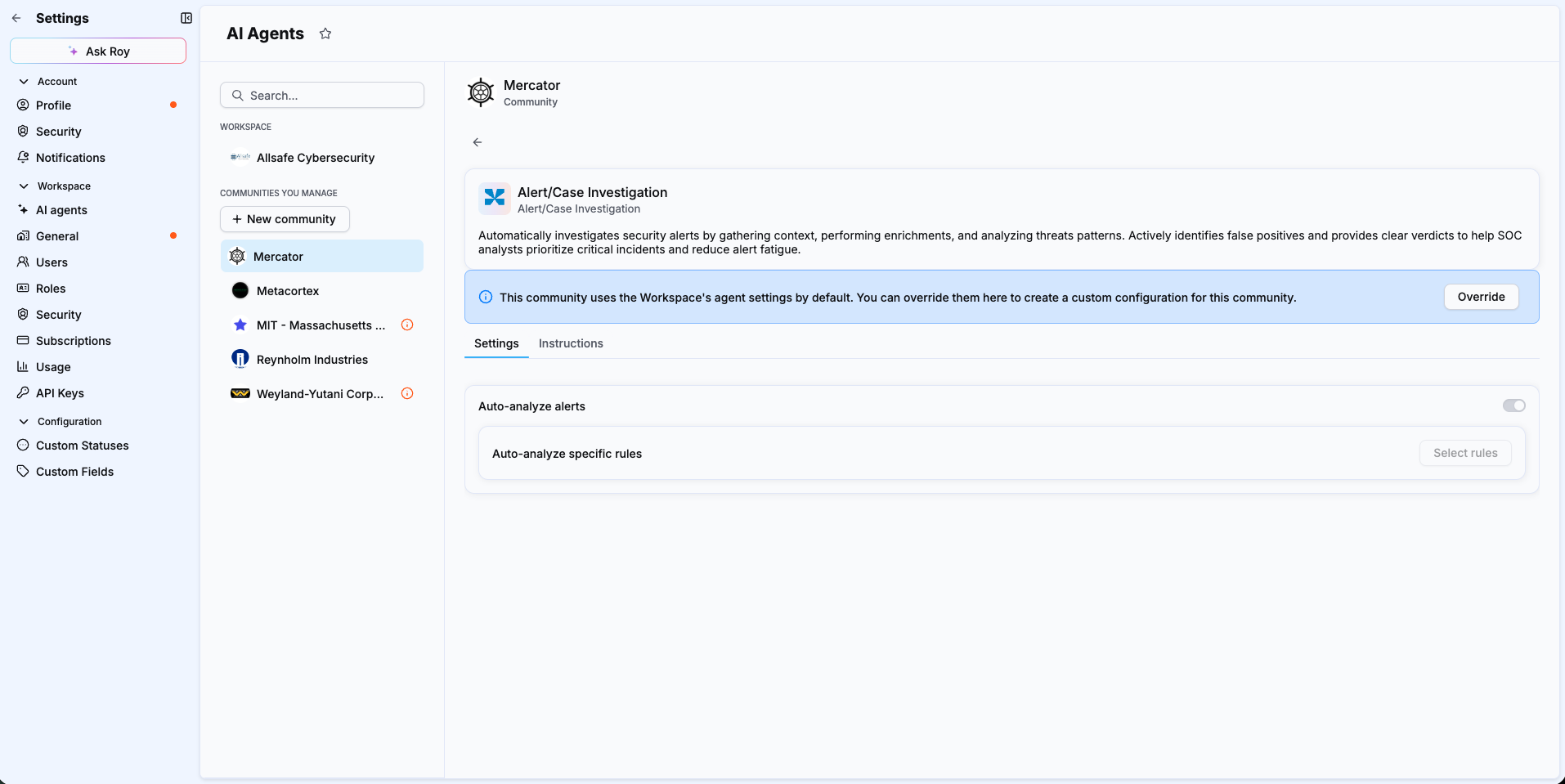
An indicator confirms that this community now uses its own settings and no longer inherits the workspace-level configuration.
Understanding the inherited state
Before you select Override, the toggle reflects the workspace-level setting. It does not represent a choice made at the community level. Select Override to manage this community independently.
Result
The community uses its own Elevate configuration independently of the workspace setting. Other communities are not affected.
To revert to the workspace configuration, return to the community's AI agent settings and remove the override.
Related articles
- Activate Elevate on a workspace: How to enable the Elevate agent at the workspace level.
- Limit auto-analysis to specific rules: How to restrict which alerts Elevate analyzes within a workspace or community.
- Manage your Elevate runs: How to monitor and optimize your monthly run pack.