Limit auto-analysis to specific rules
By default, when auto-analysis is enabled, the Elevate agent analyzes every incoming alert regardless of the detection rule that triggered it. This article explains how to restrict analysis to a specific set of rules to focus your runs where they add the most value.
Prerequisites
- Elevate is activated on your workspace. See Activate Elevate on a workspace.
- You have administrator-level access to the workspace.
When to use rule filtering
Rule filtering is useful when you already have playbooks reliably handling certain alert types and want to reserve your Elevate runs for detections where AI investigation adds the most value, such as high-volume, complex, or time-consuming alert categories.
Default behavior
When no rules are selected in the filter, the agent analyzes all incoming alerts. Selecting one or more rules restricts analysis exclusively to alerts triggered by those rules.
Configure the rule filter
- Navigate to Settings > AI agents.
- Select Alert/Case Investigation agent under the Workspace section.
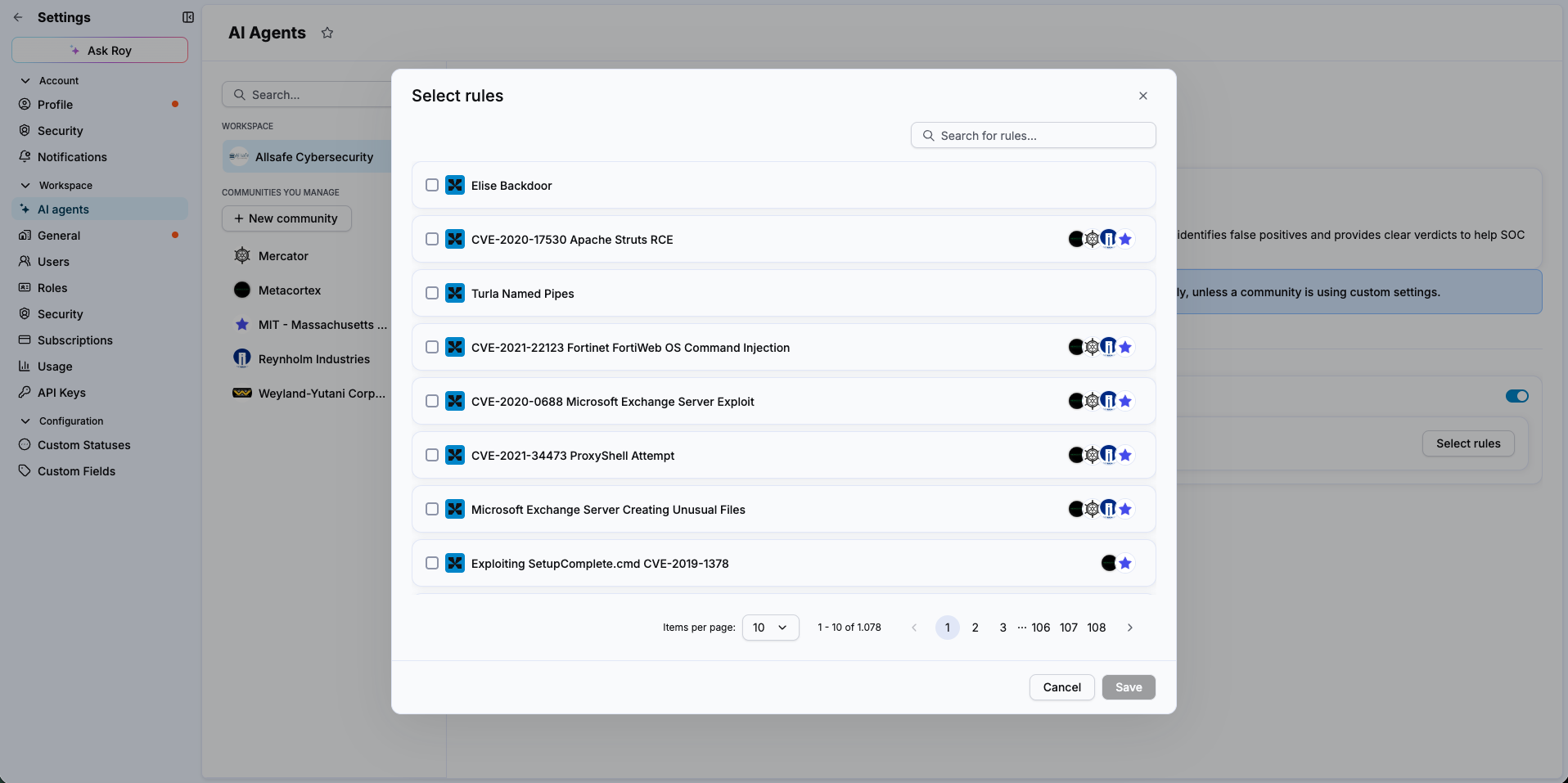
- Enable Limit auto-analyze to specific rules.
- Use the search bar to find the rules you want to include.
- Select each rule you want the agent to analyze.
Result
The agent analyzes only alerts triggered by the rules you selected. Alerts from all other rules are not processed automatically. You can still trigger a manual analysis on any alert at any time.
Related articles
- Activate Elevate on a workspace: How to enable the Elevate agent on your workspace.
- Trigger a manual Elevate analysis: How to analyze an alert that was excluded by the rule filter.
- Manage your Elevate runs: How to monitor and optimize your monthly run pack.