Microsoft IIS
Overview
- Vendor: Microsoft
- Supported environment: On-premises
- Version compatibility: 10.0 and newer
- Detection based on: Telemetry
- Supported application or feature: Application Logs
Microsoft Internet Information Services (IIS) is a web server software for Windows that provides a secure and scalable platform for hosting and managing websites, applications, and services.
Configuration
This guide explains how to forward Microsoft IIS logs to Sekoia.io using NXLog and a syslog transport channel.
Warning
To avoid time offset issues when events are parsed by Sekoia.io, configure your server timezone to UTC.
For more information, see the Sekoia.io timezone requirements documentation.
Create an intake
-
Go to the Intakes page and create a new intake using the Microsoft IIS format.
-
Copy the associated intake key. You will use it in the NXLog configuration.
Activate logging in Microsoft IIS
-
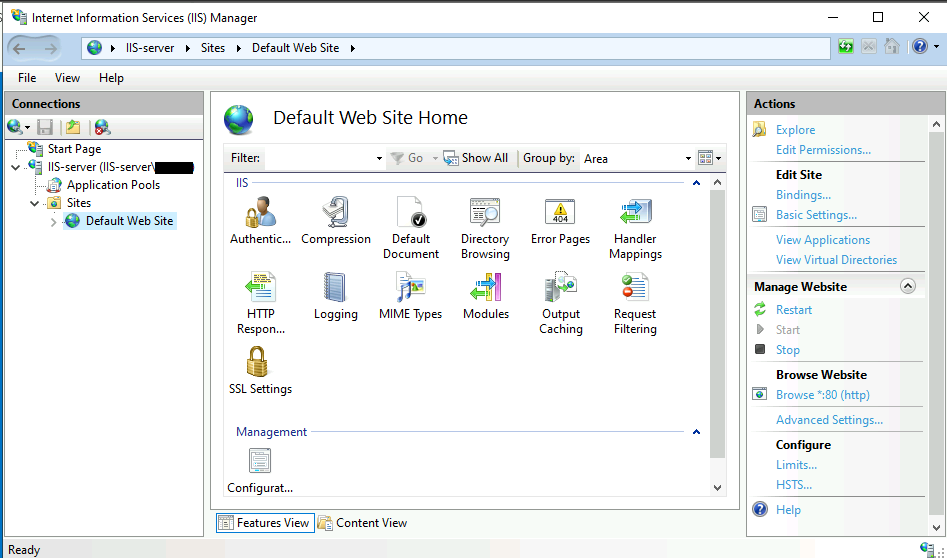
Open the Internet Information Services (IIS) Manager.
-
In the Connections panel, select the server, then the required website.
-
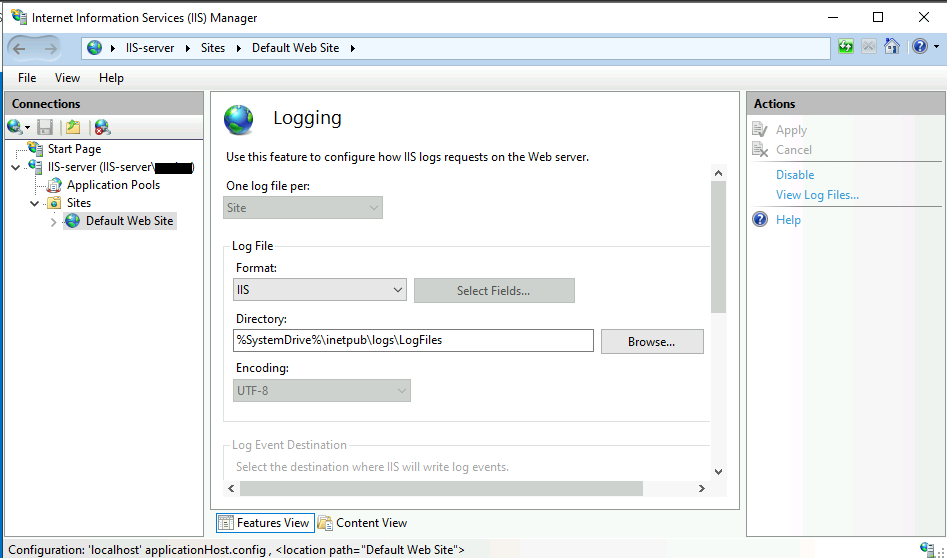
Open the Logging section.
- Select the IIS log format and set the encoding to UTF-8.
Forward logs with NXLog
NXLog can forward IIS logs directly to Sekoia.io or to an intermediate syslog service, such as the Sekoia.io Forwarder.
NXLog directly to Sekoia.io
This section explains how to configure NXLog to forward IIS logs directly to a Sekoia.io intake over TLS.
Install NXLog
-
Download the NXLog installation package from the official NXLog website.
-
Install NXLog.
-
Open the NXLog configuration file:
C:\Program Files\nxlog\conf\nxlog.conf -
Update the configuration file with your intake key.
Note
Replace YOUR_INTAKE_KEY with the intake key created for Microsoft IIS.
## This is a sample configuration file.
## See the NXLog reference manual for information about the configuration options.

## Set ROOT to the directory where NXLog is installed.
## Otherwise, NXLog may not start.

define ROOT C:\Program Files\nxlog
define CERTDIR %ROOT%\cert

Moduledir %ROOT%\modules
CacheDir %ROOT%\data
Pidfile %ROOT%\data\nxlog.pid
SpoolDir %ROOT%\data
LogFile %ROOT%\data\nxlog.log

<Extension _syslog>
    Module xm_syslog
</Extension>

<Input iis>
    Module im_file
    File 'C:\inetpub\logs\LogFiles\W3SVC1\u_in\*.log'
    SavePos TRUE
</Input>

<Output sekoia_output>
    Module om_ssl
    Host intake.sekoia.io
    Port 10514
    CAFile %CERTDIR%\isrgrootx1.pem
    AllowUntrusted FALSE

    Exec to_syslog_ietf();
    Exec $raw_event = replace(
        $raw_event,
        '[NXLOG@',
        '[SEKOIA@53288 intake_key="YOUR_INTAKE_KEY"][NXLOG@',
        1
    );

    OutputType Syslog_TLS
</Output>

<Route iis_to_sekoia_intake>
    Path iis => sekoia_output
</Route>
Download the certificate
To establish a secure connection with the Sekoia.io intake, download the ISRG Root X1 certificate and save it in the directory configured by CERTDIR.
-
Open PowerShell as an administrator.
-
Download the certificate:
Invoke-WebRequest `
    -Uri https://letsencrypt.org/certs/isrgrootx1.pem `
    -OutFile 'C:\Program Files\nxlog\cert\isrgrootx1.pem'
- Restart the NXLog service:
Restart-Service nxlog
After restarting NXLog, the service can establish a secure connection with the Sekoia.io intake using the downloaded certificate.
Forward logs through a syslog service
Use this configuration when NXLog sends IIS logs to an intermediate syslog service, such as the Sekoia.io Forwarder.
Configure NXLog
-
Download the NXLog installation package from the official NXLog website.
-
Install NXLog.
-
Open the NXLog configuration file:
C:\Program Files\nxlog\conf\nxlog.conf -
Update the configuration file with the hostname or IP address of your syslog service.
## This is a sample configuration file.
## See the NXLog reference manual for information about the configuration options.

## Set ROOT to the directory where NXLog is installed.
## Otherwise, NXLog may not start.

define ROOT C:\Program Files (x86)\nxlog
define CERTDIR %ROOT%\cert

Moduledir %ROOT%\modules
CacheDir %ROOT%\data
Pidfile %ROOT%\data\nxlog.pid
SpoolDir %ROOT%\data
LogFile %ROOT%\data\nxlog.log

<Extension _syslog>
    Module xm_syslog
</Extension>

<Input iis>
    Module im_file
    File 'C:\inetpub\logs\LogFiles\W3SVC1\u_in\*.log'
    SavePos TRUE
</Input>

<Output syslog_service>
    Module om_tcp
    Host SYSLOG_SERVICE_HOST
    Port 514
    OutputType Syslog_TLS

    Exec to_syslog_ietf();
</Output>

<Route iis_to_syslog_service>
    Path iis => syslog_service
</Route>
Info
Replace SYSLOG_SERVICE_HOST with the hostname or IP address of your syslog service.
Warning
Keep OutputType Syslog_TLS when using the TCP configuration shown above. Remove it only if you change the output module to UDP with om_udp.
For more information, see the NXLog syslog documentation.
Note
The iso8859-1 character encoding supports only 256 characters. It does not include some French characters, such as é, è, ê, and ë.
To process these characters correctly, use the Sekoia.io agent, which is designed to provide secure and accurate endpoint event collection.
- Restart the NXLog service:
Restart-Service nxlog
Configure the syslog service to forward events to Sekoia.io
Use the Sekoia.io Forwarder to collect syslog events from NXLog and forward them to the corresponding Sekoia.io intake.
The Forwarder maps each listening port to an intake key. Configure a dedicated listening port for the Microsoft IIS intake.
For third-party syslog services, see Third-party syslog services.
Note
The Sekoia.io Forwarder is the recommended option for this setup. You can also use another syslog service if you prefer to manage and maintain your own forwarding infrastructure.
Raw Events Samples
In this section, you will find examples of raw logs as generated natively by the source. These examples are provided to help integrators understand the data format before ingestion into Sekoia.io. It is crucial for setting up the correct parsing stages and ensuring that all relevant information is captured.
::1, -, 11/20/2023, 15:44:03, W3SVC1, IIS-server, ::1, 2, 769, 143, 304, 0, GET, /, -,
Detection section
The following section provides information for those who wish to learn more about the detection capabilities enabled by collecting this intake. It includes details about the built-in rule catalog, event categories, and ECS fields extracted from raw events. This is essential for users aiming to create custom detection rules, perform hunting activities, or pivot in the events page.
Related Built-in Rules
The following Sekoia.io built-in rules match the intake Microsoft IIS. This documentation is updated automatically and is based solely on the fields used by the intake which are checked against our rules. This means that some rules will be listed but might not be relevant with the intake.
SEKOIA.IO x Microsoft IIS on ATT&CK Navigator
Cryptomining
Detection of domain names potentially related to cryptomining activities.
- Effort: master
Discord Suspicious Download
Discord is a messaging application. It allows users to create their own communities to share messages and attachments. Those attachments have little to no overview and can be downloaded by almost anyone, which has been abused by attackers to host malicious payloads.
- Effort: advanced
Dynamic DNS Contacted
Detect communication with dynamic dns domain. This kind of domain is often used by attackers. This rule can trigger false positive in non-controlled environment because dynamic dns is not always malicious.
- Effort: master
Exfiltration Domain
Detects traffic toward a domain flagged as a possible exfiltration vector.
- Effort: master
Koadic MSHTML Command
Detects Koadic payload using MSHTML module
- Effort: intermediate
Potential Azure AD Phishing Page (Adversary-in-the-Middle)
Detects an HTTP request to an URL typical of the Azure AD authentication flow, but towards a domain that is not one the legitimate Microsoft domains used for Azure AD authentication.
- Effort: intermediate
Remote Access Tool Domain
Detects traffic toward a domain flagged as a Remote Administration Tool (RAT).
- Effort: master
Sekoia.io EICAR Detection
Detects observables in Sekoia.io CTI tagged as EICAR, which are fake samples meant to test detection.
- Effort: master
TOR Usage Generic Rule
Detects TOR usage globally, whether the IP is a destination or source. TOR is short for The Onion Router, and it gets its name from how it works. TOR intercepts the network traffic from one or more apps on user’s computer, usually the user web browser, and shuffles it through a number of randomly-chosen computers before passing it on to its destination. This disguises user location, and makes it harder for servers to pick him/her out on repeat visits, or to tie together separate visits to different sites, this making tracking and surveillance more difficult. Before a network packet starts its journey, user’s computer chooses a random list of relays and repeatedly encrypts the data in multiple layers, like an onion. Each relay knows only enough to strip off the outermost layer of encryption, before passing what’s left on to the next relay in the list.
- Effort: master
Event Categories
The following table lists the data source offered by this integration.
| Data Source | Description |
|---|---|
Web logs |
Microsoft IIS logs site activity |
In details, the following table denotes the type of events produced by this integration.
| Name | Values |
|---|---|
| Kind | `` |
| Category | web |
| Type | access |
Transformed Events Samples after Ingestion
This section demonstrates how the raw logs will be transformed by our parsers. It shows the extracted fields that will be available for use in the built-in detection rules and hunting activities in the events page. Understanding these transformations is essential for analysts to create effective detection mechanisms with custom detection rules and to leverage the full potential of the collected data.
{
    "message": "::1, -, 11/20/2023, 15:44:03, W3SVC1, IIS-server, ::1, 2, 769, 143, 304, 0, GET, /, -,",
    "event": {
        "category": [
            "web"
        ],
        "duration": 2000,
        "type": [
            "access"
        ]
    },
    "@timestamp": "2023-11-20T15:44:03Z",
    "client": {
        "address": "::1",
        "bytes": 769,
        "ip": "::1"
    },
    "http": {
        "request": {
            "method": "GET"
        },
        "response": {
            "status_code": 304
        }
    },
    "observer": {
        "name": "IIS-server"
    },
    "related": {
        "ip": [
            "::1"
        ]
    },
    "server": {
        "bytes": 143,
        "ip": "::1"
    },
    "url": {
        "path": "/"
    }
}
Extracted Fields
The following table lists the fields that are extracted, normalized under the ECS format, analyzed and indexed by the parser. It should be noted that infered fields are not listed.
| Name | Type | Description |
|---|---|---|
@timestamp |
date |
Date/time when the event originated. |
client.bytes |
long |
Bytes sent from the client to the server. |
client.ip |
ip |
IP address of the client. |
event.category |
keyword |
Event category. The second categorization field in the hierarchy. |
event.duration |
long |
Duration of the event in nanoseconds. |
event.type |
keyword |
Event type. The third categorization field in the hierarchy. |
http.request.method |
keyword |
HTTP request method. |
http.response.status_code |
long |
HTTP response status code. |
observer.name |
keyword |
Custom name of the observer. |
server.bytes |
long |
Bytes sent from the server to the client. |
server.ip |
ip |
IP address of the server. |
url.path |
wildcard |
Path of the request, such as "/search". |
user.name |
keyword |
Short name or login of the user. |
For more information on the Intake Format, please find the code of the Parser, Smart Descriptions, and Supported Events here.