Troubleshoot asset connectors
This article explains how to identify and resolve issues with asset connectors using error indicators and connector logs.
Before you begin
To access the asset connector list, navigate to Configure > Assets > Asset connectors.
Step 1: Identify a defective connector
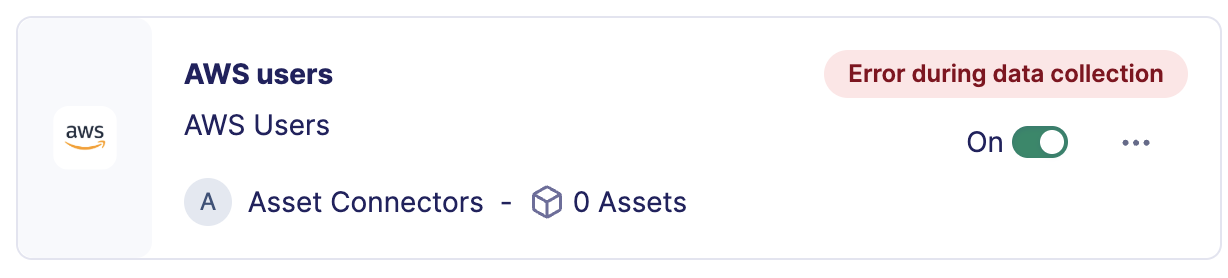
Review the connector list. A connector with an issue displays an error message in the upper right corner of its tile.
Zero assets warning
If a connector tile shows 0 assets, this may indicate a synchronization issue even if no error message is visible. Inspect the logs to confirm.
Step 2: Open the connector logs
- On the defective connector tile, select ....
- Select View logs.
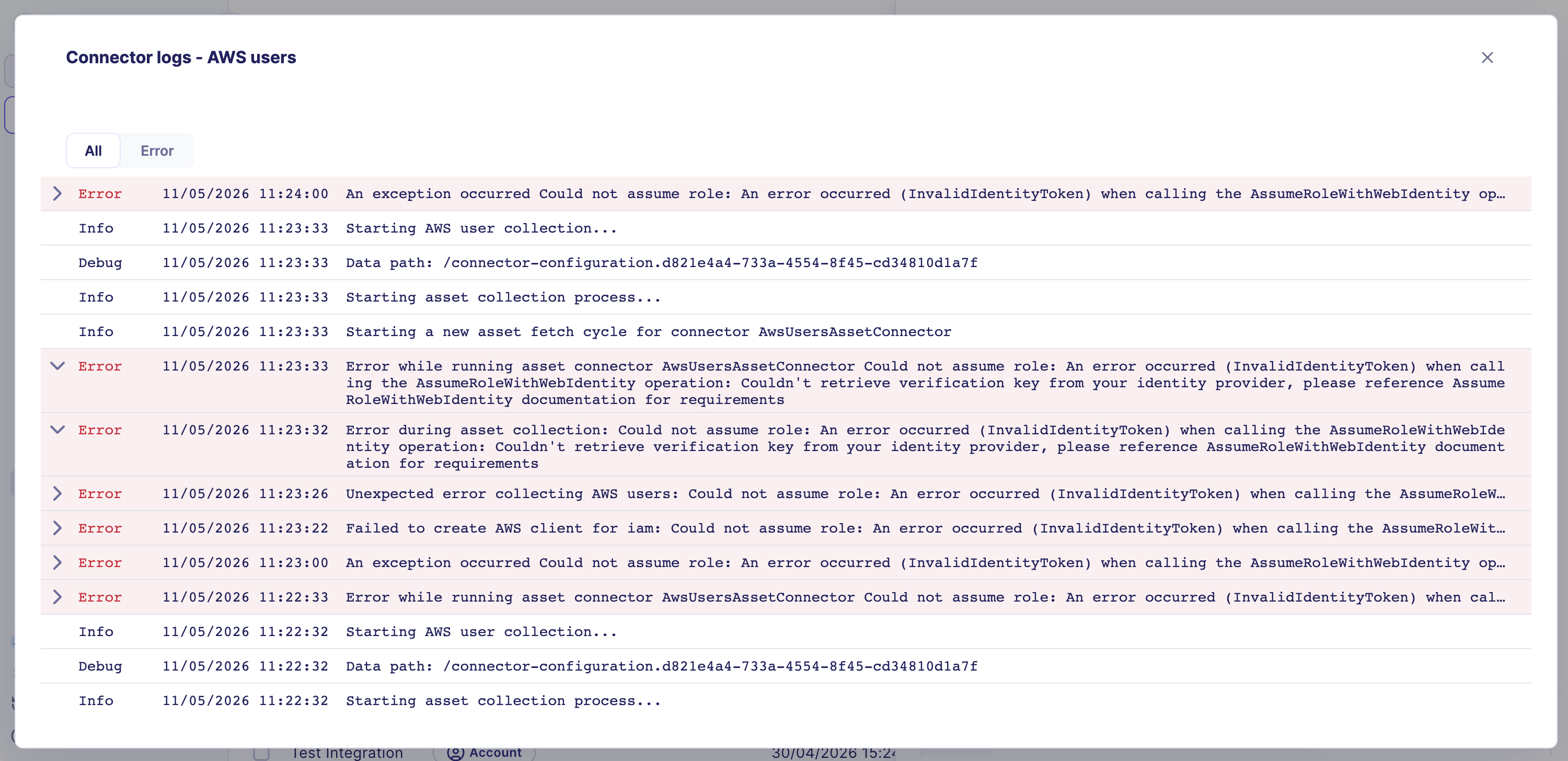
The full log list opens.
Step 3: Diagnose the issue
Review the log entries to identify the root cause. Common issues include:
| Symptom | Likely cause |
|---|---|
| Authentication error | Invalid or expired credentials |
| Permission denied | Insufficient rights on the external system |
| No assets retrieved | The account cannot see any asset on the external system (wrong tenant or missing permissions) |
| Timeout | Network connectivity issue or external system unavailable |
Step 4: Edit the connector configuration
If the issue is caused by a misconfiguration or expired credentials:
- Close the logs panel.
- On the connector tile, select ....
- Select Edit.
- Update the relevant fields such as the API key or client ID.
- Select Test connector to validate the updated credentials.
- When the test is conclusive, select Edit asset connector.
The connector resumes synchronization with the updated configuration.
What the test checks
The test validates credentials only. It does not retrieve assets. Verify asset retrieval from the Assets page after saving.
Related links
- Create an asset connector — How to configure a new asset connector from the integration catalog.
- Reveal feature enablement matrix — Which data sources are required for each Reveal capability.
- Security controls — How to verify connector coverage and identify visibility gaps from the asset context panel.
- Troubleshoot Reveal — General Reveal troubleshooting for missing data across capabilities.