Custom verdicts
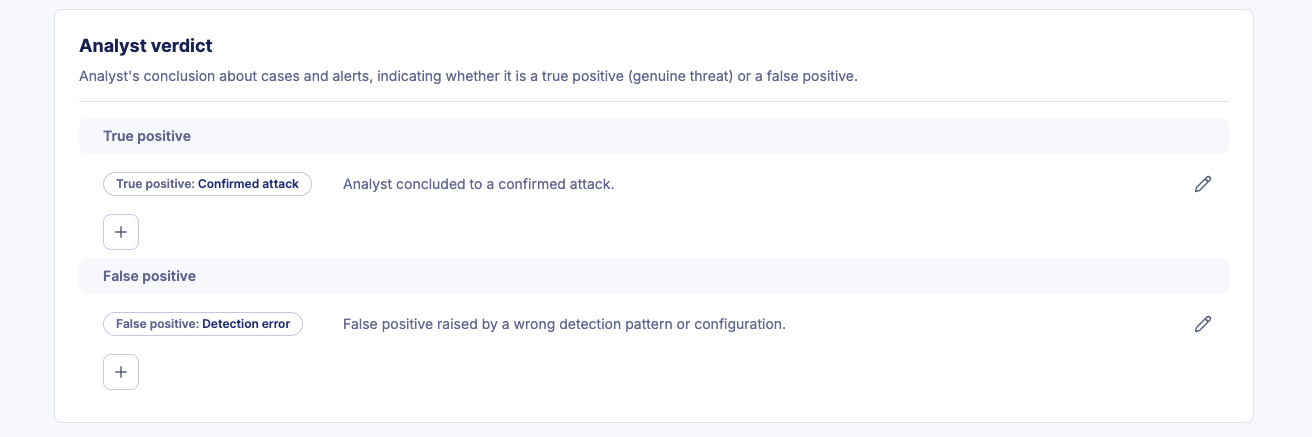
Custom verdicts let your SOC team classify the outcome of an investigation with its own vocabulary, beyond a bare true positive or false positive. You configure them in Settings > Custom Statuses, under the analyst verdict section, and they apply to alerts and cases alike.
Teams rarely agree on what "true positive" means in practice, and the nuance matters when analysts hand work to each other or report to stakeholders. Custom verdicts capture that nuance, for example "True positive: confirmed malware", "False positive: misconfiguration" or "True positive: policy violation".
Verdict stages
Every custom verdict belongs to one of two verdict stages.
| Verdict stage | Meaning |
|---|---|
| True positive | The alert or case represents a genuine security threat or incident. |
| False positive | The alert or case was triggered incorrectly, or does not represent a real threat. |
Create a custom verdict
- Navigate to Settings > Custom Statuses.
- Click
+in the analyst verdict section, under the verdict stage the verdict belongs to. - Enter a Name, for example "Confirmed malware", "Benign activity" or "Policy violation".
- Enter a Description explaining when your team should use this verdict and what it signifies.
- Save your changes.
Write the description, not just the name
A documented definition is what stops two analysts from classifying the same evidence differently. The description is also what the Elevate AI agents read when they select the verdict that fits an alert.
Verdicts do not offer a migration
Custom statuses are the only type that can be retired while in use. Verdicts and priorities cannot: you have to clear the verdict from every alert and case before you can delete it. See Migrate custom statuses for the status behavior.
Edit a custom verdict
- Click the verdict you want to modify.
- Update the name, the description, or both.
- Save your changes.
Delete a custom verdict
A verdict can be deleted only if no alert and no case currently carries it.
- Change or remove the verdict on every alert and case that uses it.
- Once the verdict is no longer in use, delete it from Settings > Custom Statuses.
Related articles
- Custom statuses: What custom statuses are, and how they differ from verdicts and priorities.
- Migrate custom statuses: How to disable or delete a status that is already in use, which verdicts do not support.
- Manage custom statuses: How to create, edit, reorder and enable custom statuses.
- Elevate investigation method: How the AI agents pick a verdict from the ones your SOC defines.