Create an Event Drop rule from an intake or asset
You can create an Event Drop detection rule directly from an intake or an asset, without starting from a blank rule in the catalog. The rule creation panel opens with the Event Drop pattern selected and the SOL pattern pre-filled with a condition on the source, so you only set the schedule and create the rule.
Early Access
This feature is currently in Early Access and is only available for Beta testers. Sekoia.io plans to roll out this functionality to all environments soon.
Prerequisites
- You have permissions to create detection rules.
- You are on the details page of the intake or asset you want to monitor for missing data.
Hourly telemetry granularity
event_telemetry and asset_telemetry are aggregated hourly, so an Event Drop rule on an intake or asset cannot go below a 1-hour granularity. Set both the time bin and the run schedule to 1 hour or more. Sub-hour values return empty or partial buckets and the rule does not monitor the source as expected.
Start from an intake
To create an Event Drop rule that monitors a specific intake:
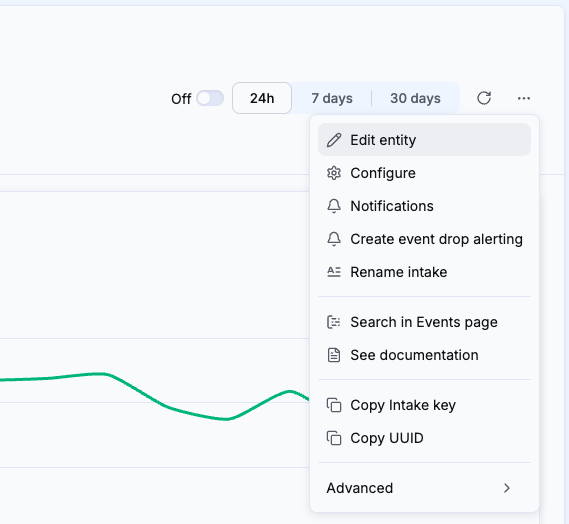
- Open the details page of the intake.
- Open the more options menu (the
...button) in the intake header. - Select Create event drop alerting.
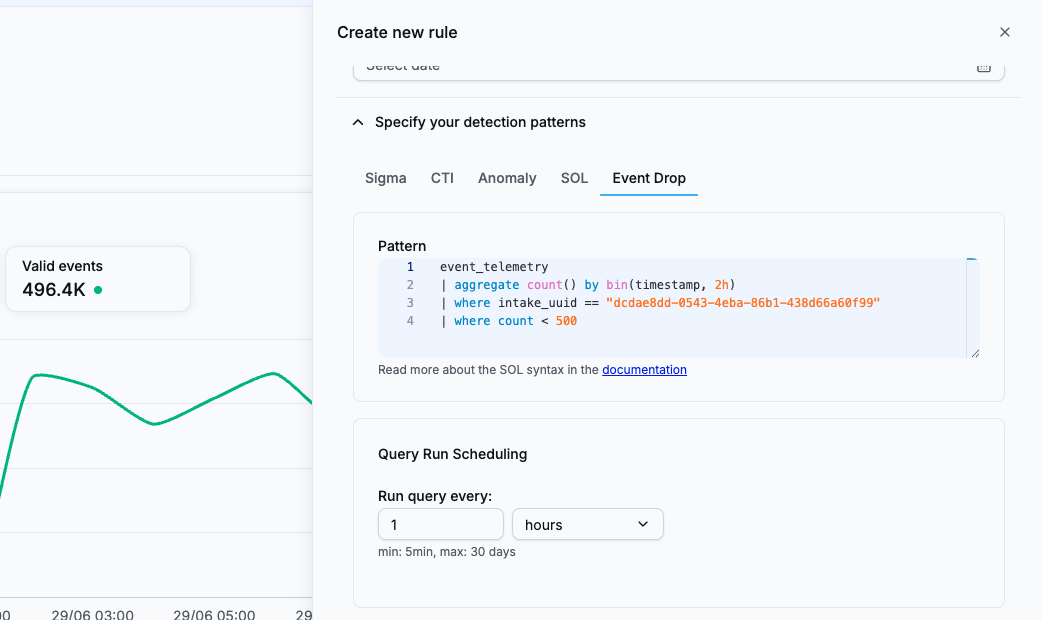
The Create new rule panel opens with the Event Drop pattern selected. The rule name is set to Event drop for intake "<intake name>", and the pattern targets the intake UUID:
event_telemetry
| where bucket_start_date between (?time.start .. ?time.end)
    and intake_uuid == ""
| aggregate count() by bin(bucket_start_date, 2h)
| where count < 500
- Adjust the time bin, 1 hour minimum, and the threshold if the defaults do not match the intake's expected volume.
- Set the schedule, 1 hour minimum, and complete any remaining fields.
- Click Create.
Start from an asset
To create an Event Drop rule that monitors a specific asset:
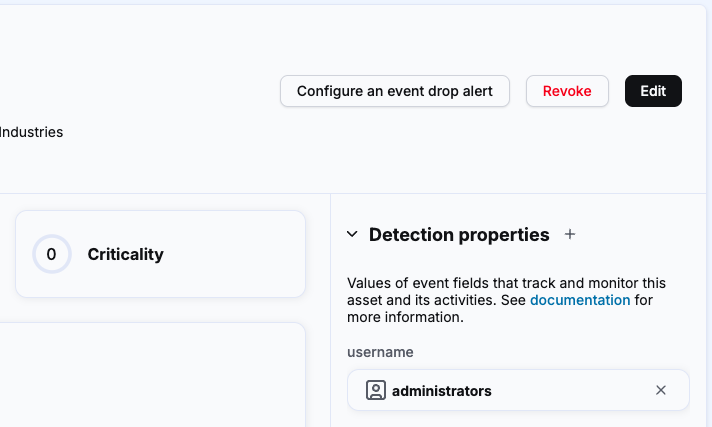
- Open the details page of the asset.
- Click Configure an event drop alert.
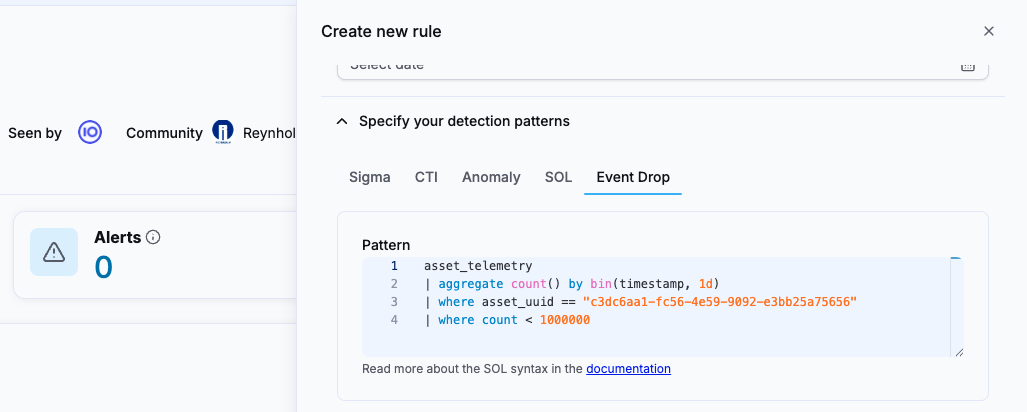
The Create new rule panel opens with the Event Drop pattern selected. The rule name is set to Event drop for asset "<asset name>", and the pattern targets the asset UUID:
asset_telemetry
| where timestamp between (?time.start .. ?time.end)
| aggregate count() by bin(timestamp, 1d)
| where asset_uuid == "<asset uuid>"
| where count < 1000000
- Adjust the time bin, 1 hour minimum, and the threshold if the defaults do not match the asset's expected volume.
- Set the schedule, 1 hour minimum, and complete any remaining fields.
- Click Create.
What gets pre-filled
The entry point determines the rule name, the datasource and the field used in the condition:
| Source | Entry point | Rule name | Datasource | Condition field |
|---|---|---|---|---|
| Intake | Create event drop alerting in the intake more options menu | Event drop for intake "<name>" |
event_telemetry |
intake_uuid |
| Asset | Configure an event drop alert button on the asset page | Event drop for asset "<name>" |
asset_telemetry |
asset_uuid |
Both pre-filled patterns also bound the query with ?time.start and ?time.end, the time conditions required by every SOL rule.
Tune the defaults
The pre-filled threshold and time bin are starting points. Set them to values that reflect the normal telemetry volume of the intake or asset, so the rule alerts only when the data drop is meaningful.
Complete and create the rule
Once the panel is open, scheduling and the remaining fields work exactly as in the standard creation flow. For the full description of each field and the run schedule, see Create a SOL detection rule.
Related articles
- Create a SOL detection rule: Step-by-step instructions to configure and activate a SOL or Event Drop detection rule from the catalog.
- SOL detection rules: Conceptual overview of the SOL and Event Drop detection patterns, how they work, and when to use them.
- Lag management for SOL detection rules: How rules handle late-arriving events through a fixed run overlap and deduplication.