Create an asset connector
Reveal module — This feature requires the Reveal add-on module.
Asset connectors link external systems to Sekoia so that asset records can be created, merged, and enriched with structured data from sources such as EDR tools, vulnerability scanners, identity providers, and CMDBs. This article explains how to create a new asset connector and verify that it is working.
Before you begin
Confirm that the following conditions are met:
- The Reveal add-on module is enabled for your community. For MSSP setups, it must be enabled on each community that should discover assets.
- Some integrations require specific permissions or scopes on the external system. Refer to the integration's documentation to check what the account you use needs.
- You have the credentials required by the integration you want to connect (API key, client ID, service account, or equivalent).
Create an asset connector
Step 1: Open the asset connectors panel
- In the left menu, select Configure.
- Select Assets.
- Select Asset connectors.
The asset connectors panel opens and lists your existing connectors.
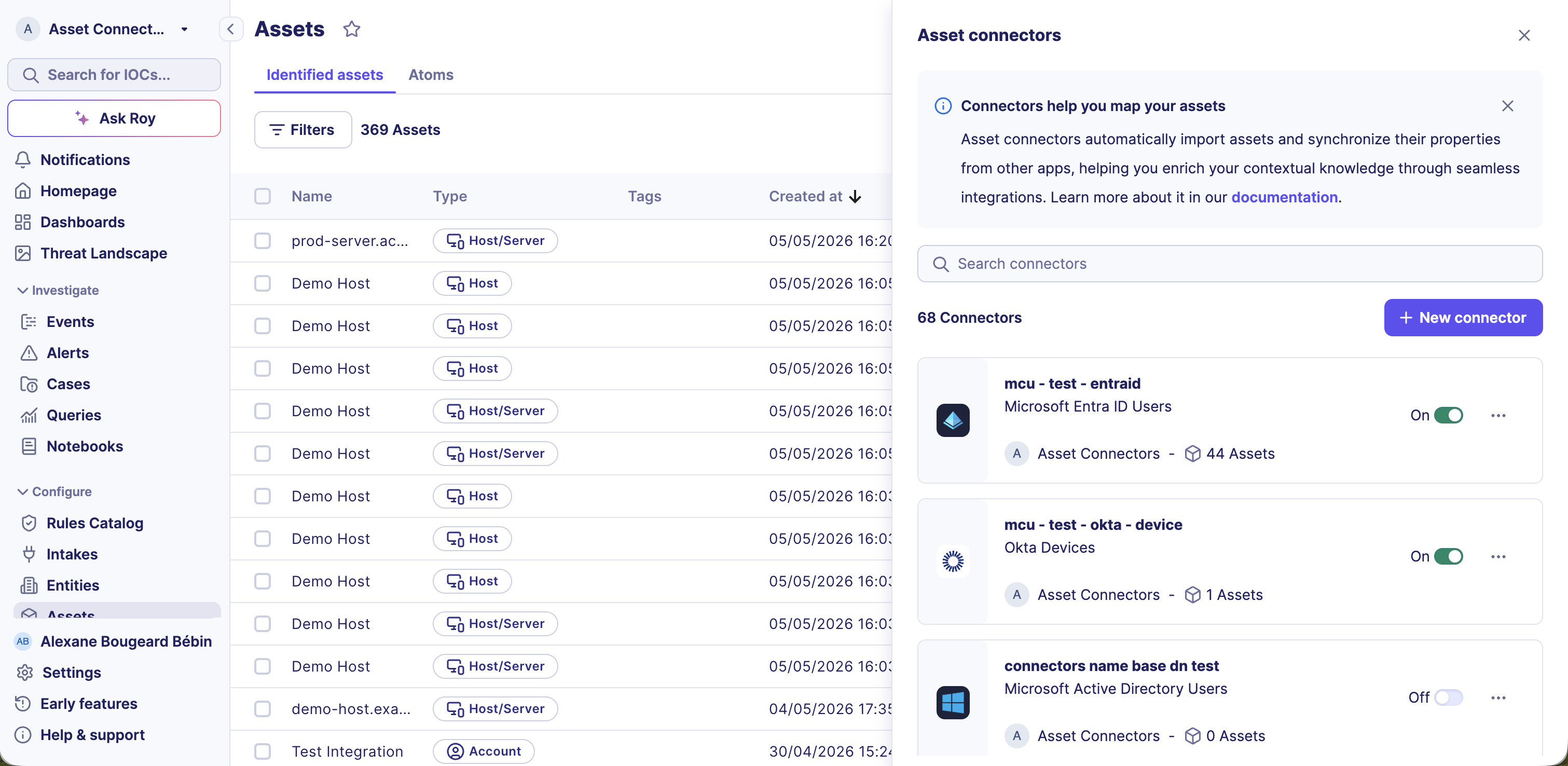
Step 2: Select an integration
- Select New connector.
- In the integration catalog, select the integration you want to configure.
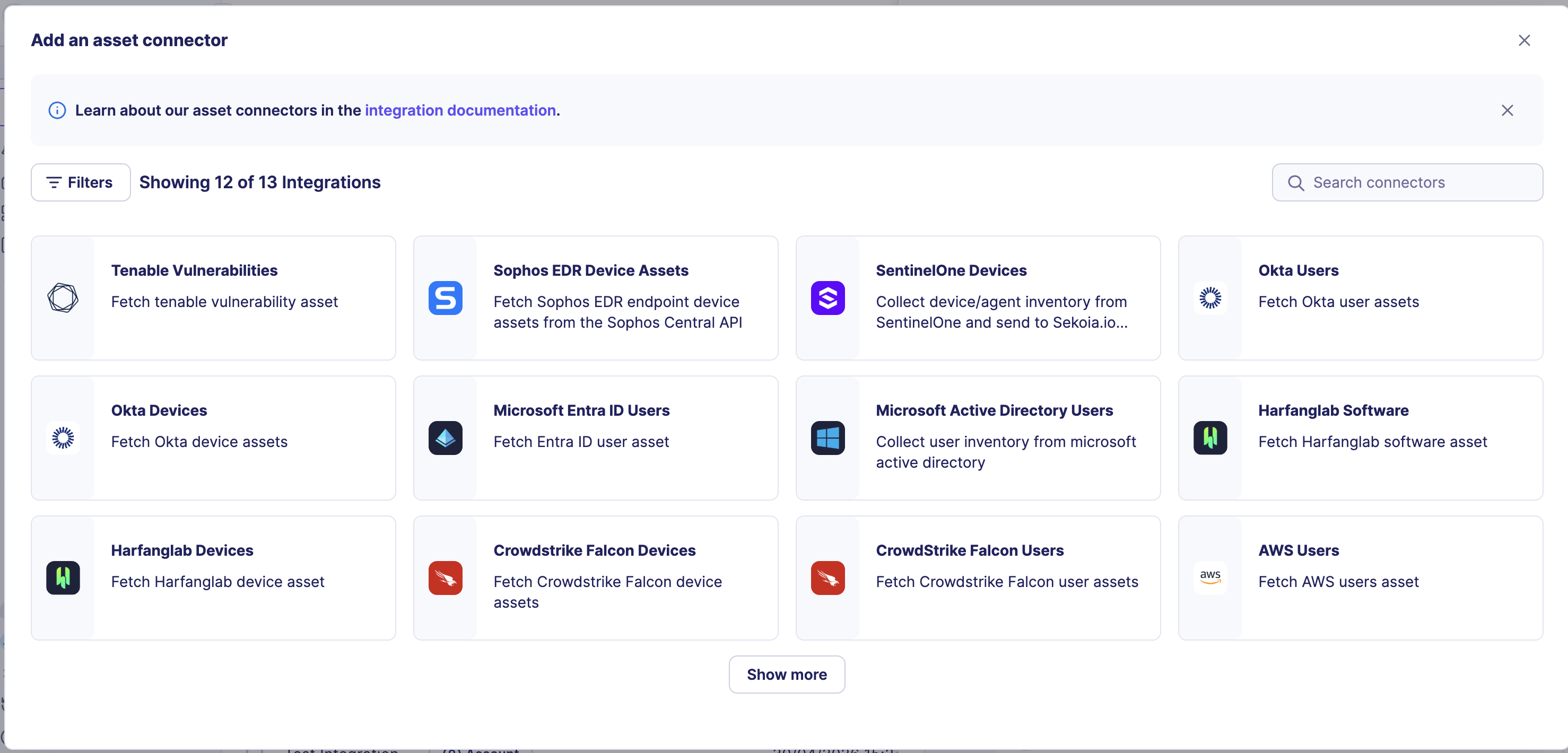
Step 3: Fill in the connector form
Reusing accounts
You can reuse an existing account. Any account created here is shared with the account list, alongside those created for event connectors and playbook modules.
Enter the required fields for the selected integration. The fields vary by integration type and typically include a connector name, and an Account to synchronize.
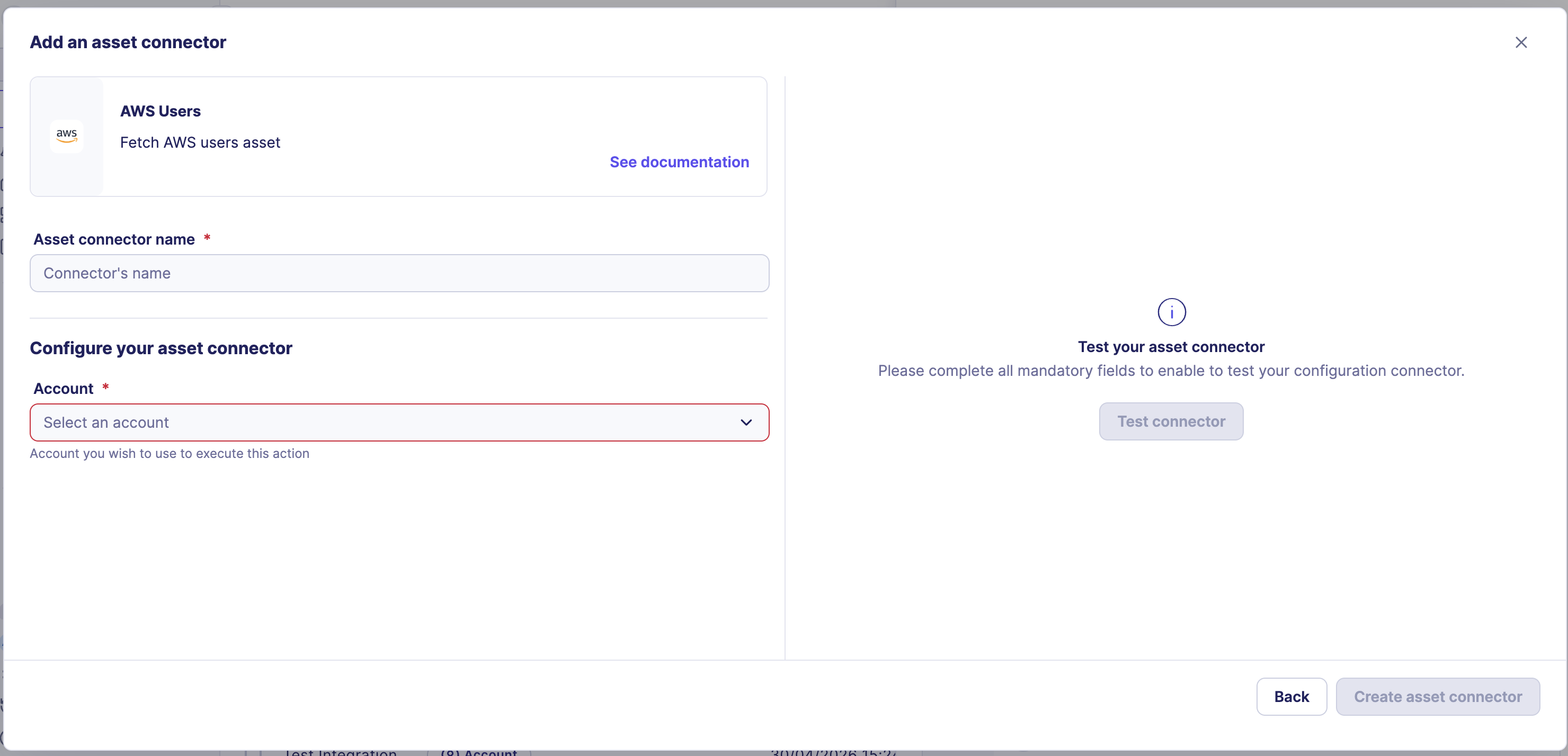
Step 4: Test the connector
Select Test connector to validate your credentials before saving.
What the test checks
A successful test confirms that the credentials you entered are valid.
Step 5: Create the connector
When the test is conclusive, select Create asset connector.
The connector starts retrieving asset data from the external system. Asset retrieval is progressive. Depending on the size of your environment and the integration, the first assets may take several minutes to appear.
Where to find your assets
All assets retrieved by connectors are available on the Assets page. You can monitor connector health from the asset context panel under the Security controls tab. In the listing, you can filter assets by connector.
Manage existing connectors
From the asset connector list, you can perform the following actions on any connector tile:
| Action | How to access |
|---|---|
| Enable or disable | Toggle on the connector tile |
| Edit configuration | Select ... then select Edit |
| View logs | Select ... then select View logs |
| Delete | Select ... then select Delete |
After deleting a connector
The connector stops syncing within a few minutes. Assets it already discovered remain in your inventory.
Related links
- Troubleshoot asset connectors — How to diagnose and resolve connector errors using error indicators and logs.
- Reveal feature enablement matrix — Which data sources are required or optional for each Reveal capability.
- Getting started with Reveal — Recommended setup order for all Reveal data sources.
- Integration — Asset categories — Reference for available connector categories and integration setup.
- Security controls — How to verify connector coverage from the asset context panel.