Investigate an object
Introduction
Use an object page to review the information associated with an Intelligence result. Depending on the object type, the page can provide metadata, descriptions, reports, relationships, external references, graph exploration, and export options.
The available tabs and content depend on the object type and on the intelligence available for that object. This article uses two examples:
- a Campaign page with a Details tab;
- a Location page with the redesigned Overview tab.
Before you start
You need access to Intelligence and permission to read objects. No specific role is required. Guest users can access object pages when their community has an Intelligence subscription and their permissions allow them to read objects.
Open an object page
- Open Intelligence.
- Search for an object or use the available filters. For more information, see Search Intelligence.
- Select an object in the results list.
The object page opens with the object header and the tabs available for that object type.
Read the object header
The header can include:
- the object icon or, for a Location representing a country, the country flag;
- the object name;
- the object type;
- the TLP level;
- the confidence level;
- creation and modification dates;
- telemetry information;
- aliases, when available.
The header also provides the actions available for the object and your permissions. The exact actions can vary by object type, workspace, and object ownership.
Use the object tabs
Object pages do not all expose the same tabs. The available tabs depend on the object type and the data available for that object.
Depending on the object, you may find:
- Details;
- Overview;
- Threat Context;
- External references;
- Graph exploration;
- Reports.
Most object types use Details as their main information tab. Locations and Sectors use a redesigned Overview tab instead.
Read the Details tab
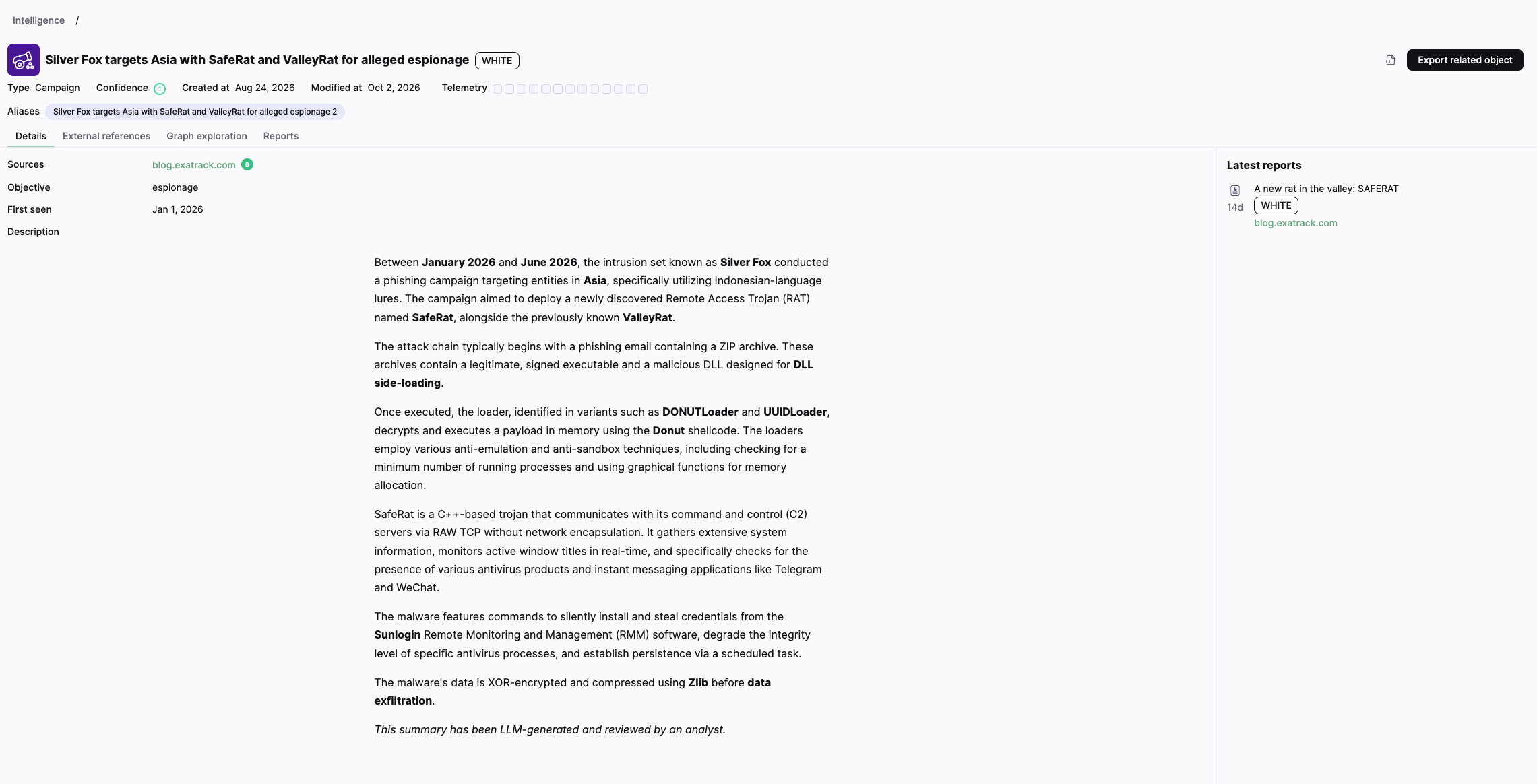
For most object types, the Details tab displays the main information associated with the object.
Depending on the object type, it can include:
- sources;
- objective;
- first seen date;
- aliases;
- a description;
- creation and modification dates;
- related reports.
For example, a Campaign page can display its source, objective, first seen date, and description. A Latest reports section can appear alongside the object details when reports are associated with the object.
Read the Overview tab
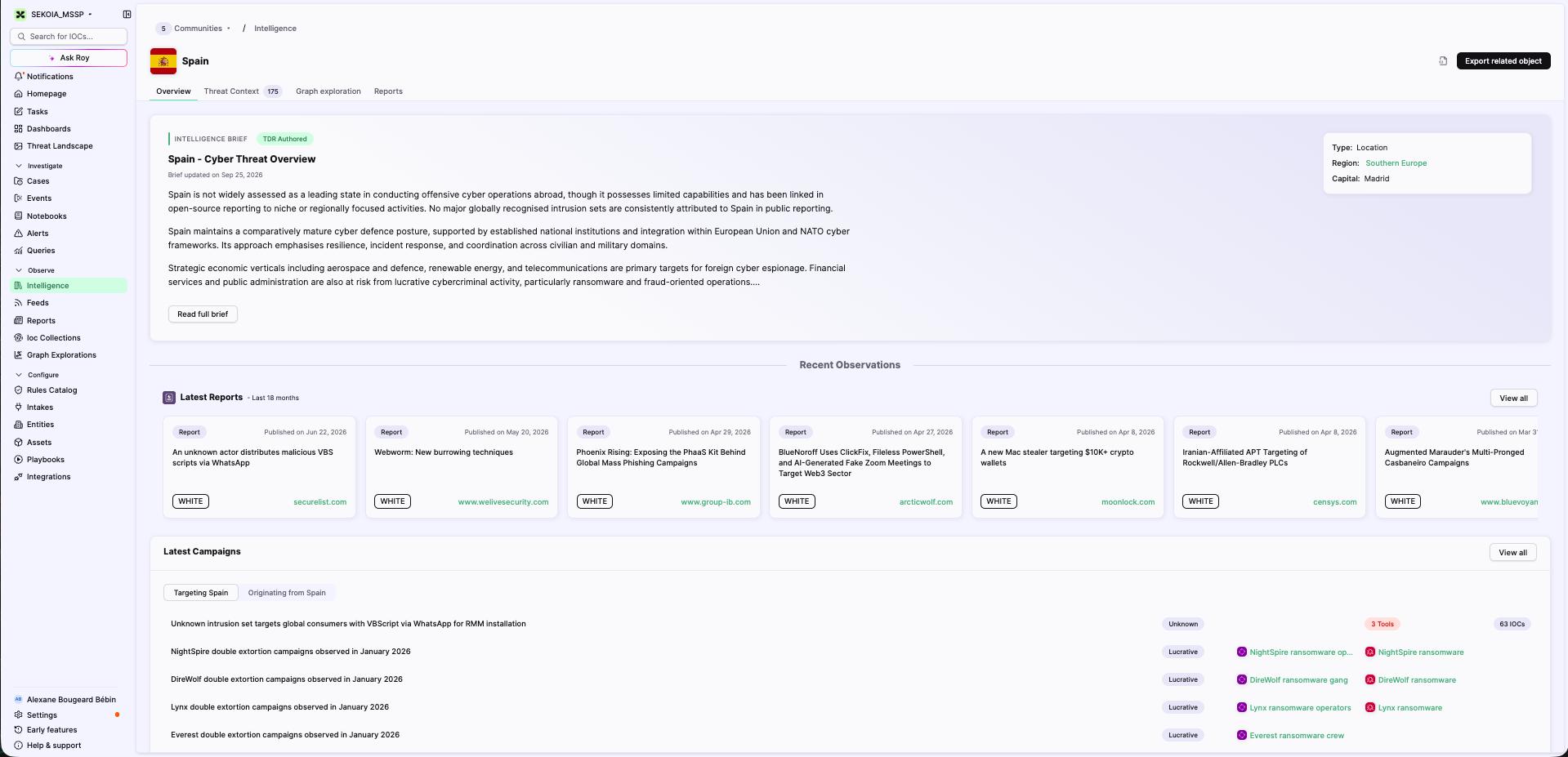
Locations and Sectors use the redesigned Overview tab as their main information page. The content depends on the object type and the available intelligence.
For example, a Location page can include:
- an Intelligence Brief or profile;
- geographic information, such as a region or capital;
- a description of the location;
- recent reports associated with the location.
The content shown on a Location or Sector page should not be assumed to be available for other object types.
Read an Intelligence Brief
When an Intelligence Brief is available, the Overview tab displays a summary prepared for the object. Select Read full brief to open the complete content.
A Location Brief can provide geographic context, a summary of the threat landscape, and information relevant to the location. Use the information as a starting point for further investigation and open the related objects or reports when more detail is required.
Review latest reports
The Latest Reports section provides a summary of recent reports associated with the object. A report card can show:
- the report title;
- the publication date;
- the TLP level;
- the report source.
Select View all to open the complete list of reports for the object.
Review the Threat Context
The Threat Context tab is available for object types with related threat intelligence.
It can include:
- an Object distribution summary by object type;
- filters;
- a search field for related objects;
- a table of relationships.
The relationship table can include:
- the source object;
- the relationship type;
- the target object;
- confidence;
- sources;
- creation and modification dates;
- first-seen and last-seen dates;
- validity dates, when available.
Select a linked object to open its object page. Use the relationship type to understand how the objects are connected, for example targets, originates-from, or located-at.
Open external references
The External references tab lists links to information maintained outside Sekoia Intelligence, when available.
Use this tab to:
- identify the external sources associated with the object;
- open the source material;
- compare the object with the information provided by the external source.
External references can have their own publication dates, TLP levels, and source domains.
Explore the object graph
The Graph exploration tab displays the object and its relationships in a graph.
Use the graph to:
- view related objects visually;
- search within the graph;
- add or remove layers;
- switch between object details and relationships;
- change the layout;
- zoom in or out;
- fit the graph to the available space.
Select an object in the graph to inspect it and pivot to its object page when appropriate.
For general graph functionality, see Graph explorations.
Review associated reports
The Reports tab provides the complete list of reports associated with the object.
The list can include the following columns:
- TLP;
- Name;
- Published at;
- Sources.
Select a report title or source to open it. Use the pagination controls and the Items per page selector to browse the list.
For more information about report types, see FLINT Reports and External Reports.
Export related objects
Select Export related object to export the objects associated with the current object.
In the export dialog, choose whether to export:
- All threat context;
- Selected categories.
Then select a format:
- CSV;
- JSON lines;
- Text.
Select Export to start the export. The available data depends on the selected scope and on your permissions.
For general export behavior, see Data Export.
Related articles
Intelligence: How to search and filter objects and observables.
Observables: Overview of observable types, tags, validity, sources, and relationships.
Data model: Reference for object types, relationships, sources, and confidence.
Graph Explorations: How to explore relationships in a visual graph.
Data Export: How to export related objects.
FLINT Reports: Overview of Sekoia threat intelligence reports.
External Reports: Overview of reports from external sources.