Case custom views
Case custom views are named, saved configurations of the cases listing page that store your filters, displayed columns and sort order. You open a view in one click instead of rebuilding the same filters at every session, and you can keep it private or share it with everyone in your community.
Early Access
This feature is currently in Early Access and is only available for Beta testers. Sekoia.io plans to roll out this functionality to all environments soon.
Why use custom views
Filters applied with the Filters button on the cases listing page are temporary. They are not kept from one session to the next and you cannot share them with your team, so every analyst rebuilds the same queues every day.
A custom view turns a filter combination into a permanent, named queue. Analysts start their shift on the right list of cases, and a SOC team triages from the same shared map during standups and handoffs.
What a view contains
A view stores four settings of the cases listing page:
| Setting | Description |
|---|---|
| Filters | Any combination of the case filters, for example Custom fields is Business Impact and Priority is Medium. |
| Columns | The columns displayed in the table and their order, configured in Show/hide table columns. |
| Sort order | The order of the listing: Last edition, Creation date or By highest priority. |
| Search | The text entered in the search bar, which narrows the list to the matching cases. |
The views bar
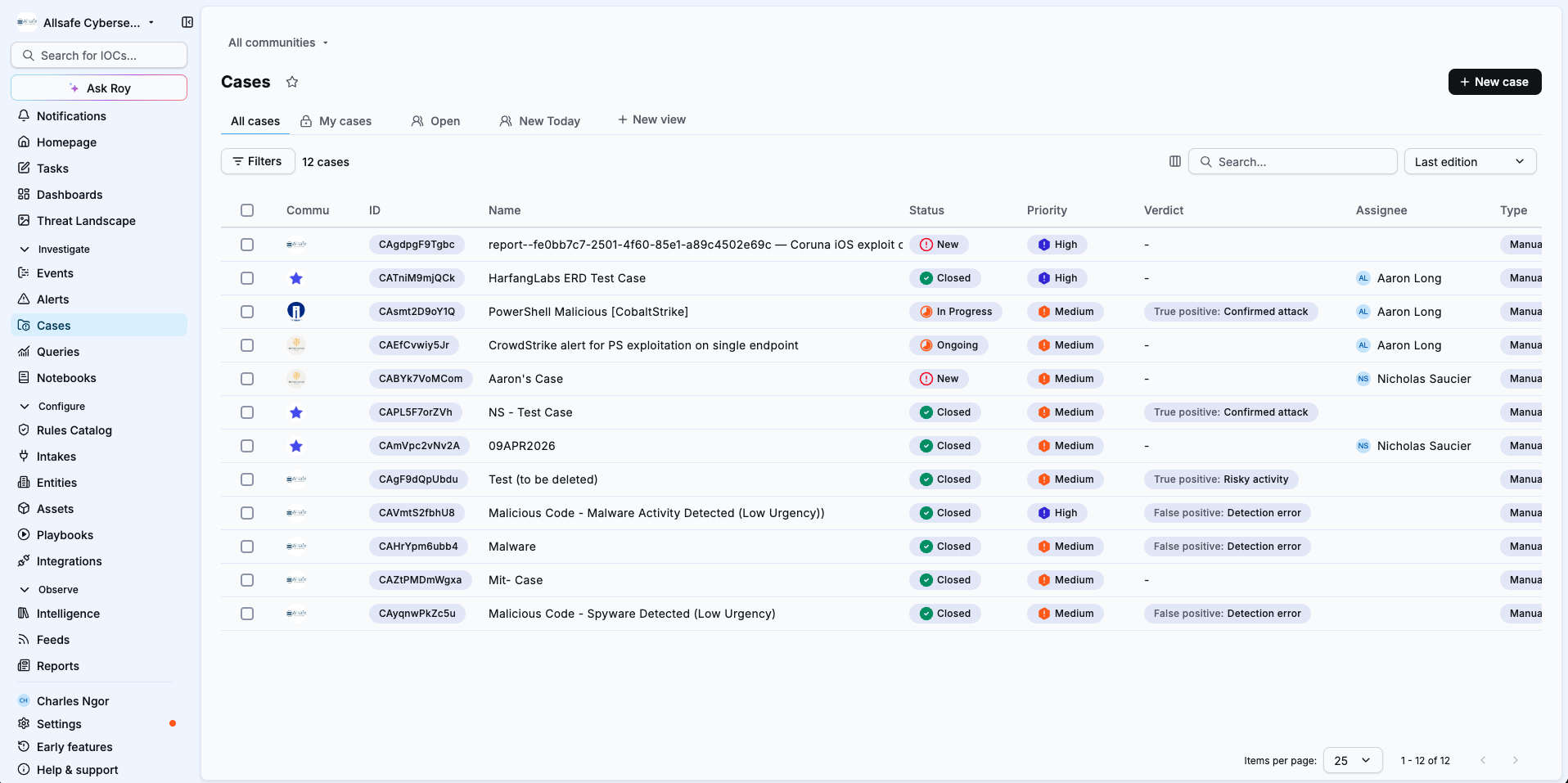
Views appear as tabs in a bar above the cases list. The All cases tab shows every case without saved filters. Your private views and the views shared with your community follow it, in the order you set. The + New view button at the end of the bar creates a new view.
Selecting a view applies its filters, columns, sort order and search text immediately. When you change any of these settings on an open view, including the search text, Reset and a save button appear so you can discard or keep your changes. The save button reads Save on a private view and Save for everyone on a shared view.
Visibility
Each view has one of two visibility settings, chosen when you create it and editable later.
| Visibility | Icon | Who sees the view |
|---|---|---|
| Private | Lock | Only you. |
| Share to the community | People | Every user of the community with the permission to view case custom views. |
Shared views update for everyone
Saving changes to a shared view updates it immediately for every user of the community who has access to it.
Limits
| View type | Limit |
|---|---|
| Shared views | 20 per community |
| Private views | 10 per user |
Views in multi-tenant mode
In multi-tenant mode, views are scoped to the level where you create them. A view created at the workspace level is not shared with sub-communities, and each community keeps its own set of views. To give analysts of several communities the same queue, create the view in each community.
Permissions
Two permissions of the Cases group control access to custom views. Grant them through a custom role.
| Permission | Description |
|---|---|
| View case custom views | List and view case custom views. |
| Manage case custom views | Create, update and delete case custom views. |
Use cases
- Personal queue: a private My cases view filtered on your assignments, sorted by highest priority.
- Team triage queue: a shared L1 queue or High priority view so every analyst of the squad works from the same list.
- SLA follow-up: a shared SLA breached view reviewed during the daily standup.
- Business context: a shared view filtered on a custom field such as Business impact, with the custom fields column displayed.
Related articles
- Manage case custom views: How to create, save, edit, duplicate, delete and reorder views.
- Manage cases: How to filter, sort and perform bulk actions on cases from the listing page.
- Cases: Overview of what cases are and how they are structured.
- Custom fields: How to extend alerts and cases with structured, typed metadata fields.
- Roles and permissions: How built-in and custom roles grant access to platform features.
- Workspace and communities: How workspaces and communities are organized in multi-tenant mode.