Application inventory
Reveal module. This feature requires the Reveal add-on module.
Beta
The Applications tab is currently in Beta. Its fields and behavior may change as the feature evolves.
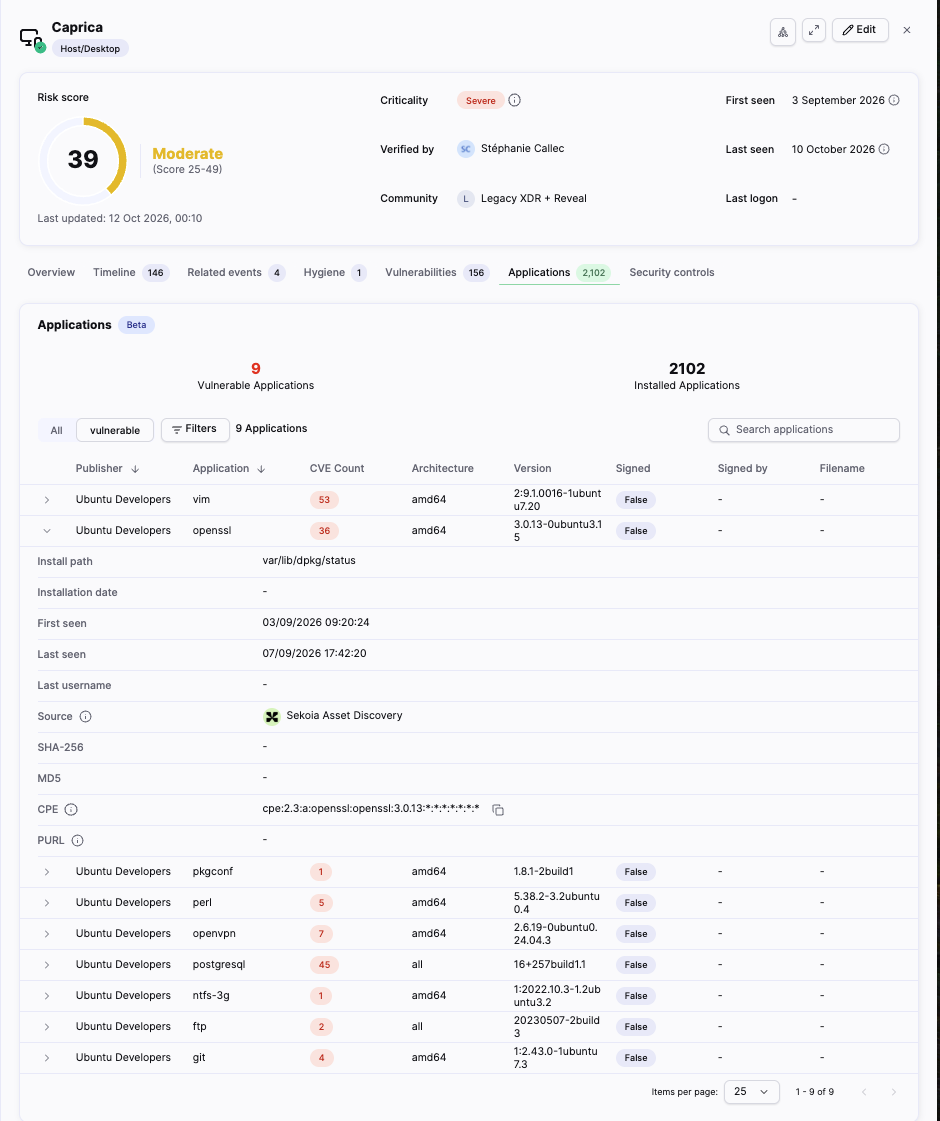
The Applications tab lists software associated with a host asset and shows which applications have associated CVE findings. You can review the application inventory, filter vulnerable applications, and click an application's CVE count to review its related vulnerabilities from the asset context panel.
Prerequisites
To collect application inventory data, you can use either the Sekoia Endpoint Agent or Asset Connectors supporting the Application Discovery capability.
Enable Software Collection on the Sekoia Endpoint Agent
Enable the following role in your Sekoia Endpoint Agent configuration:
- software-collector
In addition to the recommended roles:
- event-collector
- compliance-collector
For installation instructions and host hygiene configuration, see Install the Sekoia Endpoint Agent.
The Applications tab lists software associated with a host asset and shows which applications have associated CVE findings. You can review the application inventory, filter vulnerable applications, and click an application's CVE count to review its related vulnerabilities from the asset context panel.
Open the Applications tab
Open the asset context panel and select Applications.
Use this interface path:
Asset context panel > Applications
The asset context panel displays the asset's Risk score header and its investigation tabs. The Applications tab can display a count of installed applications.
How application inventory works
Reveal collects application inventory from connected asset sources, such as endpoint and asset connectors. The source reports the application name, version, and available technical details.
When an application is associated with one or more known CVEs, the application is included in the vulnerable view and its CVE Count displays the number of matching findings.
Application coverage
The Applications tab does not necessarily contain every application running on the asset. Coverage depends on the source, operating system, application type, and latest synchronization.
Summary counters
The Applications tab can display:
| Counter | Description |
|---|---|
| Vulnerable Applications | Number of applications with at least one associated CVE finding. |
| Installed Applications | Number of applications associated with the asset. |
Search and filter applications
Use Search applications to search the application list.
Use the quick views to switch between:
- All, which lists all available applications.
- vulnerable, which lists applications with associated CVE findings.
Select Filters to filter by:
- Publisher
- Application
- Architecture
- Signed
The filter menu includes a search field for the selected filter.
Application fields
| Field | Description |
|---|---|
| Publisher | Publisher associated with the application. |
| Application | Application or product name. |
| CVE Count | Number of associated vulnerability findings, when available. |
| Architecture | Application architecture, when available. |
| Version | Version detected by the source. |
| Signed | Indicates whether the application or executable is signed. |
| Signed by | Publisher or subject from the signing certificate, when available. |
| Filename | Executable or file name detected by the source, when available. |
The Publisher and Application columns can be sorted when a sort control is displayed. A dash indicates that no value is available.
Expand an application
Expand an application row to view additional details:
- Install path.
- Installation date.
- First seen.
- Last seen.
- Last username.
- Source.
- SHA-256.
- MD5.
- CPE.
- PURL.
A field can display - when the source does not provide the value.
Open related vulnerabilities
The CVE Count badge is a shortcut to the related findings.
To open the vulnerabilities associated with an application:
- Find an application with a CVE count.
- Click the CVE count.
- Review the filtered vulnerability list.
The interface can display a Click to see vulnerabilities tooltip when you hover over the badge.
Use this path to open the complete vulnerability list:
Asset context panel > Vulnerabilities
For the vulnerability table and expanded finding details, see Vulnerability enrichment.
Use application inventory during an investigation
Application inventory provides visibility into the software installed across your assets, helping security teams investigate threats, assess exposure, and support compliance activities.
During alert triage: check whether the affected asset runs an application associated with the activity under investigation, then click its CVE count to review the related findings.
During root cause analysis: identify outdated or unsigned software that may have contributed to the compromise.
For proactive review: use the vulnerable quick filter to focus on applications with associated CVE findings, then prioritize the affected versions according to the vulnerability severity and available exploitation information.
For software compliance: review installed applications to identify unauthorized or non-compliant software against your organization's approved software policies.
Relationship with the Asset Risk Score
The Asset Risk Score prioritizes the asset using exposure, recent activity, and configured criticality. Open, confirmed vulnerabilities can contribute to the asset's Exposure Score according to their CVSS severity.
The CVSS and Unified risk score values describe individual vulnerability findings. They are not the same as the asset-level Asset Risk Score.
For the scoring model, see Asset risk scoring.
Related articles
Vulnerability enrichment: How CVE findings are collected and displayed for an asset.
Asset risk scoring: How vulnerability exposure contributes to the asset-level Asset Risk Score.
Asset context panel, Reveal capabilities: Overview of Reveal-specific asset context and investigation tabs.