Build playbooks
A playbook starts with a trigger and can include conditions and actions. This article explains how to create a playbook from a template, build a workflow from scratch, and create a meta-playbook for multiple communities.
Create a playbook
To create a playbook:
- Navigate to Playbooks.
- Click New playbook.
The new playbook opens in the Workflow tab. In a multi-tenant workspace, select the communities for the playbook before you start building its workflow. See Create a meta-playbook.
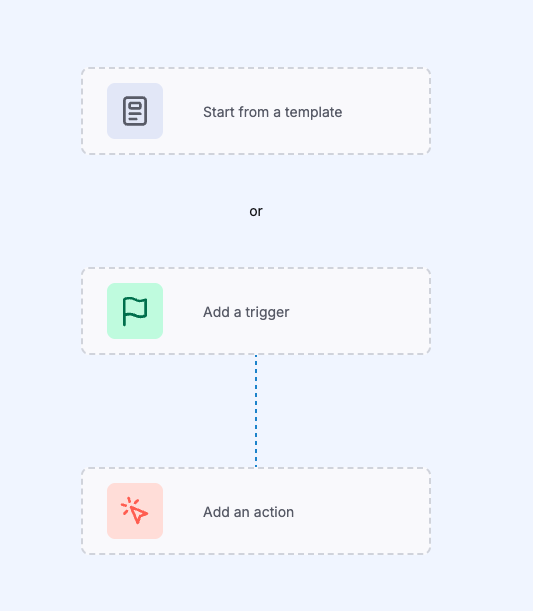
An empty playbook offers two ways to start:
- Start from a template: Select a ready-made playbook from the Playbooks Catalog.
- Add a trigger or Add an action: Build the workflow block by block.
Playbook name
A new playbook is named "New playbook". If you start it with Start from a template, Add a trigger, or Add an action, the playbook takes the name of the template or module you select, followed by the name of its community. For example, "Enrich alerts with VirusTotal - Acme". The community name is not added to a meta-playbook that runs on several communities. A module added directly from the module menu does not rename the playbook.
To rename the playbook, click the edit icon next to its name in the playbook header, enter the new name, and click Save.
Start from a template
Creating a playbook from scratch can be complex. Templates provide a workflow that you can customize.
To start from a template:
- In an empty playbook, click Start from a template.
- In Select a template from our Playbooks Catalog, search for a template or click a tag to filter the list.
- Select a template to preview its workflow.
- Click Use this template.
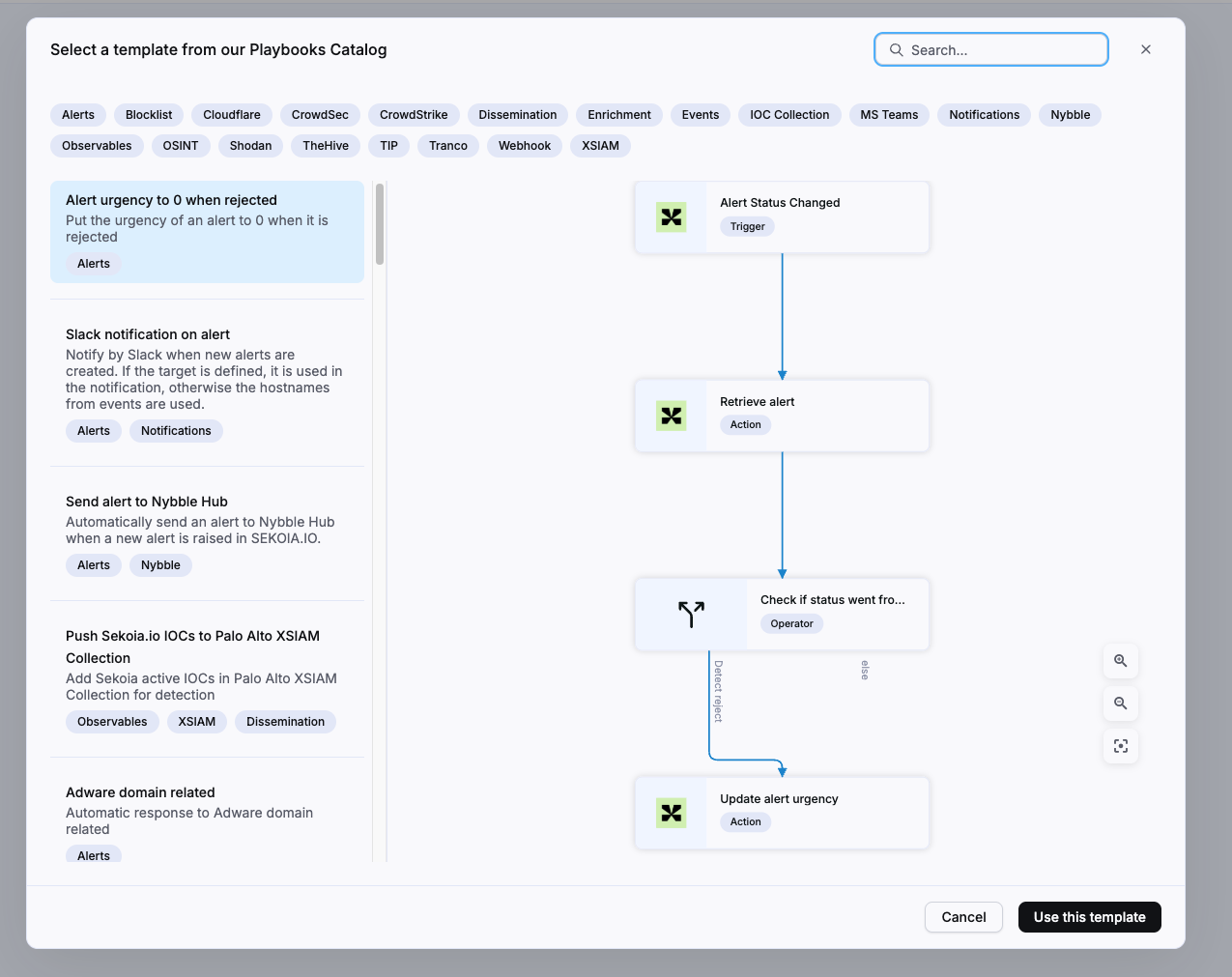
The template workflow fills the graph area. Configure the accounts and settings of each block before activating the playbook.
The Playbooks Catalog is updated by Sekoia analysts. The main templates are listed below. All playbook templates are available in the Sekoia Community repository, where you can add new templates.
Operations Center templates
| Category | Name | Description |
|---|---|---|
| Alerts, Notifications, Webhook | Mail Webhook notification on alert | Send an email about an alert when receiving a webhook event. |
| Alerts, Notifications, Webhook | Mattermost notification on alert | Notify by Mattermost when new alerts are created. |
| Alerts, Webhook | Qualify Internet Scan webhook | Qualify an Internet scan alert on a webhook. |
| Alerts | Playbook adware | Automatically validate alerts with predefined adware domains. |
| Alerts | Alert urgency to 0 when rejected | Set the urgency of an alert to 0 when it is rejected. |
| Alerts, Enrichment | Enrich alerts with VirusTotal | Enrich alerts with VirusTotal information. |
| Alerts, Cron | Reject old alerts (1 year) | Reject alerts that have not been updated for one year. |
| Alerts, Webhook, Enrichment | Enrich with IKnowWhatYouDownload | Check whether an IP address is known by IKnowWhatYouDownload. |
| Alerts, TheHive | Automatically create an alert on TheHive | Automatically create an alert on TheHive when a new alert is raised in Sekoia.io. |
| Alerts, TheHive | Manually create an alert on TheHive | Create an alert on TheHive from the alert page. |
| Alerts, Notifications | Slack notification on alert | Notify by Slack when new alerts are created. If a target is defined, use it in the notification. Otherwise, use the hostnames from the events. |
| Alerts, Enrichment | Enrich alerts with AbuseIPDB | Check whether an IP address is known by AbuseIPDB. |
| Alerts, Enrichment | Alerts Enrichment Shodan Playbook | Check whether an IP address is known by Shodan. |
| Alerts, OSINT | Fetch alerts from Digital Shadows SearchLight | Synchronize alerts from Digital Shadows SearchLight with Sekoia.io events. |
| AWS, Events | Forward AWS CloudTrail records to Sekoia.io | Pull records from AWS CloudTrail and push them to Sekoia.io. |
| AWS, Events | Forward AWS Flow Logs records to Sekoia.io | Pull records from AWS Flow Logs and push them to Sekoia.io. |
| Events | Forward Panda Security events to Sekoia.io | Pull security events from Panda Security Aether and push them to Sekoia.io. |
| Events | Imperva WAF fetch logs | Fetch events from Imperva Web Application Firewall and forward them to a Sekoia.io intake. |
| Events | Forward Vade M365 email events to Sekoia.io | Collect logs from Vade for M365 and push them to Sekoia.io. |
| Events, Google | Forward Google Pub/Sub records to Sekoia.io | Consume records from Google Pub/Sub and push them to Sekoia.io. |
Intelligence Center templates
| Category | Name | Description |
|---|---|---|
| Observables, Shodan | Shodan Search to observables | Get IP addresses from a Shodan search and add them to the Observables database with a tag. |
| Observables, Fetch OSINT | Generic Fetch OSINT to observables | Retrieve observables from an OSINT source and add them to the Observables database with a tag, such as the MISP warning lists. |
| Observables, Tranco, TIP | Tranco top domains to observables | Import the top 1,000,000 Tranco domain names into the Observables database. |
Build a playbook from scratch
To build a playbook from scratch:
- In an empty playbook, click Add a trigger. The Triggers panel of the module menu opens.
- Click a trigger or drag it to the graph area.
- Add operators and actions from the module menu, then connect the blocks.
- Configure each block in the configuration panel.
A playbook combines the following building blocks:
- Triggers: Alert-related, manual, and Cron triggers.
- Operators: Condition, Foreach, and Store operators.
- Actions: Getters, setters, external data enrichers, and notifications.
For more information about the module menu, see Navigate playbooks.
You can also refer to the playbook templates and playbook use cases for examples.
Create a meta-playbook
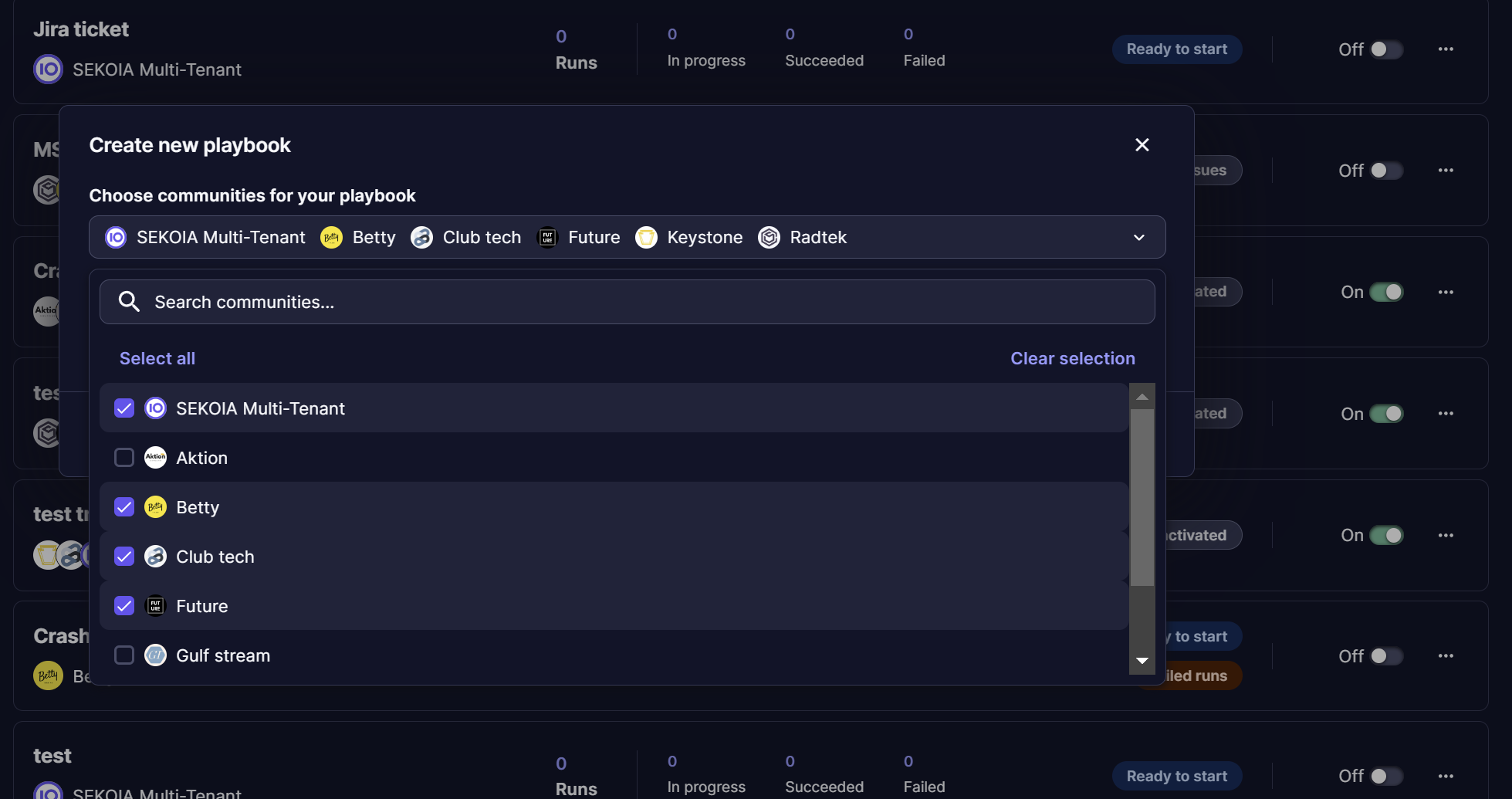
When you create a playbook from a multi-tenant workspace, the Create new playbook window asks you to Choose a community for your playbook. You can select one community, several communities, or all communities with Select all, then click Create. A playbook created for several communities is a meta-playbook.
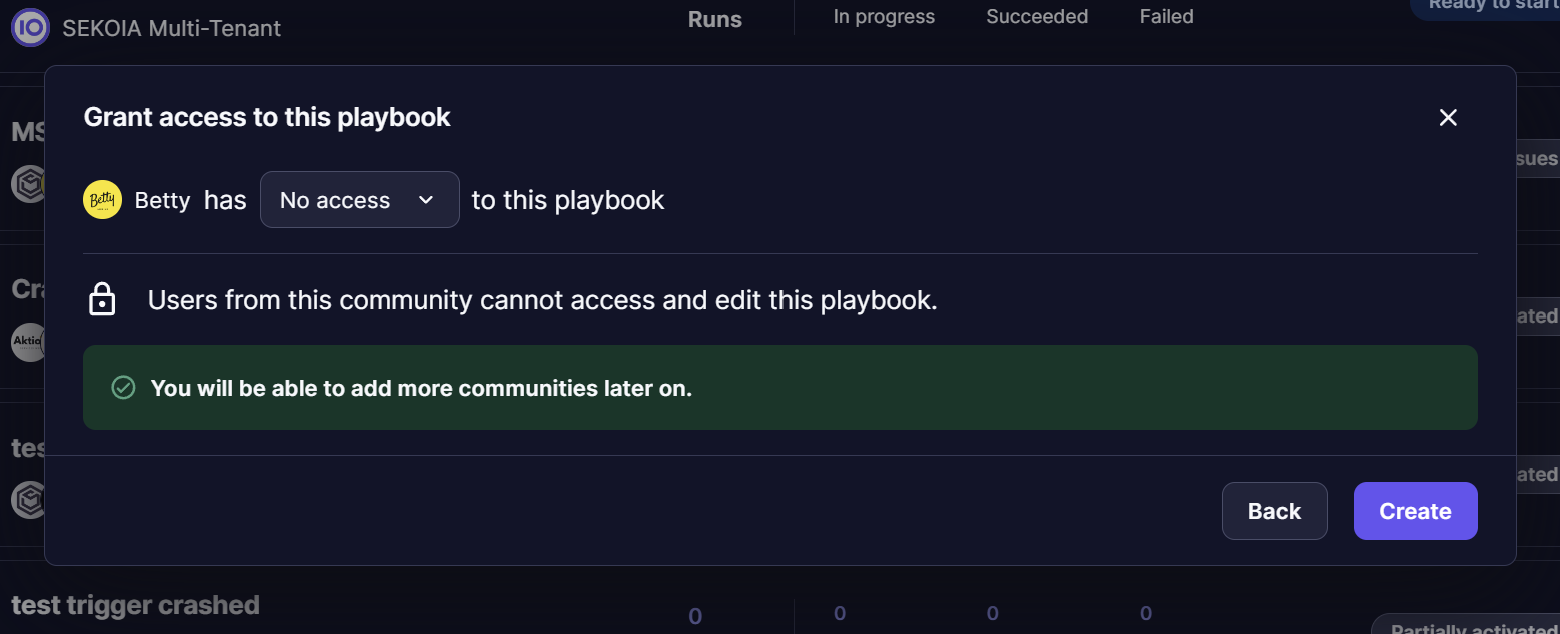
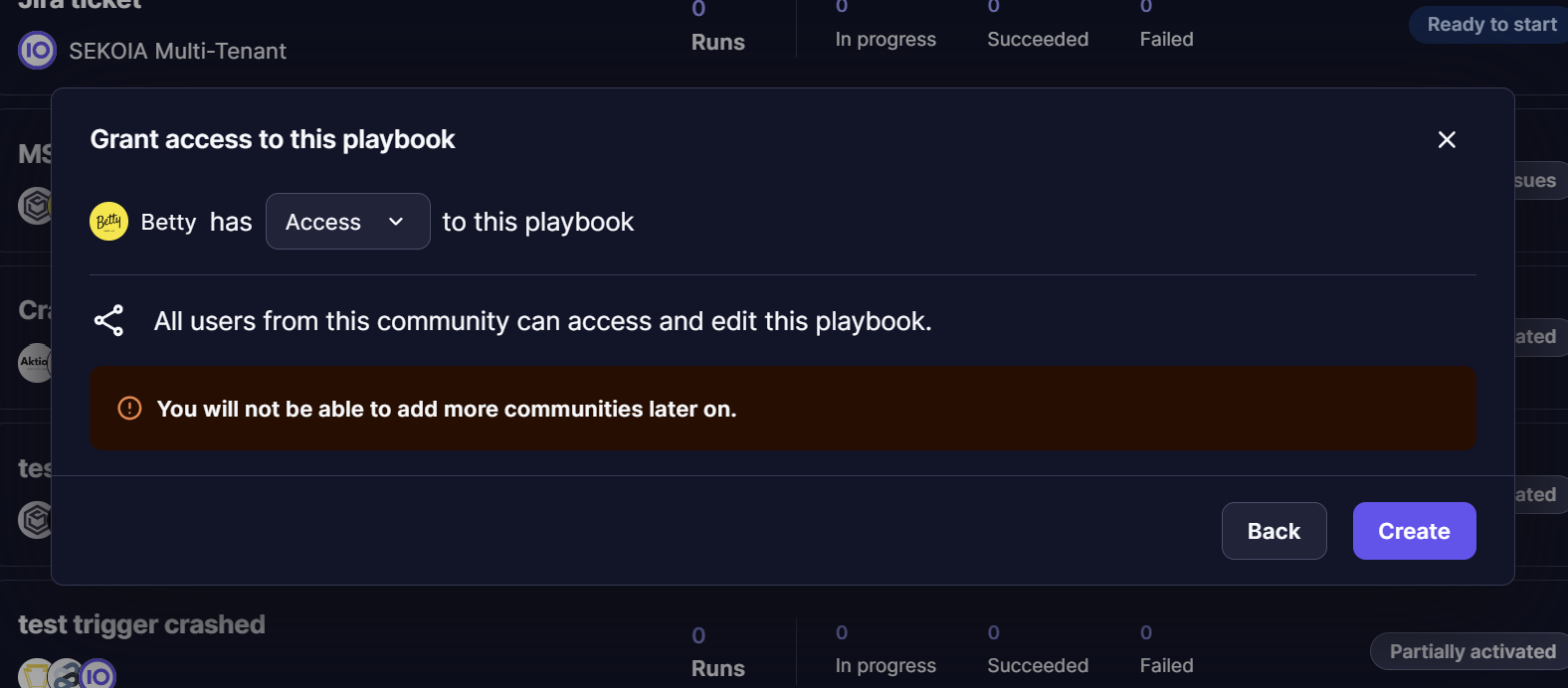
If you select a single sub-community, the Grant access to this playbook step follows the community selection.
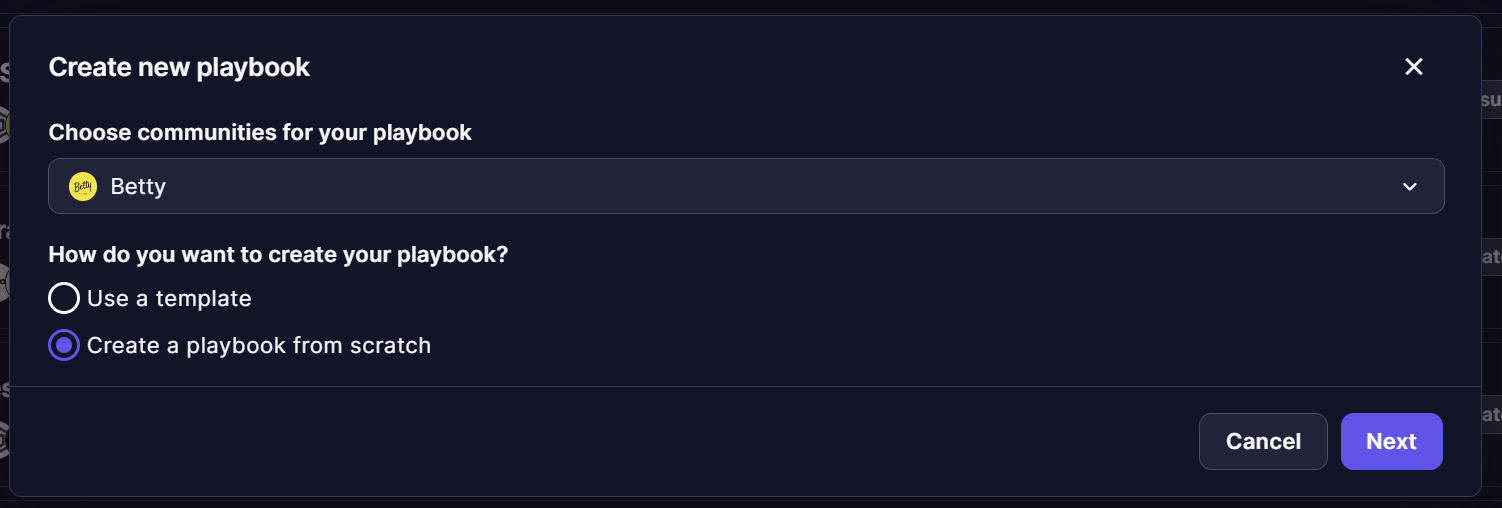
Choose whether users from this community can access the playbook, then click Create:
| Option | Effect |
|---|---|
| No access | Users from the community cannot access or edit the playbook. The playbook remains a meta-playbook managed from the workspace, and you can add more communities later. |
| Access | All users from the community can access and edit the playbook. You cannot add more communities to the playbook later. |
Related articles
- Navigate playbooks: Reference for the playbooks list and the playbook interface.
- Organize playbooks with custom fields: How to add custom fields to playbooks and group the playbooks list.
- Restore a playbook version: How to preview, compare, and restore a previous version of a playbook.
- Debug playbooks: How to investigate failed runs and trigger errors.