Restore a playbook version
Sekoia.io keeps a history of the versions of each playbook, so you can see who changed what and roll back a change that broke your automation. This article explains how to open the version history of a playbook, preview and compare a version, and restore it.
A new version is saved when the playbook is created, then each time you save a change to its name, description, workflow or custom fields. Activating or deactivating a playbook does not create a version.
Retention
Sekoia.io keeps the last 30 versions of each playbook and deletes older versions automatically. Version history covers playbooks saved at least once since August 1, 2026.
Prerequisites
- To view the version history, you need the permission to read playbooks.
- To restore a version, you need the permission to edit playbooks.
Open the version history
To open the version history of a playbook:
- Navigate to Playbooks.
- Click the name of the playbook.
- In the playbook header, click the ... menu.
- Select Version history.
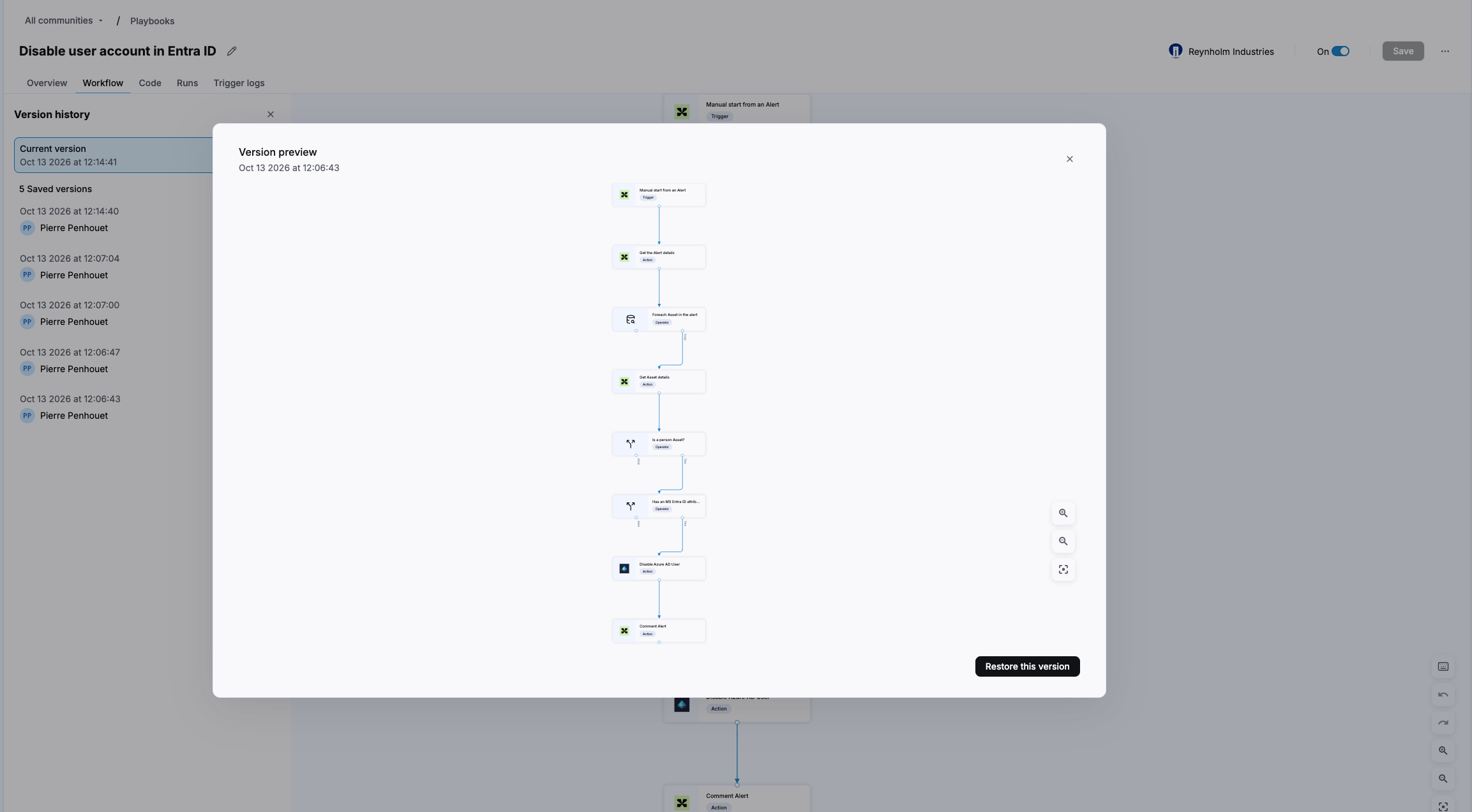
The Version history panel lists the Current version and the Saved versions, each with its date, time and author.
Preview a version
To see the workflow of a saved version:
- Open the Version history panel.
- Click a version.
The Version preview window shows the workflow of that version in read-only mode, with its save date. To see the configuration of a node, click the node.
Compare a version with the current one
The Code tab shows the JSON of the selected version next to the JSON of the current version, with the differences highlighted.
To compare a version with the current one:
- Open the Code tab of the playbook.
- Open the Version history panel.
- Click a version.
To display the selected version alone, turn off the diff toggle.
Restore a version
Restoring applies immediately
Sekoia.io does not ask for confirmation. If the playbook is activated, its next runs use the restored workflow.
To restore a version:
- Open the Version history panel.
- Click the version you want to restore.
- In the Version preview window, click Restore this version.
The restored workflow replaces the current one and is saved as a new version. The version you replaced stays in the history, so you can restore it later. Restoring a version does not change the name, the description or the custom fields of the playbook.
Related articles
- Navigate playbooks: Reference for the playbooks list and every tab of a playbook.
- Build playbooks: How to create a playbook from a template or from scratch.
- Debug playbooks: How to investigate failed runs and trigger errors.