Organize playbooks with custom fields
Custom fields let you attach your own metadata to playbooks, such as an owner team, a use case or a criticality level. This article explains how to add custom fields to a playbook and how to group the playbooks list by activation, by community or by custom field.
Prerequisites
- Custom field definitions exist in Settings > Custom fields. Playbooks use the same definitions as alerts and cases. See Manage custom field definitions.
- To see the custom fields of a playbook, you need the permission to read custom fields.
- To add or edit custom fields on a playbook, you need the permission to edit playbooks.
Prepare a field for grouping
You can group playbooks by a Single select field with at least one option, or by a Boolean field. Other field types appear on playbooks but cannot be used to group them. For example, create a "Team" single select field with one option per team.
Add a custom field to a playbook
The Custom fields section is in the Overview tab of the playbook. Until you add a field, it shows No custom fields.
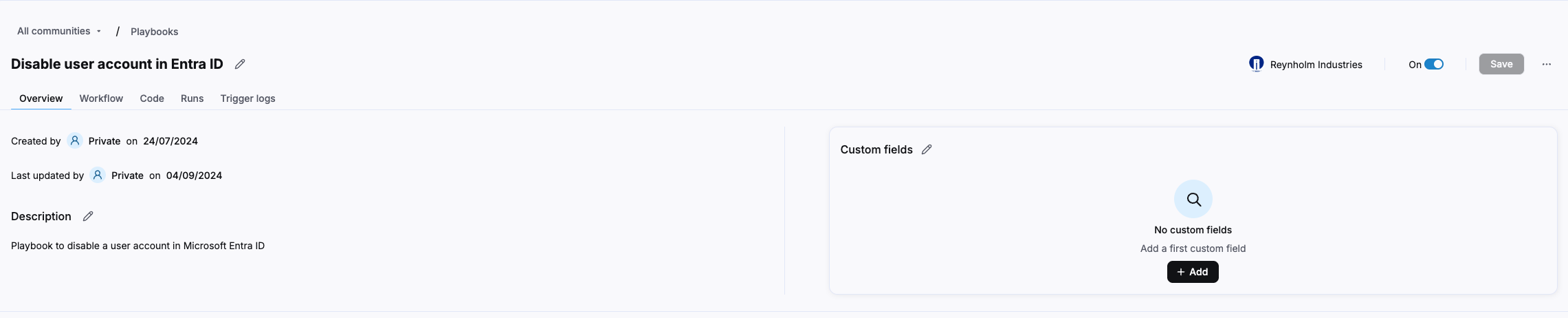
To add a custom field to a playbook:
- Navigate to Playbooks.
- Click the name of the playbook.
- Open the Overview tab.
- In the Custom fields section, click Add.
- Select the field.
- Enter or select the value.
The value is saved immediately, without clicking Save, and recorded in the version history of the playbook.
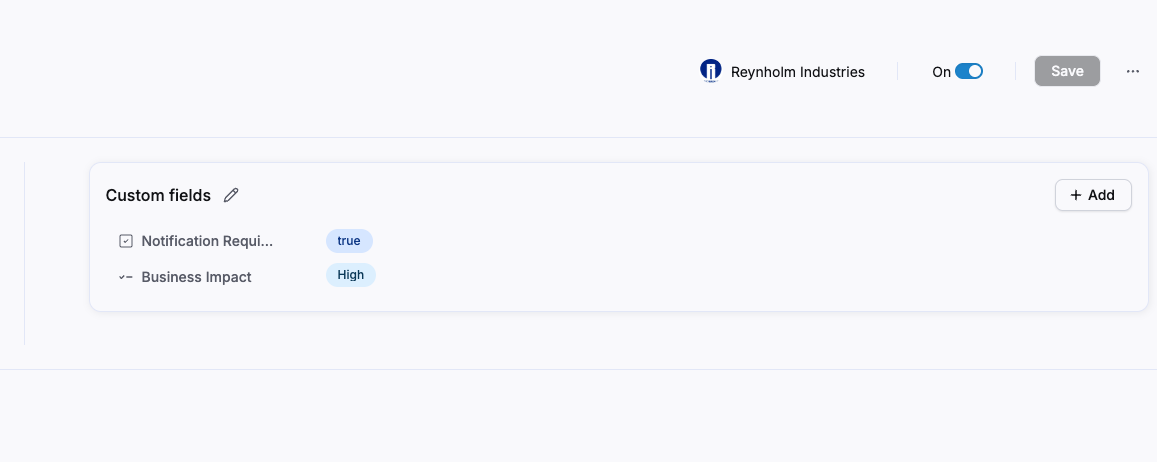
Show custom fields in the playbooks table
The Custom fields column is displayed by default in the playbooks table. If you hid it:
- Navigate to Playbooks.
- Click Show/Hide table columns.
- Select Custom fields.
Group the playbooks list
Grouping is available in the table view of the playbooks list.
To group the playbooks list:
- Navigate to Playbooks.
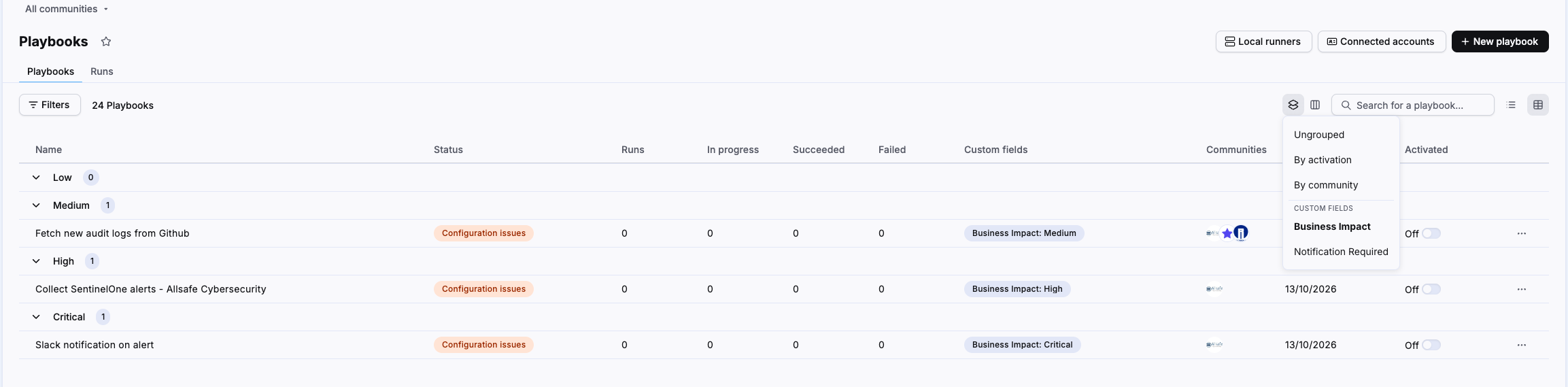
- Click Group by.
- Select a grouping option.
| Option | Groups |
|---|---|
| Ungrouped | One list with every playbook. This is the default. |
| By activation | Activated and Deactivated. Playbooks that are starting, stopping or in error are in Deactivated. |
| By community | One group per community. Available in multi-tenant parent communities only. A meta-playbook appears in the group of each community it runs in. |
| A custom field | One group per option of a single select field, or one group for true and one for false for a boolean field. Custom fields are listed under Custom fields in the menu. |
Playbooks without a value
When you group by a custom field, playbooks that have no value for this field do not appear in any group. To see every playbook, select Ungrouped.
Each group shows the number of playbooks it contains, and the first group is expanded. To expand or collapse a group, click its name. A group loads 100 playbooks at a time: to load the next ones, click Show X of Y at the end of the group.
Search, filters and sort apply inside each group. Sekoia.io remembers your grouping choice for the current community in your browser.
Related articles
- Navigate playbooks: Reference for the playbooks list and every tab of a playbook.
- Custom fields: Overview of custom field types, shared definitions, multi-tenancy behavior and workspace limits.
- Manage custom field definitions: How to create, edit and delete custom field definitions in workspace settings.