Use the SHC interface
The self-hosted-controller (SHC) opens an interactive terminal user interface (TUI) when you start it without a command. The TUI is the main interface for interactive operations in Self-Hosted 1.0.1: it runs SHC commands and adds live views of your machines, Kubernetes cluster, storage, and platform diagnostics.
The one-shot command-line interface (CLI) remains fully supported. Both interfaces run the same SHC modules, but they serve different workflows:
| Interface | Use it for |
|---|---|
TUI (./run-shc.sh) |
Interactive installation and operations, streamed command output, installation progress, live infrastructure views, and navigable diagnostics. |
CLI (./run-shc.sh <command>) |
Scripts, unattended runs, automation, and commands whose output you want returned directly to the shell. |
Prerequisites
- You have access to the orchestration node.
- The SHC Docker image is loaded and the
run-shc.shexecution script is in place. See Deploy the platform. - Your terminal is attached to a TTY. The
run-shc.shscript in Deploy the platform allocates one automatically when it runs in a terminal. - For the Kubernetes, Storage, and Diagnostics tabs, the cluster is installed and the SHC holds a valid kubeconfig. Run
GetKubeconfigif it does not.
Same commands, two interfaces
The TUI and one-shot CLI share the same command implementation. For example, exec CheckKubernetesCluster runs the same module in both interfaces.
Open the interface
Interactive terminal required
The SHC opens the interface only when an interactive terminal is attached to the container. Both stdin and stdout must be terminals, TERM must hold a usable value such as xterm-256color, and the terminal must answer the SHC within one second. Otherwise, the SHC displays a warning and the CLI help, then exits. Run the container with -it: -t alone is not enough. To skip these checks, set SHC_FORCE_TUI=1 inside the container: add -e SHC_FORCE_TUI=1 to the docker run command of run-shc.sh, because the script does not pass the variable through. The variable does not restore a disconnected input.
To open the interface, run the execution script with no command:
./run-shc.sh
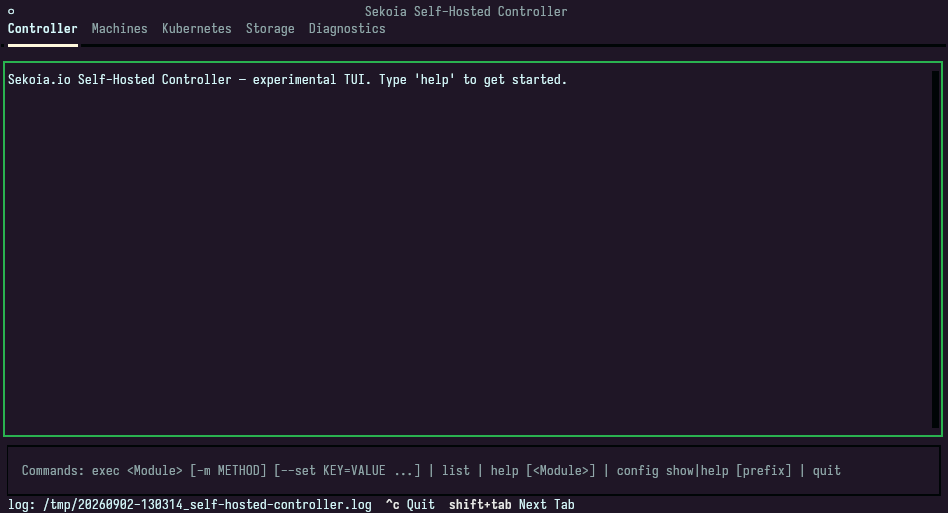
The TUI opens on the Controller tab. Passing a command instead, such as exec, list, help, or config, keeps the SHC in one-shot CLI mode and returns to your shell when the command completes.
Navigate the interface
| Key | Action |
|---|---|
Shift+Tab |
Move to the next tab. |
Ctrl+C |
Quit the interface and restore the terminal. |
Escape |
Return to the target list from a diagnostic result view. |
Shift+Down |
Move to the next diagnostic result panel. |
Shift+Up |
Move to the previous diagnostic result panel. |
Every run writes a timestamped log file, whose path is displayed at the bottom of the interface: /tmp/<TIMESTAMP>_self-hosted-controller.log, for example /tmp/20261026-143000_self-hosted-controller.log. The one-shot CLI also writes a log file with the same name pattern for each run.
The log file contains secrets
In the TUI, the log file holds the output of the modules, including the credentials that PlatformAccess displays in clear. The output that you copy from the interface can also contain these credentials and the secrets that config show displays. Before you attach the file or copied output to a ticket, redact the credentials, tokens, API keys, private hostnames, and customer data. See Collecting logs for a support ticket.
Attach the redacted log file when you escalate an issue to Sekoia support.
The path is inside the container. Set global.logging.file to a path under /opt/sekoia, such as /opt/sekoia/logs/self-hosted-controller.log, so that the file lands in $SEKOIA_LOCAL_DIR on the orchestration node. With the default value, the file is written to /tmp inside the container and deleted when the SHC exits. When the interface displays log: (disabled), the SHC could not create the file: give UID 1000 write access to the directory. See SHC log file.
Run a command from the Controller tab
The Controller tab pairs a log panel with a command input. It accepts the same commands as the one-shot CLI:
| Command | Description |
|---|---|
exec <Module> |
Execute a module. |
exec <Module> --set KEY=VALUE |
Execute a module with runtime configuration overrides. |
list |
List the available modules. |
help [<Module>] |
Show the top-level command overview, or the runtime overrides a module accepts. |
config help [prefix] |
Show the configuration reference. |
config show [prefix] |
Render the resolved configuration as YAML, with every secret in clear. |
quit or exit |
Close the interface. |
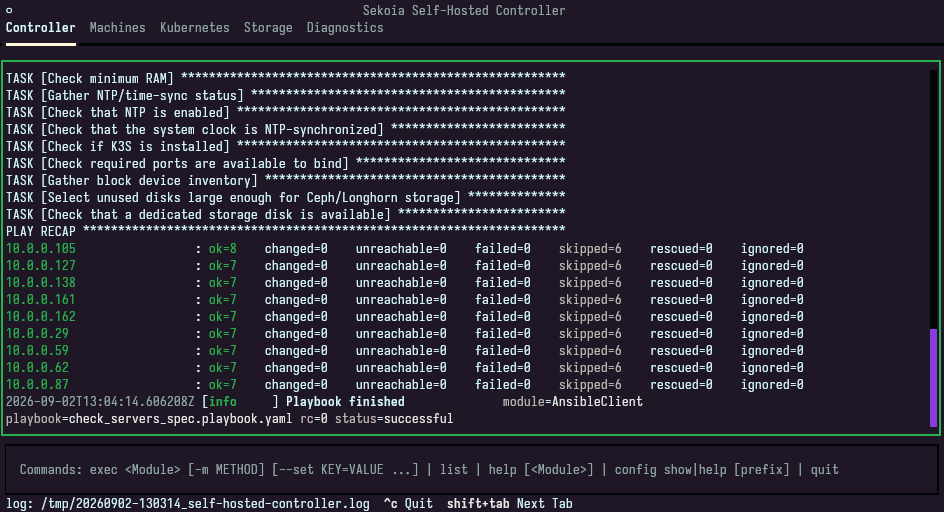
To run a command, enter it in the input and press Enter. Module output and log lines are interleaved in the log panel as the module runs.
While you type, the input suggests a matching command. Press Tab to accept the suggestion, and press Tab again to cycle through the other matches. Press Up and Down to browse the commands you already ran.
The interface runs one command at a time. A command submitted while another is still running is rejected rather than queued, and the interface tells you to wait for the first one to finish.
To copy the visible output, right-click the log panel. The interface copies the lines currently in the viewport to your clipboard and confirms with a notification. Lines scrolled out of the viewport are not copied. Redact the copied output before you share it.
Follow the platform installation
While PlatformInstallation runs, a progress bar replaces the command input and reports the completion percentage, the current step, the active provisioner, and the number of completed steps out of the total. The bar disappears when the module completes, and the command input returns.
DownloadReleaseFiles and PushImages display the same kind of bar, with the number of files downloaded or images pushed out of the total. The release download bar also reports the downloaded size.
Read the Machines tab
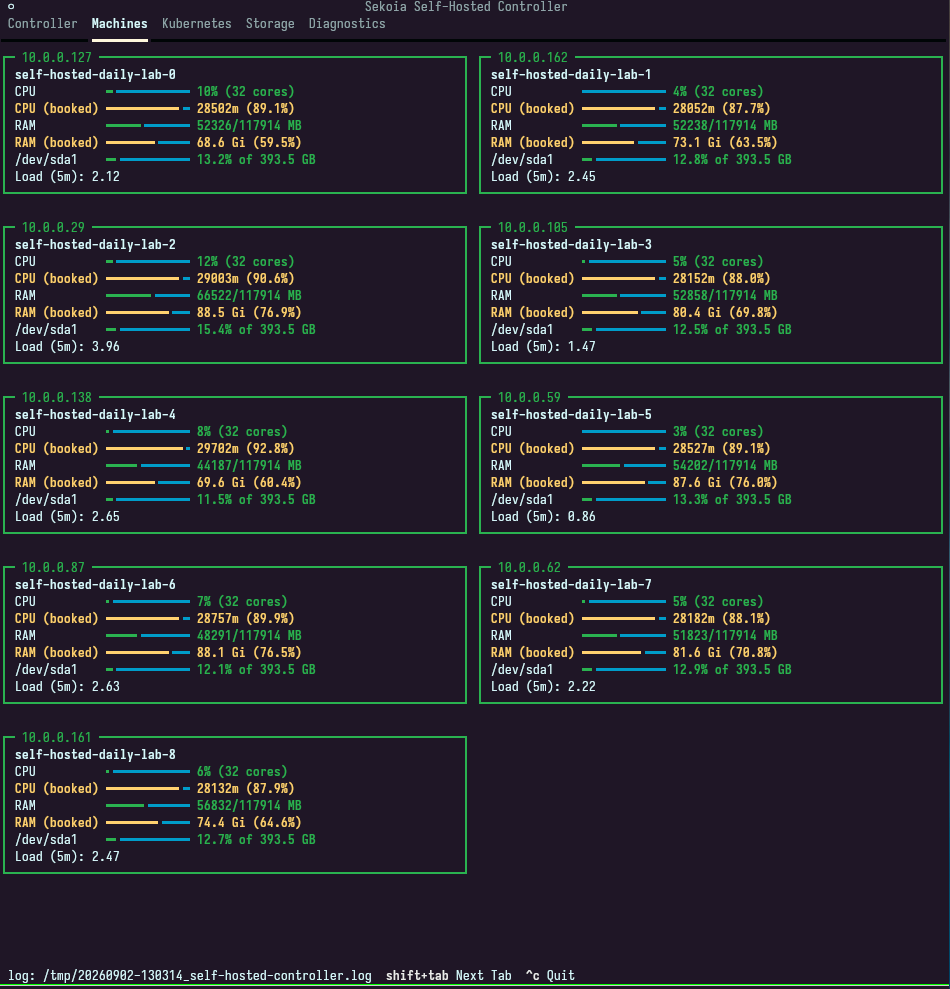
The Machines tab shows one card per host in utils.ansible.inventory, titled with the host address. Each card reports:
- Current CPU and RAM use, total capacity, disk use, and the five-minute load average.
- CPU (booked) and RAM (booked): the CPU and memory requests reserved by Kubernetes workloads on that machine.
Compare booked resources with current use to distinguish sustained workload pressure from capacity already reserved for workloads. High booked values leave less capacity for scheduling new pods even when current use is low.
The CPU, RAM, and disk bars indicate how close a metric is to saturation: green below 70%, yellow from 70%, and red from 90%. The booked rows are always yellow. A host that cannot be reached is reported as such on its own card.
The cards are laid out on a responsive grid, recomputed when you resize the terminal, and refreshed every 60 seconds. The data comes from the read-only GetServerStatus module, which changes nothing on the hosts.
Read the Kubernetes tab
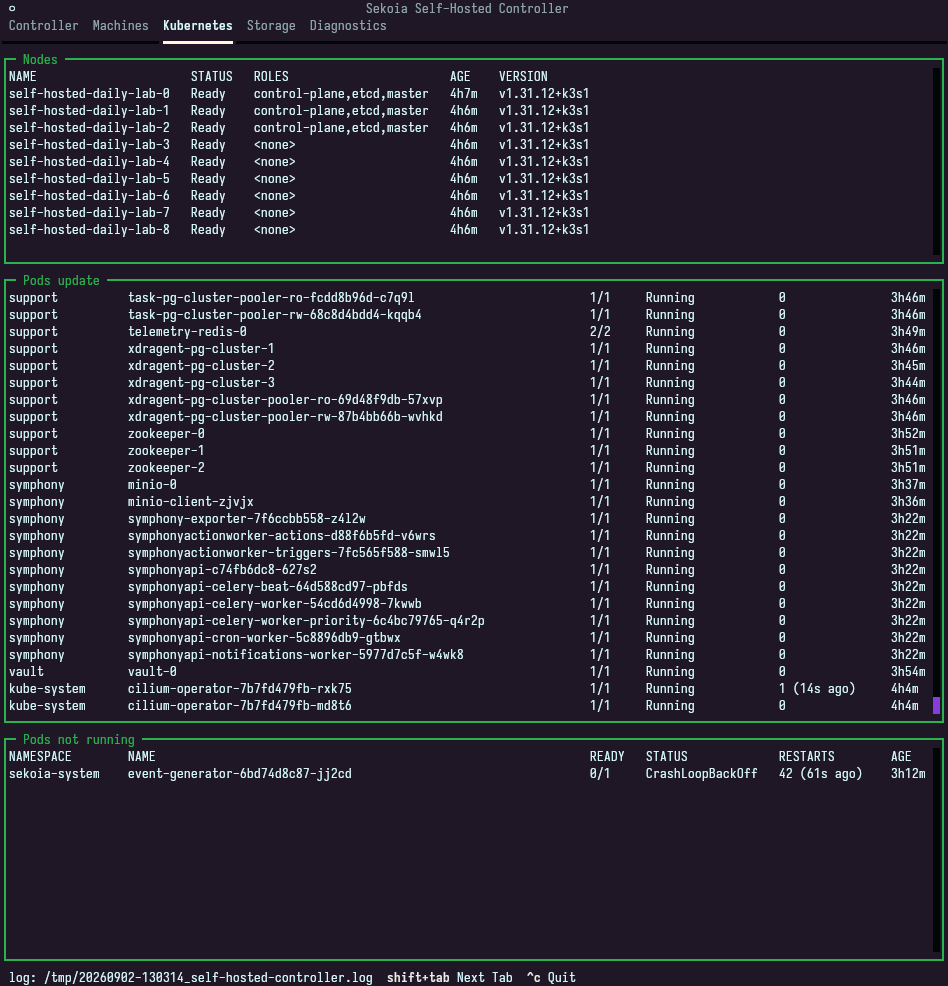
The Kubernetes tab renders three kubectl views of the cluster:
| Panel | Command |
|---|---|
| Nodes | kubectl get nodes |
| Pods update | kubectl get pods -A -w, streamed continuously |
| Pods not running | Every pod that is neither Running nor Completed |
Use the Pods not running panel first when the platform misbehaves: an empty panel means no pod is stuck.
Read the Storage tab
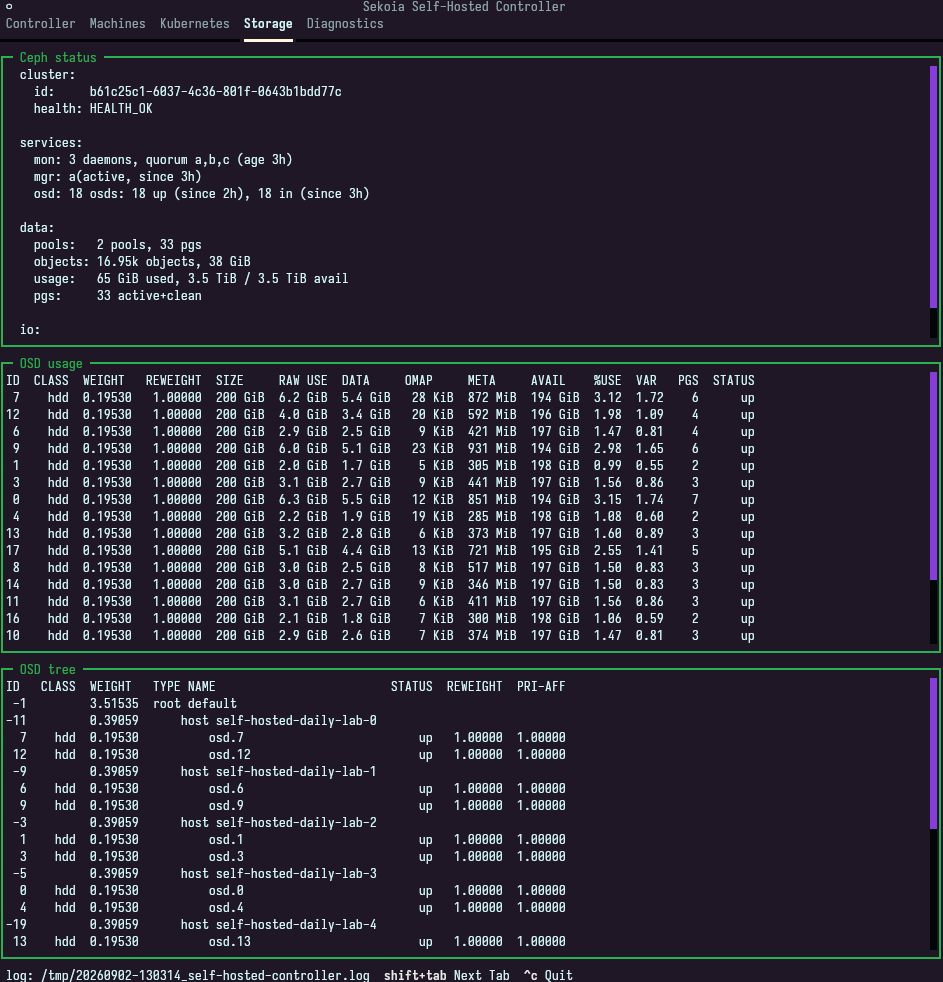
The Storage tab reports the state of the Ceph cluster through three stacked panels, each refreshed every 30 seconds:
| Panel | What it reports |
|---|---|
| Ceph status | Overall cluster health, monitors, managers, OSDs, and current activity (ceph -s). |
| OSD usage | Per-OSD capacity and utilization (ceph osd df). |
| OSD tree | The OSD topology per host (ceph osd tree). |
The panels run against the rook-ceph-tools deployment in the rook-ceph namespace, so they need a healthy cluster and a valid kubeconfig.
Start with Ceph status. A healthy cluster reports HEALTH_OK. If it reports a warning or error, use OSD usage to identify a full or unavailable OSD and OSD tree to locate it on a host.
Run a diagnostic from the Diagnostics tab
The Diagnostics tab lists the diagnostic targets available on the SHC, one per rule file. The first entry of the list, Run all diagnostics, is separated from the targets and runs every target in one result view.
To run a target:
- Select the tab with
Shift+Tabuntil Diagnostics is active. - Select a target in the Available diagnostics list and press
Enter.
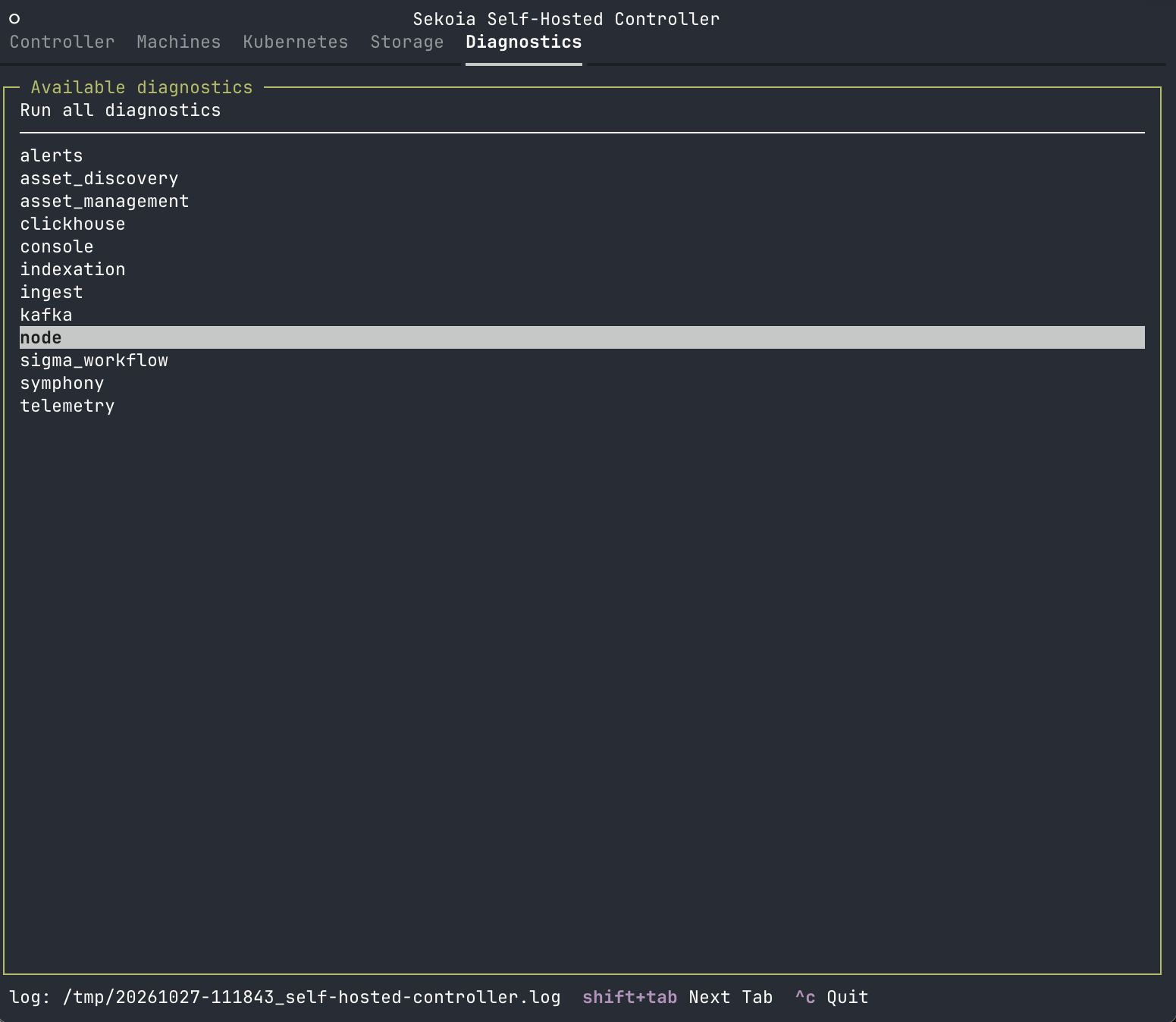
The interface opens a result view with one collapsible panel per rule of that target, in file order. Each panel starts as NOT_STARTED, switches to RUNNING while its rule is evaluated, and ends on OK, WARN, or CRIT. Rules are evaluated one at a time, and the first panel to reach a result is focused automatically so you can navigate from the keyboard.
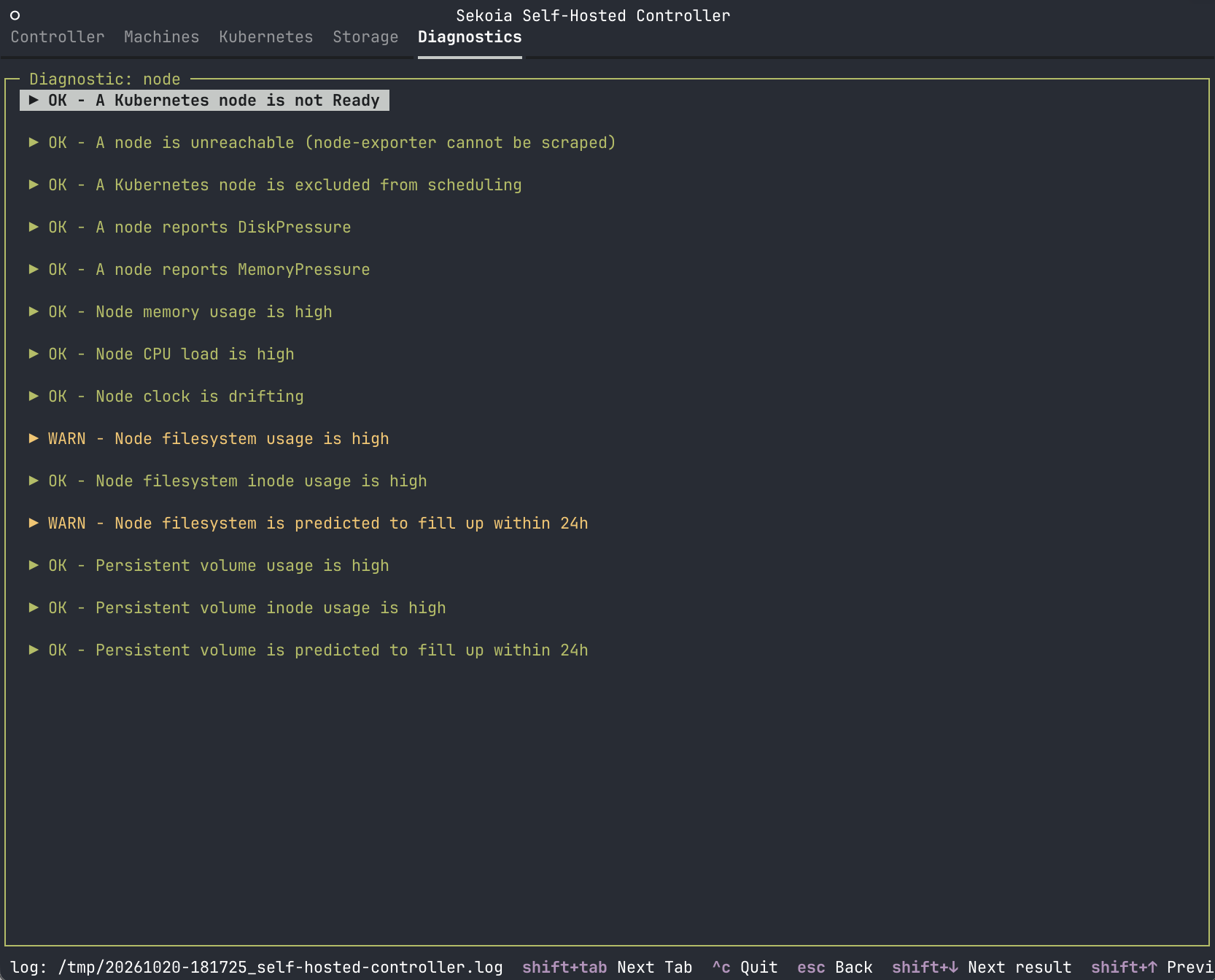
A completed panel holds a results table with the measured values and their labels, and a Likely causes & remediation section when the status is WARN or CRIT. Sort the table by selecting a column header. To copy the full report of the current run to your clipboard, right-click the result view or the table.
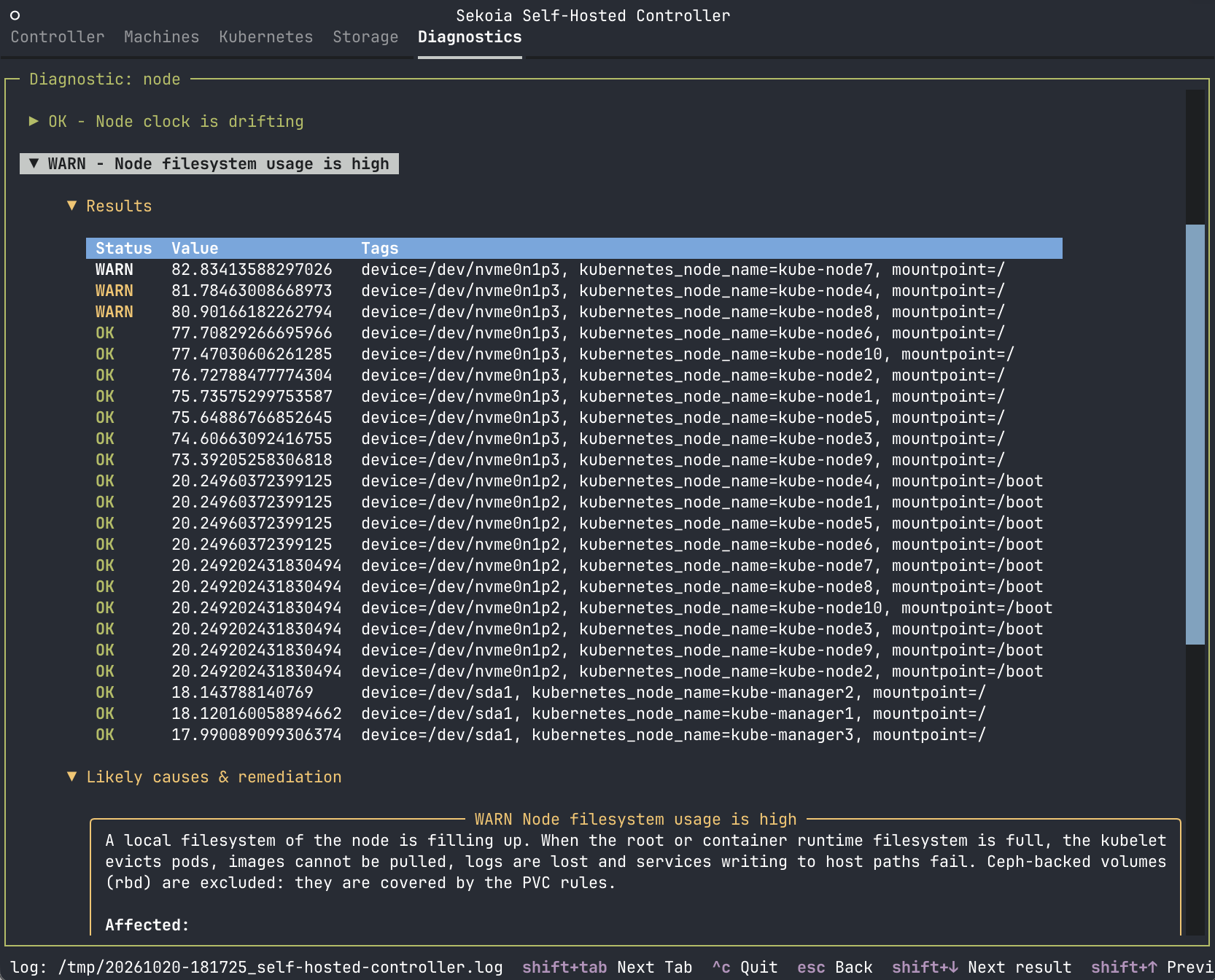
To return to the target list, press Escape.
Run all diagnostic targets
To check every platform area in one run:
- Select the tab with
Shift+Tabuntil Diagnostics is active. - Select Run all diagnostics at the start of the Available diagnostics list and press
Enter.
The interface opens a result view titled Diagnostic: all. It runs the targets one after the other in alphabetical order, like the Diagnostic module of the CLI, and evaluates their rules one at a time. Each panel title starts with the name of its target, and a divider separates the panels of two targets. The copied report keeps these prefixes, so you can tell which target each rule belongs to.
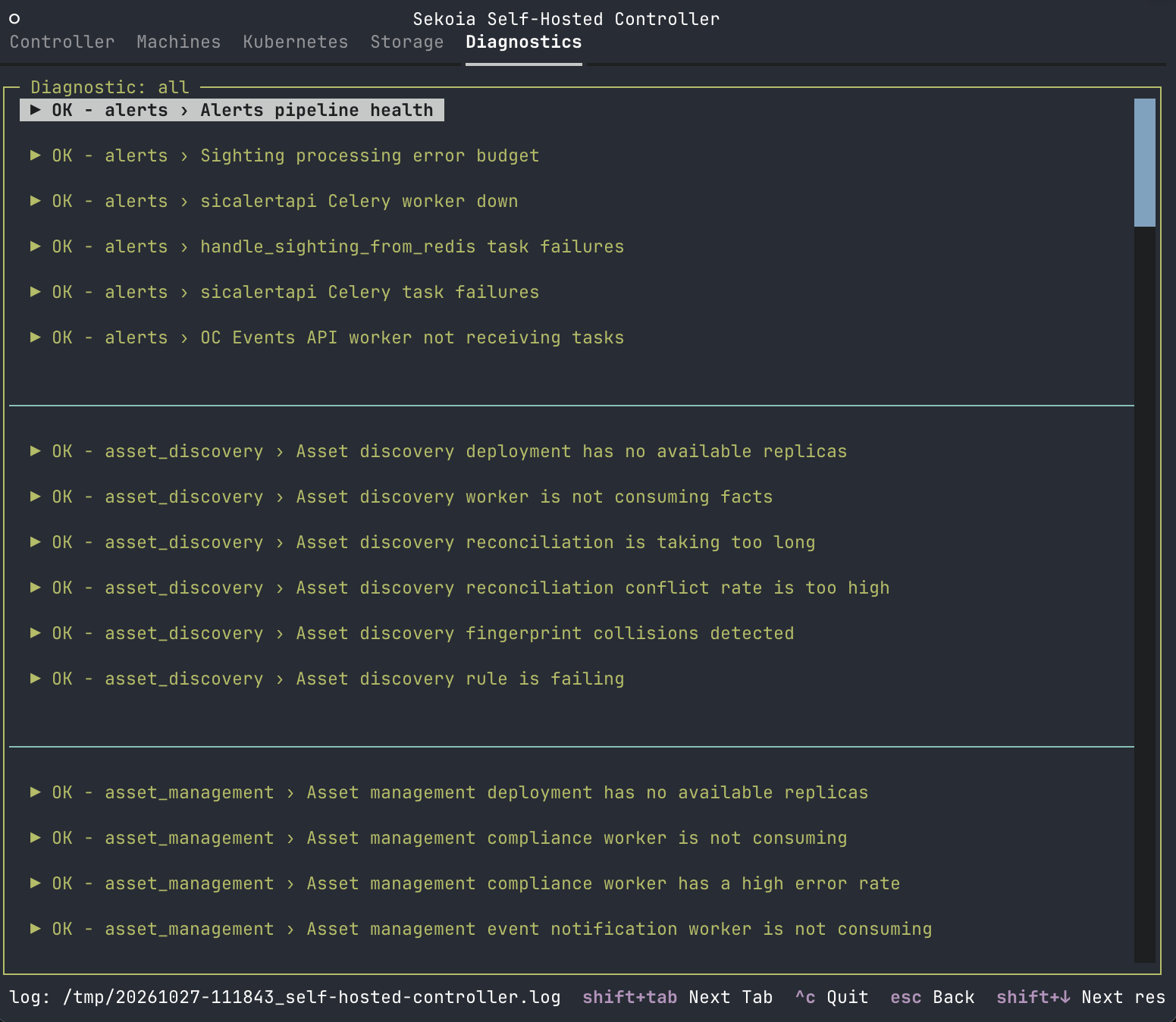
When a rule file of a target fails to load, the interface shows a Failed to load <target> error notification, skips that target, and runs the remaining ones.
No diagnostics listed
When the tab reports that no diagnostics were found, the rule files are missing from the SHC image. Verify the image reference you set in DOCKER_IMAGE, then contact Sekoia support with the path shown in the warning.
When you escalate a diagnostic result, copy the full report and attach the timestamped SHC log shown at the bottom of the TUI. Include the target name, or state that you ran all diagnostics, and the time at which you ran it. Before you share them, redact the credentials, tokens, private hostnames, and customer data that the report or the log contain.
Result
You can drive the SHC, follow an installation, inspect your machines, cluster, and storage, and run platform diagnostics from one interface without leaving the orchestration node. Use the one-shot CLI when the same operations need to run in a script or unattended process.
Related links
- The deployment process: The modules the SHC exposes and the installation execution plan.
- Run platform diagnostics: The diagnostic targets and how to read a result.
- Debug your deployment: Full SHC debug command reference with remediation steps.
- Monitor your platform: Observability stack and daily monitoring workflows.