Set up the first administrator account
During the installation, the self-hosted-controller (SHC) displays the platform access credentials in the terminal. This guide walks you through retrieving those credentials, logging in, creating your first community, and allocating your subscription.
Before you begin
- You completed the post-deployment validation steps in Deploy the platform.
- You have the platform URL configured in
global.host(for example,https://app.sekoia.local). - You have the license file provided by Sekoia for your subscription.
Retrieve the initial credentials
During the installation, the PlatformAccess module displays the access credentials in the terminal output, under an Instance access title. It runs after the platform is installed, before InstanceBootstrap and ScaleServices, so the credentials are not the last lines of the installation output.
The platform installer generates these credentials at installation time and stores them in Vault. PlatformAccess reads them from Vault each time it runs, so you can display them again with the same command.
The output contains credentials in clear
The output holds the administrator passwords of the Sekoia platform, ArgoCD, and Grafana, and the API key of the instance administrator. Run the command only when you need them, on a terminal that nobody else can see, and never paste its output in a ticket, a chat, or a screenshot. In the TUI, the output is also written to the run log file. See Use the SHC interface.
Example output
Instance access

argocd
  url:      https://<global.delivery_host>/argo
  user:     admin
  password: <password>

grafana
  url:      https://<global.delivery_host>/grafana
  user:     admin
  password: <password>

sekoiaio
  url:      https://<global.host>/user
  user:     instanceadmin@sekoia.io
  password: <password>
  apikey:   <API key>
The output lists three services: the Sekoia platform (sekoiaio), the ArgoCD GitOps console (argocd), and the Grafana observability dashboard (grafana). The URLs come from your config.yml: the platform is served on global.host, and ArgoCD and Grafana under the /argo and /grafana paths of global.delivery_host. For example, with delivery_host: "admin.example.com", the Grafana URL is https://admin.example.com/grafana. The sekoiaio entry also gives the apikey of the instance administrator, used by the API calls of this guide. Save the three sets of credentials in a secure location.
Credentials are auto-generated
Passwords and API keys are randomly generated at installation time. They are displayed once during the installation. If you did not save them, use the command in the next step to redisplay them.
To display the credentials, run:
exec PlatformAccess
Example output (sensitive)
Instance access

argocd
  url:      https://admin.sekoia.local/argo
  user:     admin
  password: <PASSWORD>

grafana
  url:      https://admin.sekoia.local/grafana
  user:     admin
  password: <PASSWORD>

sekoiaio
  url:      https://app.sekoia.local/user
  user:     instanceadmin@sekoia.io
  password: <PASSWORD>
  apikey:   <API_KEY>
The output provides access to three services: the ArgoCD GitOps console (argocd) and the Grafana observability dashboard (grafana), both served under global.delivery_host, and the Sekoia platform (sekoiaio), served under global.host. The sekoiaio entry also holds the API key of the instance administrator. Save these credentials in a secure location, such as a password manager.
Log in to the platform
- Open your browser and navigate to the
sekoiaioURL from thePlatformAccessoutput (for example,https://app.sekoia.local/user). - In the Email field, enter the
sekoiaiouser (instanceadmin@sekoia.io). - In the Password field, enter the corresponding password.
- Select Log in.
You are now logged in to the Administration Community. This community is dedicated to managing users and communities across your entire instance. It is not a workspace for security operations.
Community overview
Your instance contains two built-in communities after installation, each with a built-in account:
| Community | Built-in account | Purpose |
|---|---|---|
| Administration Community | instanceadmin@sekoia.io |
Manages users and communities across the instance. Use this community for administrative tasks only. |
| sekoia community | admin@sekoia.io |
Reserved for internal platform operations: it holds the permissions of the platform applications. Do not use or modify this community or its account. PlatformAccess does not display the credentials of this account. |
You must create a separate community to run your security operations.
Create your community
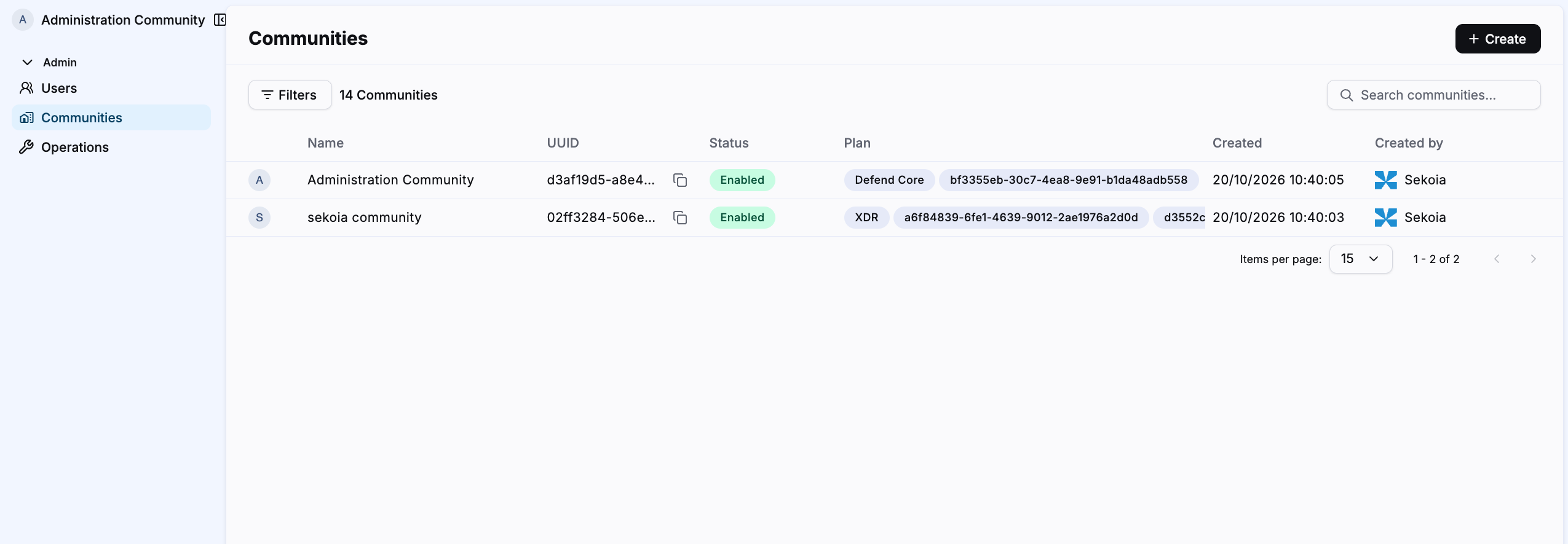
- In the left navigation panel, select Communities.
- In the top right corner, select + Create.
- In the Name field, enter a name for your community.
- In the Description field, enter a description (optional).
- In the Administrators field, add
instanceadmin@sekoia.ioas a community administrator. - Select Create.
Your new community appears in the list alongside the two built-in communities.
Allocate your subscription
Your community has no active subscription until you import the license file provided by Sekoia.
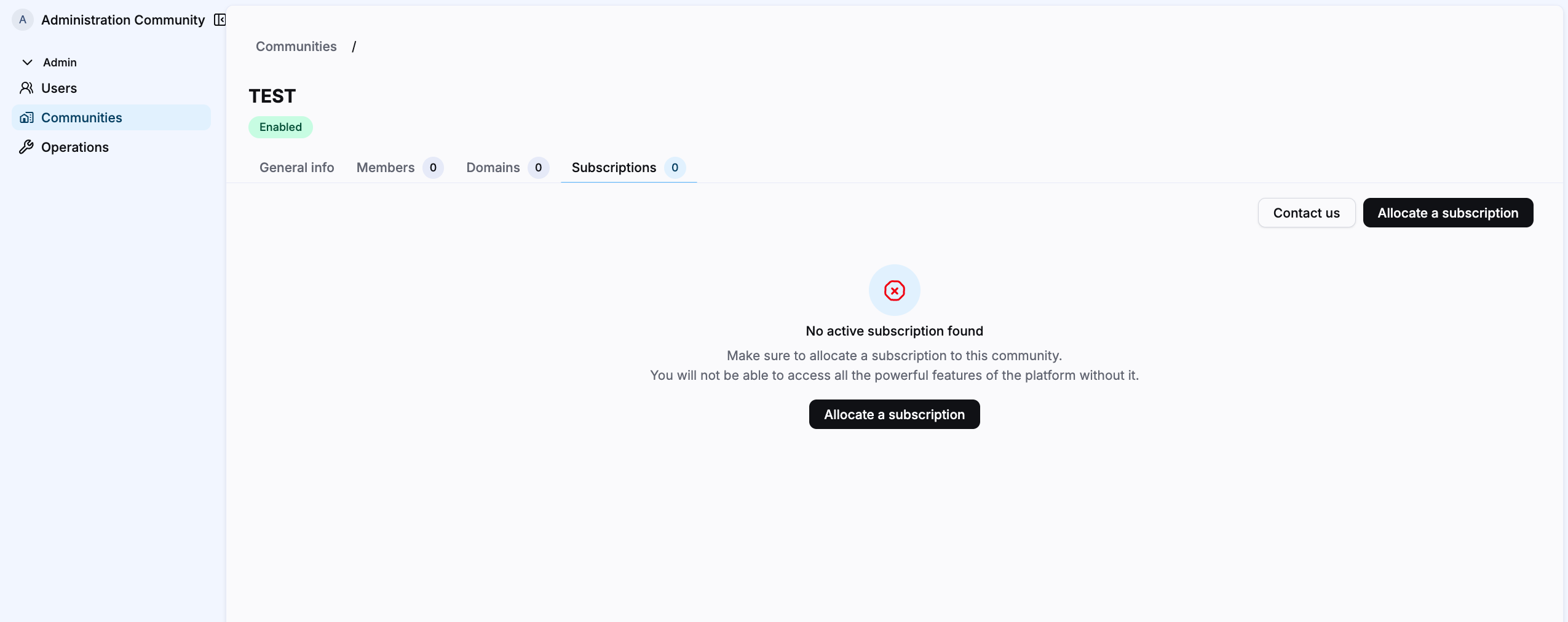
- In the communities list, select your community.
- Select the Subscriptions tab.
- Select Allocate a subscription.
- Select Import a subscription.
- Select the license file provided by Sekoia for your deployment.
- Select Import.
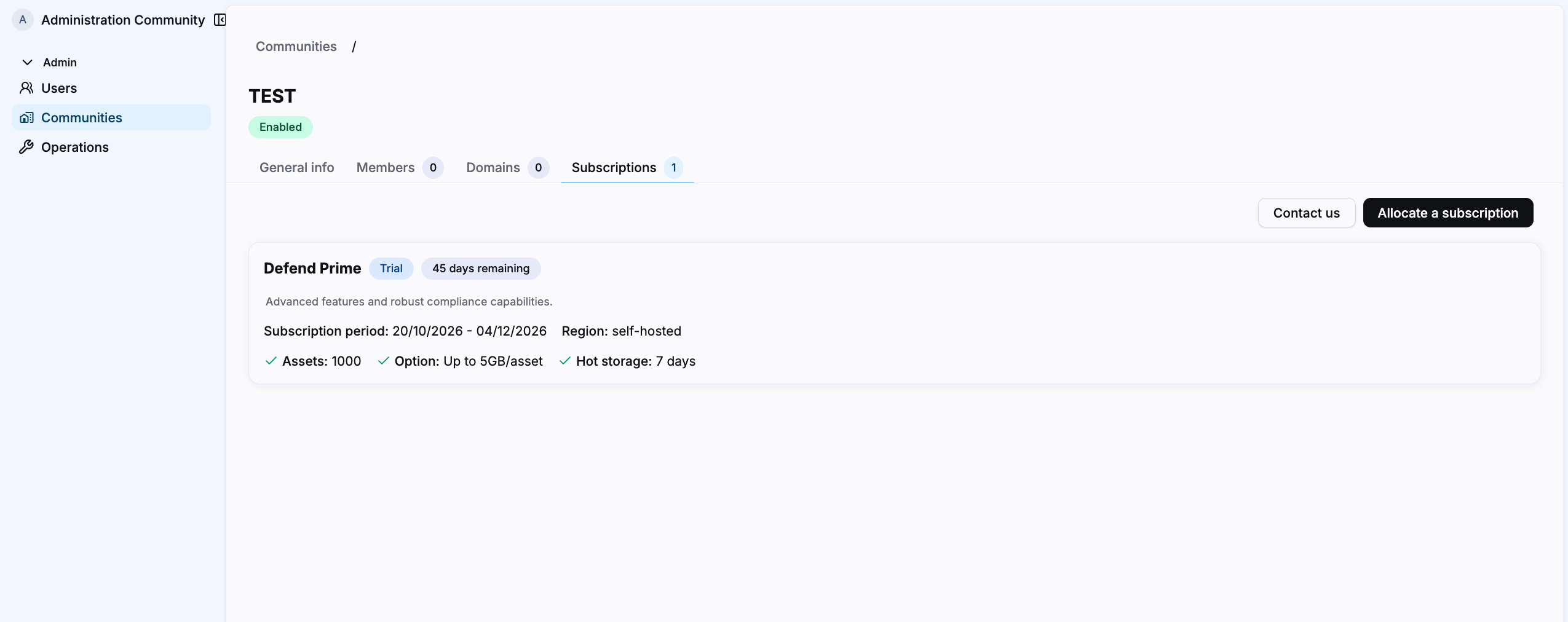
Your subscription appears in the Subscriptions tab with its tier name, validity period, asset limit, and storage option.
Connect to your community
- In the top left corner of the interface, select the workspace selector.
- In the list, select your community.
You are now connected to your community and have access to the full Sekoia platform capabilities within your subscription scope.
Configure SSO (optional)
Sekoia Self-Hosted supports Single Sign-On via OpenID Connect. SSO is configured per community and requires two steps: registering the SSO domain via API, then configuring your identity provider in the community settings.
Step 1: Retrieve your community UUID
- Connect to your target community.
- Navigate to Settings > General.
-
Look at the URL in your browser. The community UUID is the segment between
/communities/and/community-details.https://app.sekoia.local/communities/<community-uuid>/community-detailsCopy and save this UUID.
Step 2: Retrieve the platform API key
On the orchestration node, run:
exec PlatformAccess
The command displays the platform access credentials. Copy the apikey value of the sekoiaio service. Handle it as a password.
Step 3: Register the SSO domain
Run the following API call from the orchestration node, replacing the placeholders with your values:
curl 'https://<PLATFORM-DOMAIN>/api/v1/communities/<COMMUNITY-UUID>/domains' \
  -X 'PUT' \
  -H 'Authorization: Bearer <API-KEY>' \
  -H 'Content-Type: application/json' \
  --data-raw '{"domain":"<SSO-DOMAIN>","validated":false}' \
  --cacert '<CA-BUNDLE>'
| Placeholder | Value |
|---|---|
<PLATFORM-DOMAIN> |
The FQDN configured in global.host (for example, app.sekoia.local) |
<COMMUNITY-UUID> |
The UUID retrieved in step 1 |
<API-KEY> |
The API key retrieved in step 2 |
<SSO-DOMAIN> |
The domain name to register for SSO (for example, example.com) |
<CA-BUNDLE> |
The path of the PEM bundle of the private certificate authority that signs the platform certificate. If a certificate authority that the orchestration node already trusts signs it, remove the --cacert option. |
Self-signed test certificate
curl cannot verify a self-signed certificate. Only on a test instance that uses a self-signed certificate, replace --cacert '<CA-BUNDLE>' with --insecure. This option disables the verification of the server identity, while the request sends the API key of the instance administrator: never use it on a production instance.
Step 4: Verify the domain registration
- In your community, navigate to Settings > Security.
- Confirm that your domain appears in the list with its validation status.
Step 5: Configure your identity provider
- In your community, navigate to Settings > SSO.
- Enter your identity provider's client ID, client secret, and authorization endpoint.
- Select Save.
For the full OpenID Connect configuration, see Configure SSO with OpenID Connect.
Related links
- Deploy the platform: Deployment steps and post-deployment validation.
- Monitor your platform: How to set up alerts and dashboards for daily operations.
- Release notes v1.0.1: Feature scope and functional constraints.