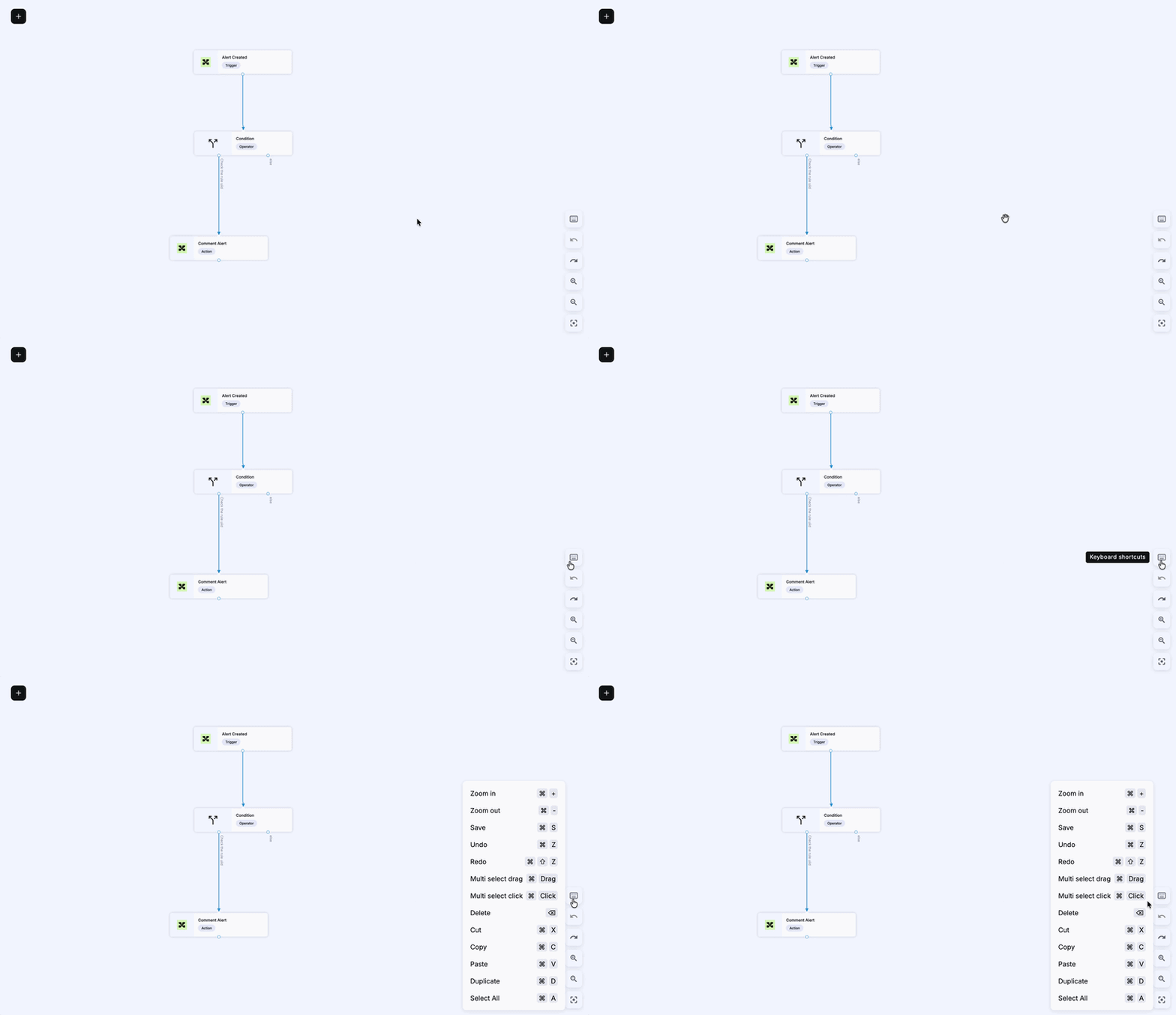
The playbook canvas supports keyboard shortcuts for selecting, editing, and navigating nodes, letting you build and iterate on automations without switching to your mouse. A built-in shortcuts reference menu is available directly on the canvas.
In-canvas reference
Select the shortcuts menu icon on the canvas to display the full shortcut list without leaving the editor.
Navigation
Action
Windows / Linux
macOS
Zoom in
Ctrl + +
⌘ + +
Zoom out
Ctrl + -
⌘ + -
Zoom in / out
Ctrl + Mouse Wheel
Ctrl + Mouse Wheel
Pan the canvas
Space + Drag
Space + Drag
Node selection
Action
Windows / Linux
macOS
Select all nodes
Ctrl + A
⌘ + A
Select multiple nodes (lasso)
Ctrl + Drag
⌘ + Drag
Add a node to the selection
Ctrl + Click
⌘ + Click
Node operations
Action
Windows / Linux
macOS
Cut
Ctrl + X
⌘ + X
Copy
Ctrl + C
⌘ + C
Paste
Ctrl + V
⌘ + V
Duplicate
Ctrl + D
⌘ + D
Delete
Delete
⌫
Playbook editing
Action
Windows / Linux
macOS
Undo
Ctrl + Z
⌘ + Z
Redo
Ctrl + Shift + Z or Ctrl + Y
⌘ + Shift + Z or ⌘ + Y
Save
Ctrl + S
⌘ + S
Related articles
Build a playbook: How to create and configure nodes in the playbook canvas.